# Brand Kits

<span style="color: rgb(0, 0, 0); white-space: pre-wrap;">The </span>****BrandKit**** <span style="color: rgb(0, 0, 0);">module allows you to seamlessly store and manage assets for multiple brands in one place.</span>

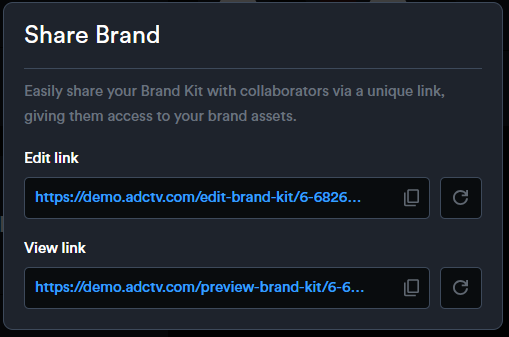
<span style="color: rgb(0, 0, 0); white-space: pre-wrap;">Share your Brand Kit with collaborators through a unique link, giving them access to view or upload brand assets as needed. </span>

<span style="color: rgb(0, 0, 0);">Easily upload logos, define color palettes, add fonts, and include other media such as images and videos.</span>

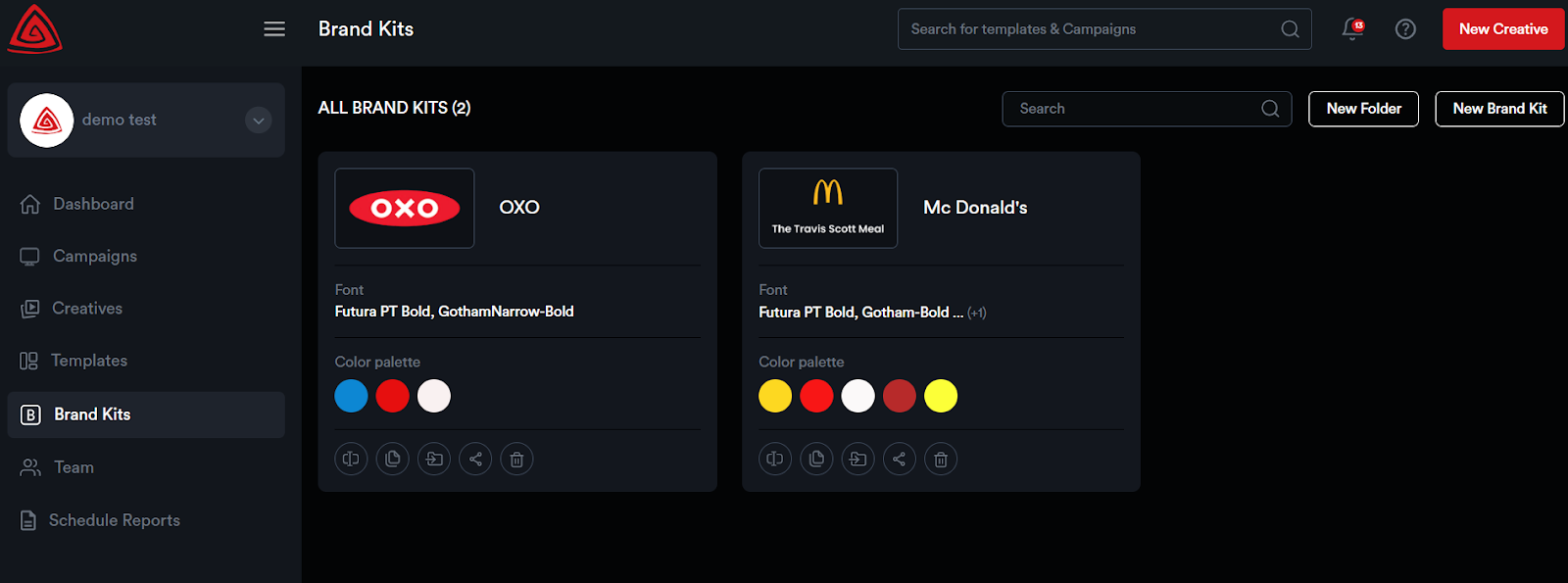
<span style="color: rgb(0, 0, 0); white-space: pre-wrap;">On the Dashboard, click </span>****‘Brand Kits’****<span style="color: rgb(0, 0, 0); white-space: pre-wrap;"> from the navigation bar on the left.</span>

![](https://docs.adctv.com/uploads/images/gallery/2025-09/embedded-image-7qafdbc4.png)

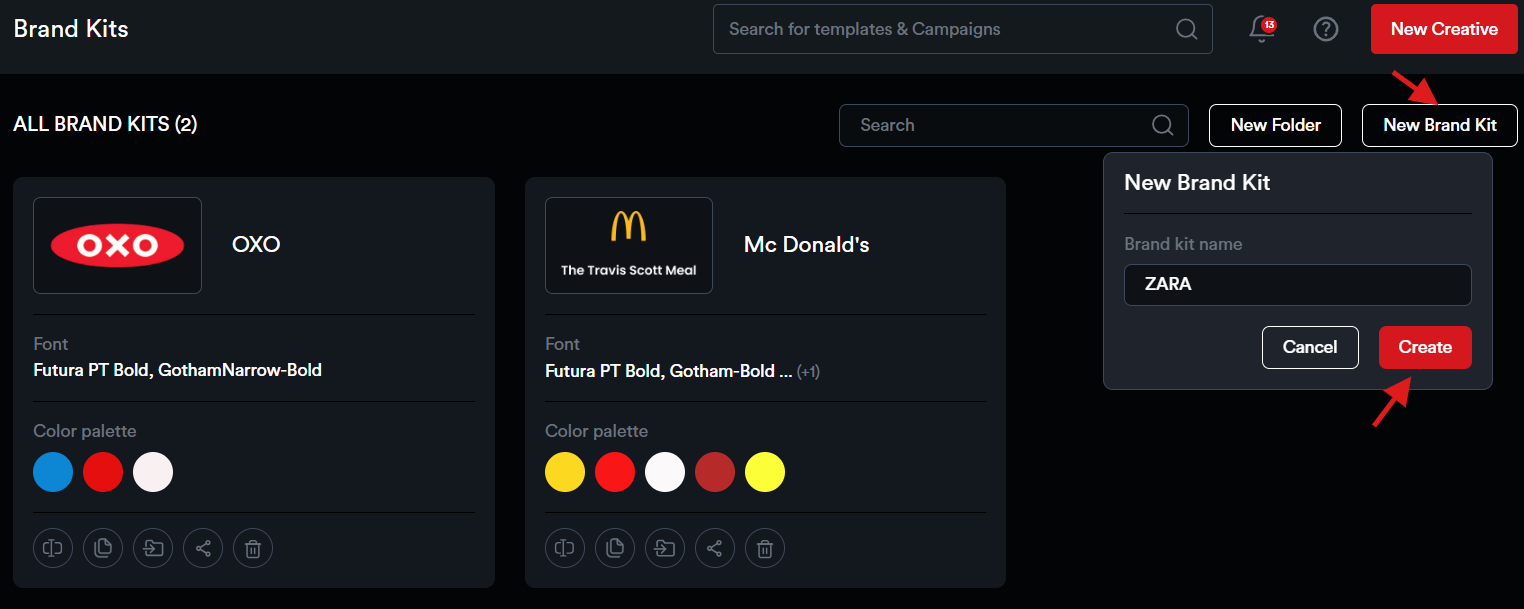
<span style="color: rgb(0, 0, 0);">To create a new Brand Kit, click on ‘New Brand Kit’, enter a name, and then click ‘Create’.</span>

![](https://docs.adctv.com/uploads/images/gallery/2025-09/embedded-image-izwmxqbx.png)

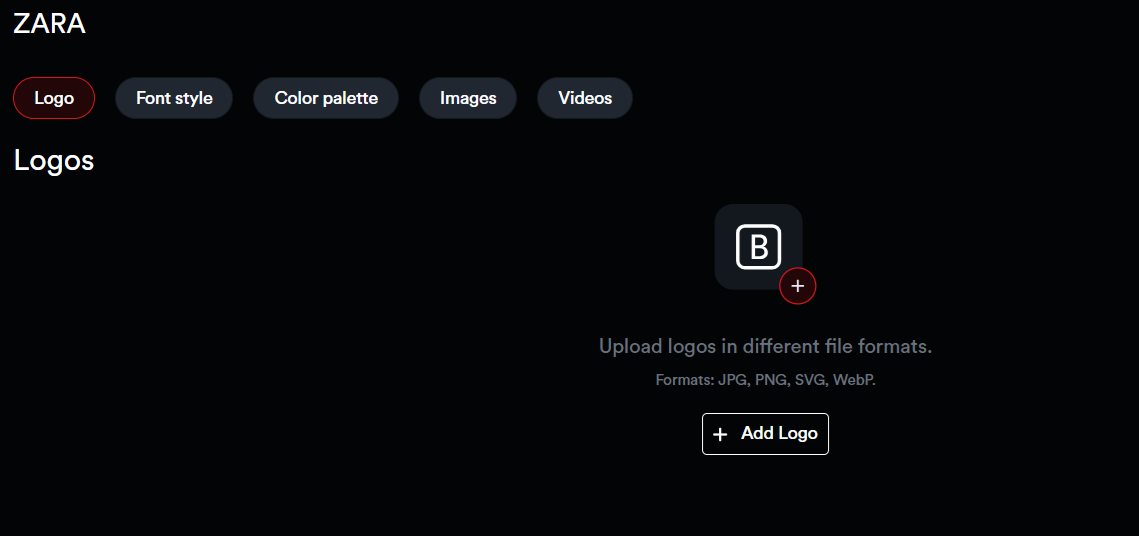
<span style="color: rgb(0, 0, 0);">You're now inside the Brand Kit. Here, you can add logos, fonts, colors, images, and videos to customize your brand kit.</span>

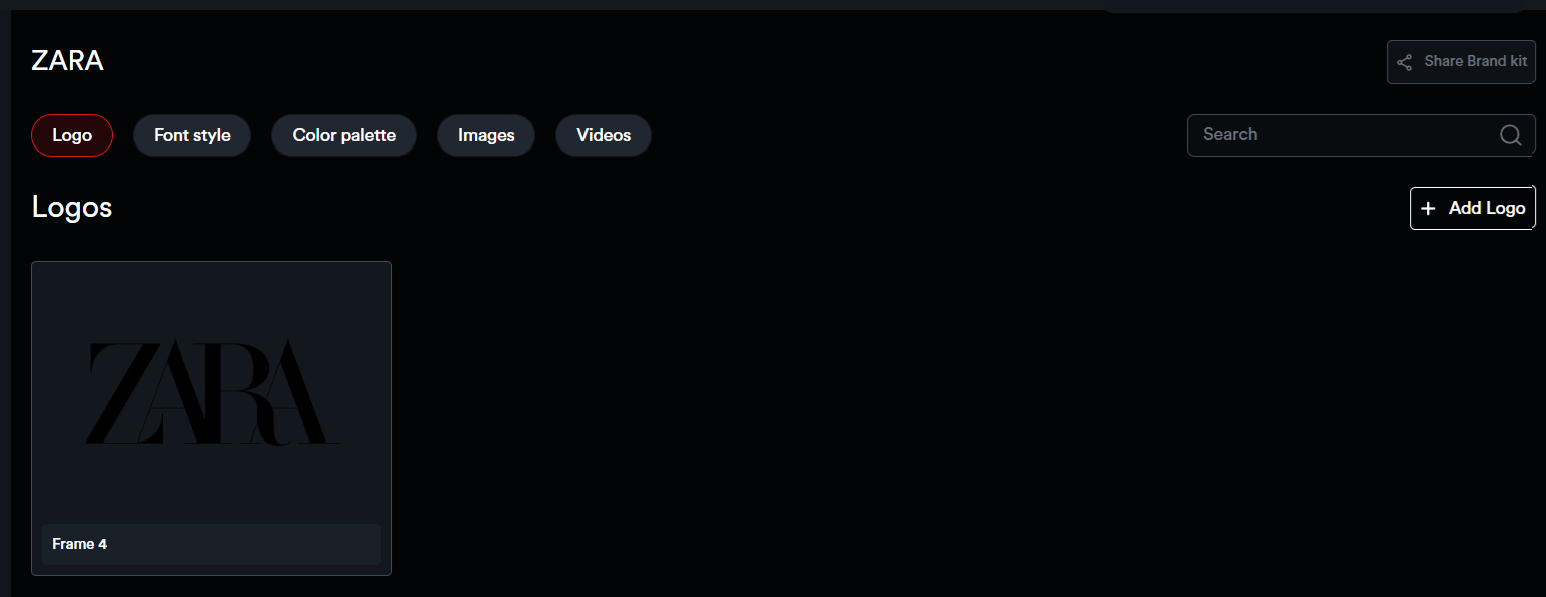
<span style="color: rgb(0, 0, 0); white-space: pre-wrap;">Click </span>****‘Add Logo’****<span style="color: rgb(0, 0, 0); white-space: pre-wrap;"> to upload your brand logos.</span>

![](https://docs.adctv.com/uploads/images/gallery/2025-09/embedded-image-xec3unjf.png)

![](https://docs.adctv.com/uploads/images/gallery/2025-09/embedded-image-jw6hfhnb.png)

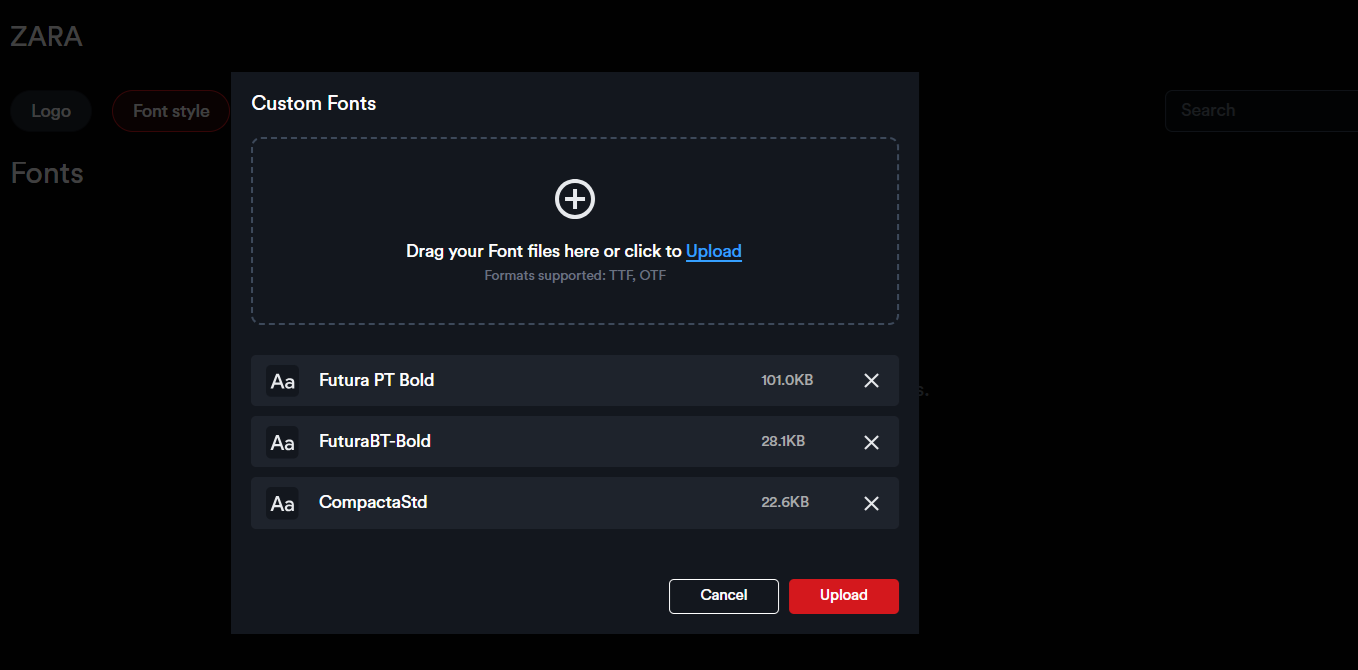
<span style="color: rgb(0, 0, 0); white-space: pre-wrap;">Click </span>****‘Add Fonts’****<span style="color: rgb(0, 0, 0); white-space: pre-wrap;"> to select and upload font files.</span>

![](https://docs.adctv.com/uploads/images/gallery/2025-09/embedded-image-1avnbklo.png)

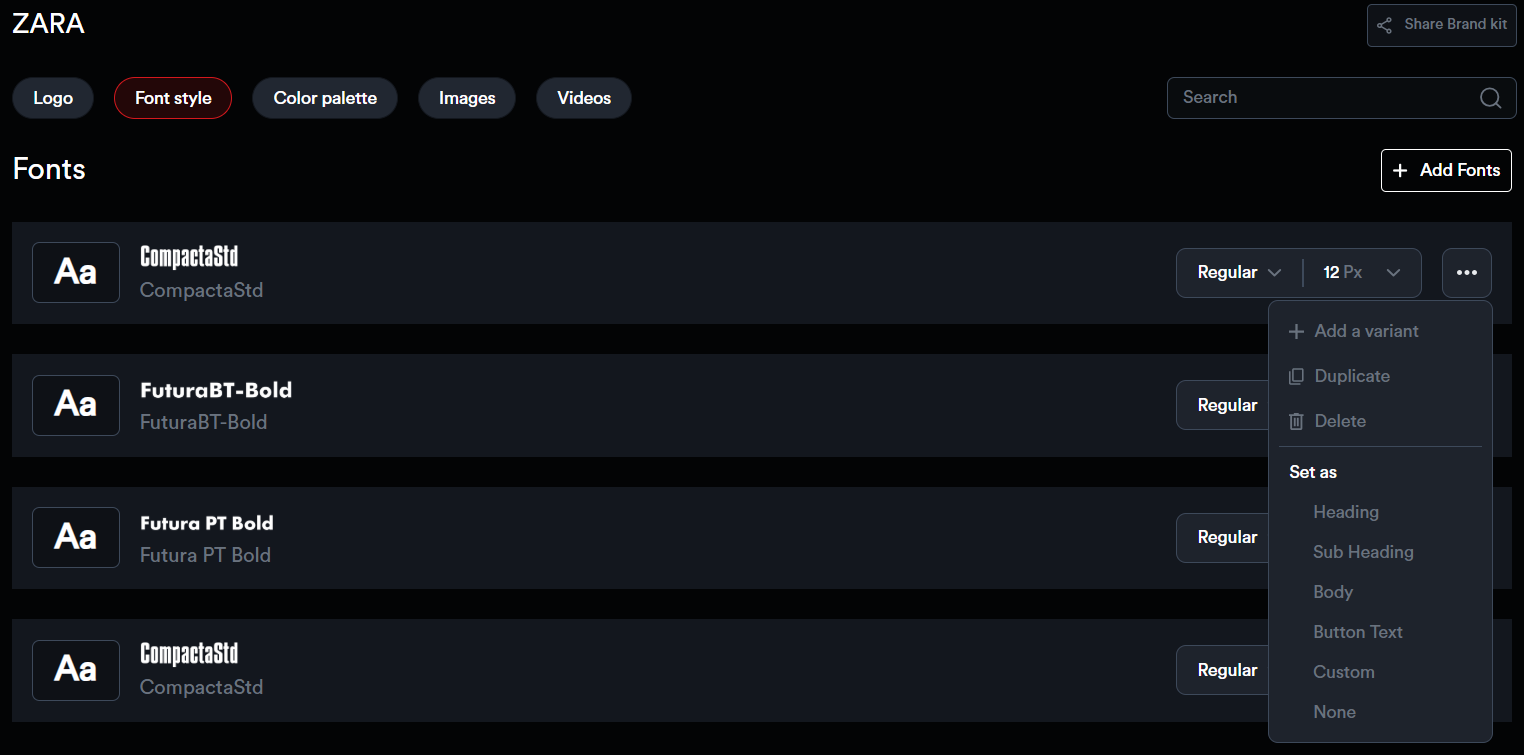
<span style="color: rgb(0, 0, 0);">For each font added to the kit, users can create a variant, duplicate it, or delete it. Fonts can also be categorized by setting them as Heading, Subheading, Body, Button Text, Custom, or None.</span>

![](https://docs.adctv.com/uploads/images/gallery/2025-09/embedded-image-y59hgoj2.png)

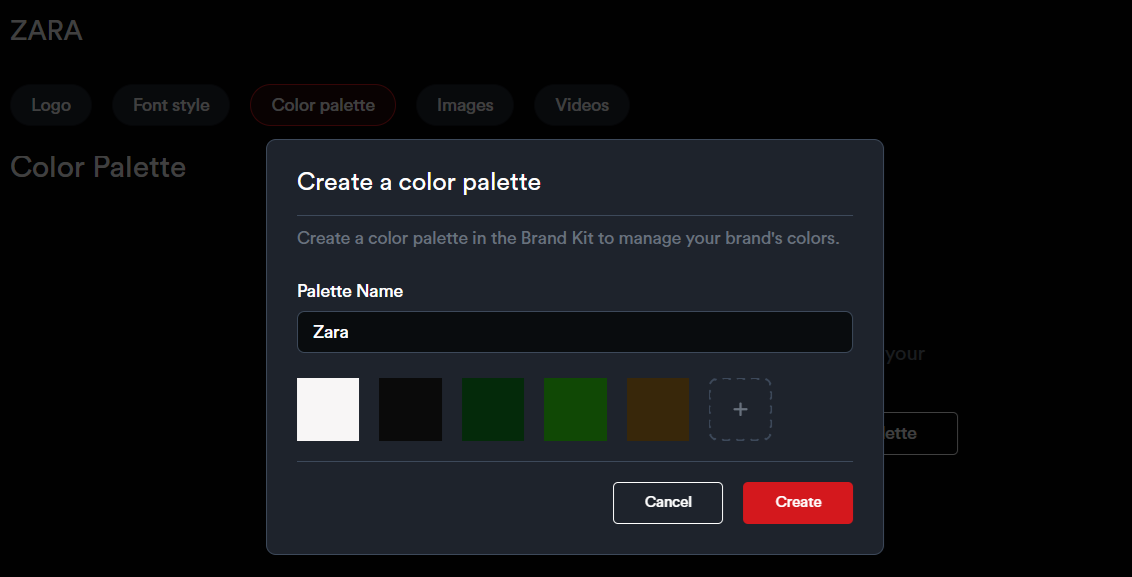
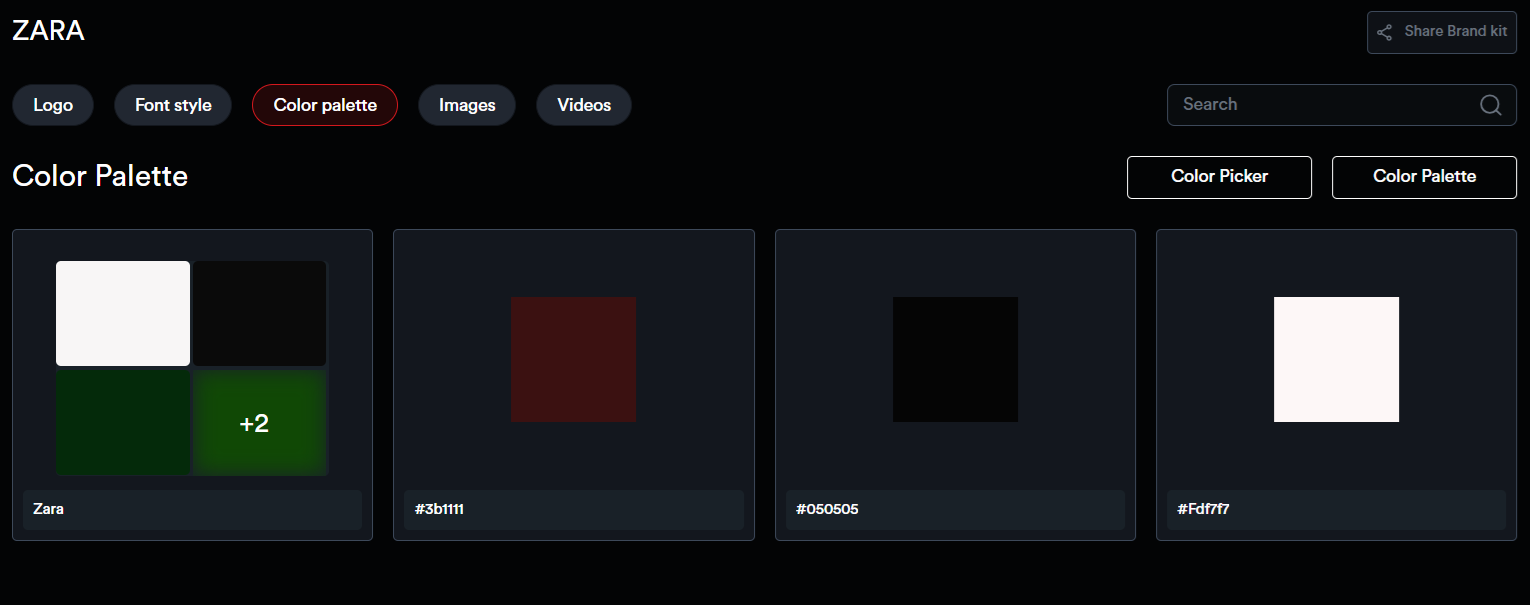
<span style="color: rgb(0, 0, 0); white-space: pre-wrap;">Under the </span>****Color Palette****<span style="color: rgb(0, 0, 0); white-space: pre-wrap;"> section, use the color picker to select and save individual colors, or create complete color palettes.</span>

![](https://docs.adctv.com/uploads/images/gallery/2025-09/embedded-image-vlshjlit.png)

![](https://docs.adctv.com/uploads/images/gallery/2025-09/embedded-image-beg2baep.png)

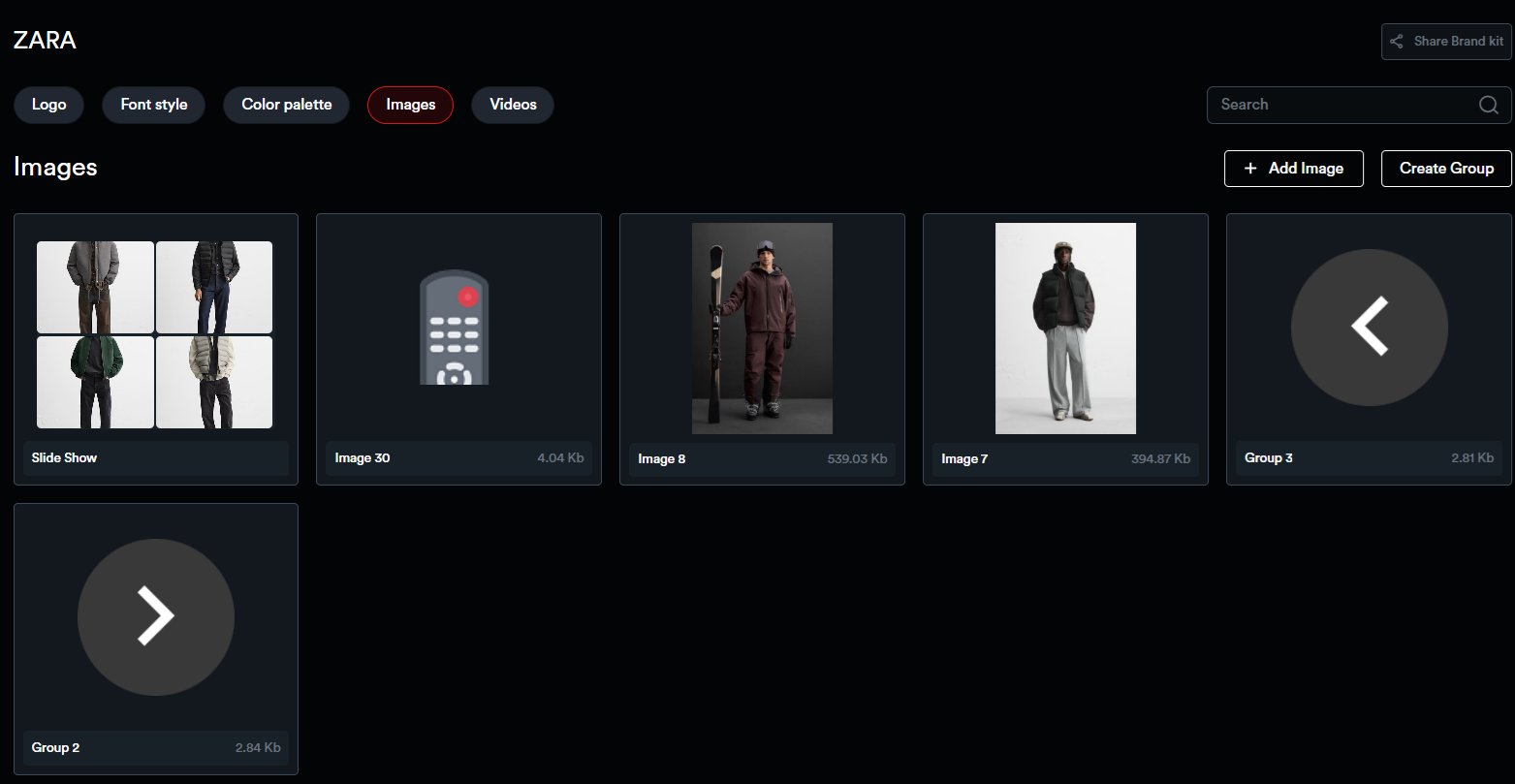
<span style="color: rgb(0, 0, 0); white-space: pre-wrap;">In the </span>****Images**** <span style="color: rgb(0, 0, 0); white-space: pre-wrap;">section, users can upload and save image assets for the brand. </span>
![](https://docs.adctv.com/uploads/images/gallery/2025-09/embedded-image-demuwgyy.png)

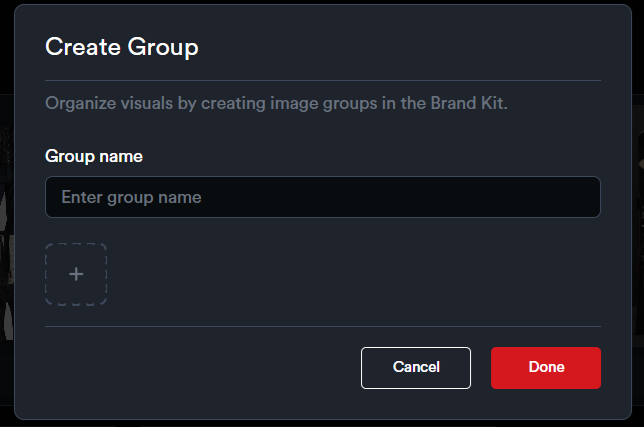
<span style="color: rgb(0, 0, 0); white-space: pre-wrap;">These assets can also be organized into different groups. To create a group, click on ‘Create Group’, enter a name, and upload images directly from the popup. </span>
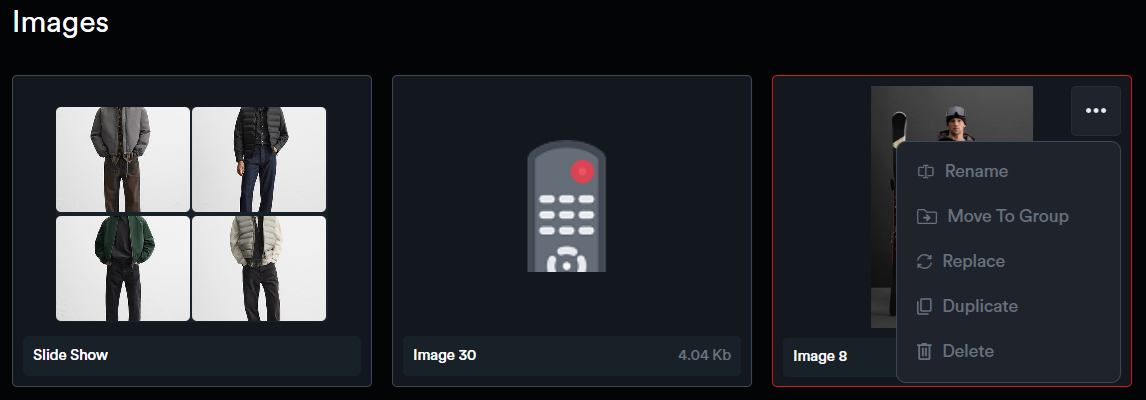
![](https://docs.adctv.com/uploads/images/gallery/2025-09/embedded-image-oduisn0v.png)

<span style="color: rgb(0, 0, 0);">Each uploaded image includes options to Rename, Move to Group, Replace, Duplicate, or Delete.</span>

![](https://docs.adctv.com/uploads/images/gallery/2025-09/embedded-image-ejkmcgtv.png)

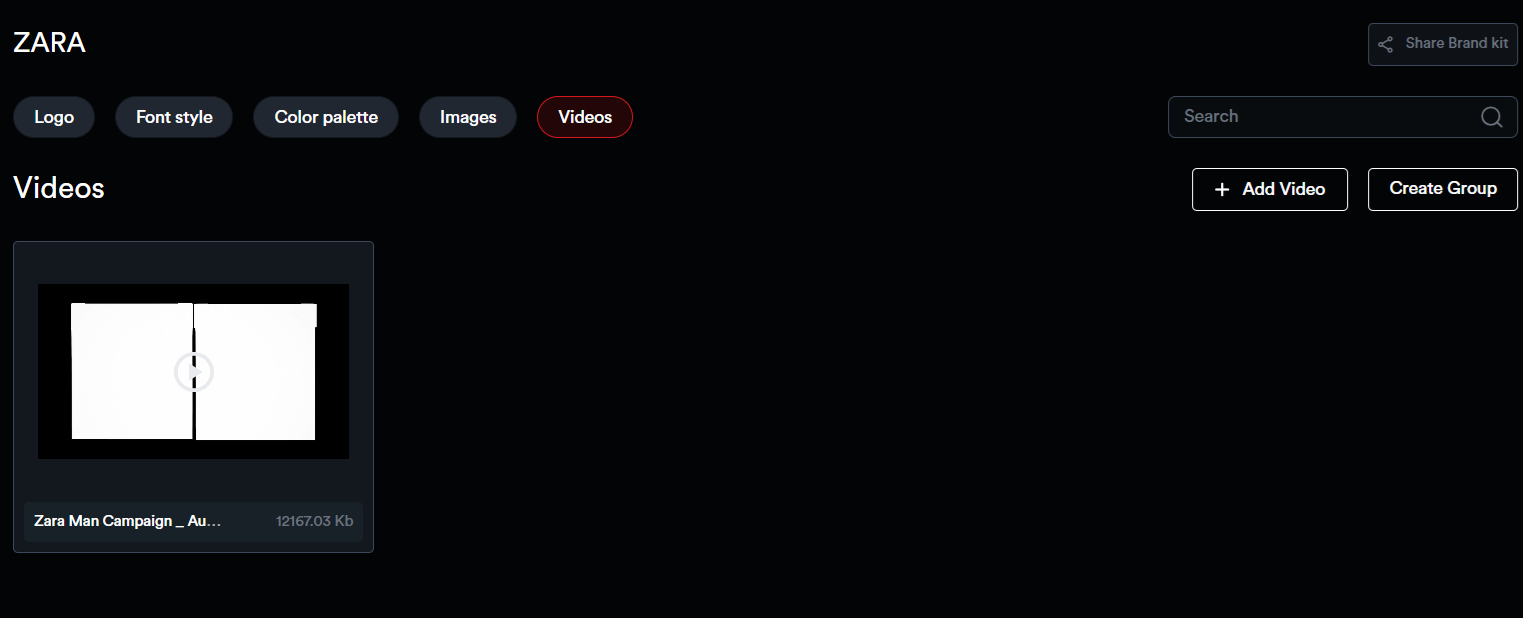
<span style="color: rgb(0, 0, 0); white-space: pre-wrap;">In the </span>****Videos**** <span style="color: rgb(0, 0, 0);">section, users can upload and save video assets for the brand. These assets can also be organized into different groups.</span>

![](https://docs.adctv.com/uploads/images/gallery/2025-09/embedded-image-ladugqtg.png)

<span style="color: rgb(0, 0, 0);">To create a group, click on ‘Create Group’, enter a name, and upload videos directly from the popup. Each uploaded video includes options to Rename, Move to Group, Replace, Duplicate, or Delete.</span>

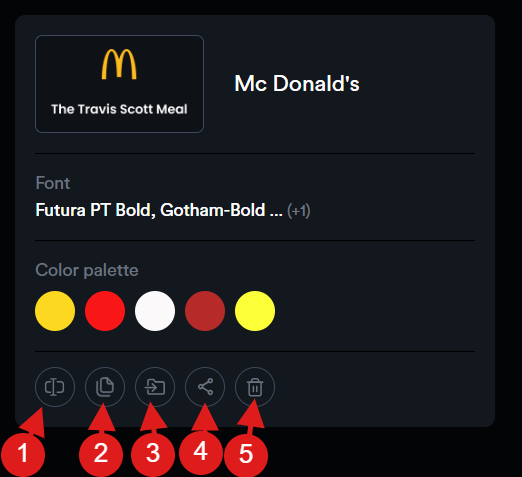
<span style="color: rgb(0, 0, 0);">Each Brand Kit comes with the following options:</span>

![](https://docs.adctv.com/uploads/images/gallery/2025-09/embedded-image-duvb0m0e.png)

****1. Rename****<span style="color: rgb(0, 0, 0); white-space: pre-wrap;"> – Change the name of a Brand Kit.</span>

****2. Copy****<span style="color: rgb(0, 0, 0); white-space: pre-wrap;"> – Create a duplicate of the Brand Kit.</span>

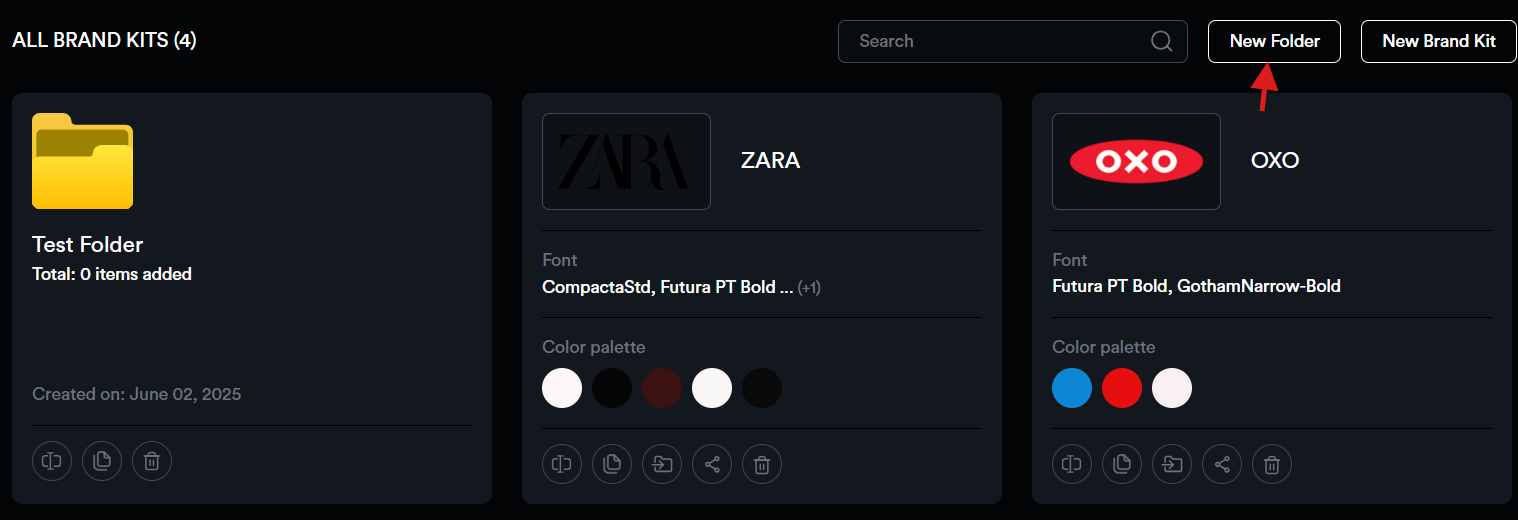
****3. Move to Folder****<span style="color: rgb(0, 0, 0); white-space: pre-wrap;"> – Organize Brand Kits into folders. To create a new folder, click </span>****‘New Folder’****<span style="color: rgb(0, 0, 0); white-space: pre-wrap;"> and enter a name. Then, use the </span>****‘Move to Folder’****<span style="color: rgb(0, 0, 0); white-space: pre-wrap;"> option to place the Brand Kit into an existing folder.</span>

![](https://docs.adctv.com/uploads/images/gallery/2025-09/embedded-image-pilrsl4d.png)

****4. Share****<span style="color: rgb(0, 0, 0); white-space: pre-wrap;"> – Collaborate by sharing your Brand Kit via a unique link. No login is required for users to access it. When you click </span>****‘Share Brand’****<span style="color: rgb(0, 0, 0);">, a popup will display two links:</span>

- ****Edit Link****<span style="color: rgb(0, 0, 0); white-space: pre-wrap;"> – Allows collaborators to upload assets to the Brand Kit.</span>
- ****View Link****<span style="color: rgb(0, 0, 0); white-space: pre-wrap;"> – Grants view-only access to the kit without the ability to upload or edit assets.</span>

![](https://docs.adctv.com/uploads/images/gallery/2025-09/embedded-image-myg5ub4q.png)

****5. Delete****<span style="color: rgb(0, 0, 0); white-space: pre-wrap;"> – to remove the Brand Kit.</span>