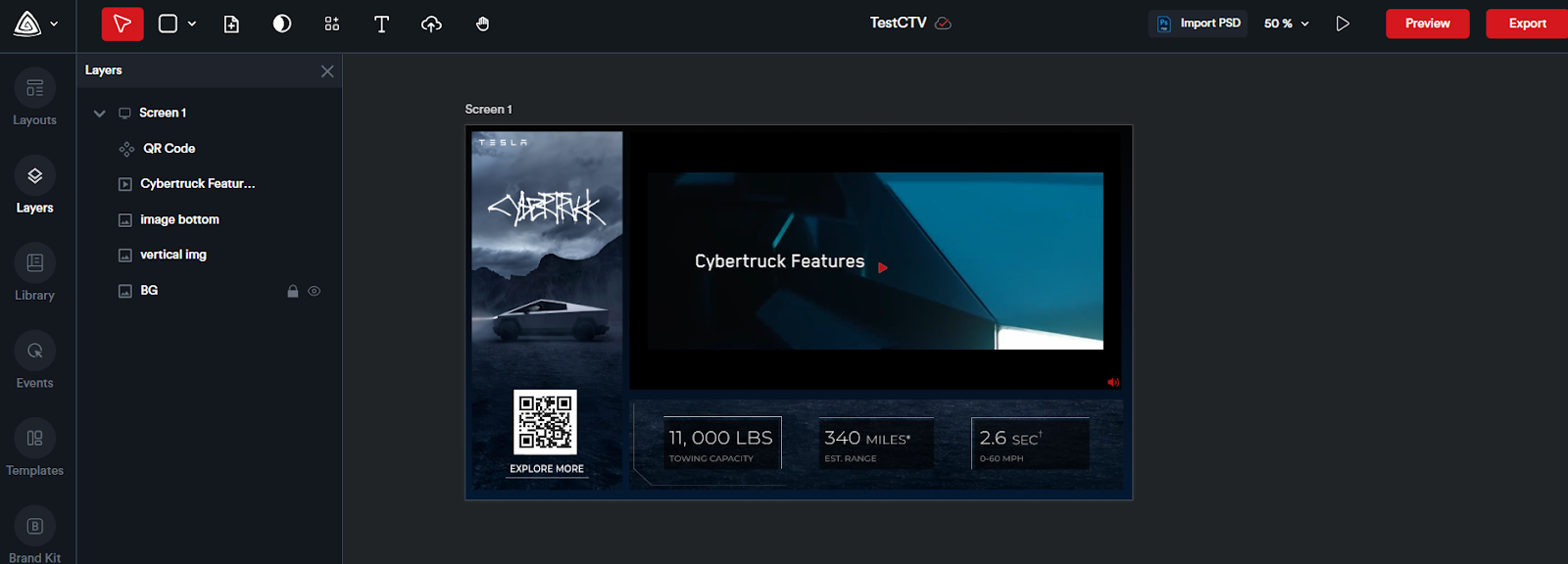
# Building Ads from Adctv Templates
Adctv offers a collection of built-in templates for both ****Rich Media Display**** and ****Connected TV (CTV)**** ad formats. If starting from a blank canvas feels complex or time-consuming, you can simply select a pre-designed template that suits your creative needs, customize it with your own assets, and quickly build your ad with minimal effort.
Even when using a template, you have ****full creative flexibility****. You can:
- Move and reposition elements such as logos
- Rearrange components to match your desired layout
- Add or remove elements as needed
- Incorporate animations for enhanced visual impact
#### ****Selecting a Template****
Within the ****Template**** module, browse and select your preferred template.
**Screenshot Pending**
Templates are organized by ****Ad Type****, and you can use filters to narrow your options by:
- ****Ad Size****
- ****Ad Category**** (e.g., responsive, expandable)
- ****Components Used****
**Screenshot Pending**
Click on any template to view its details in a pop-up. To preview the template, simply click ****‘Preview Template’****.
**Screenshot Pending**
Once you've found the right template, click ****‘Use This Template’****. You’ll be prompted to enter your creative details in the ****New Creative**** pop-up. After filling in the necessary information, click ****‘Create’**** to get started with customizing your ad using the Drag-and-Drop Builder.
When your creative is complete, click ****‘Export’**** to generate the final ad tag.
****Saving a Creative as a Template****
You have two options to save a creative as a template:
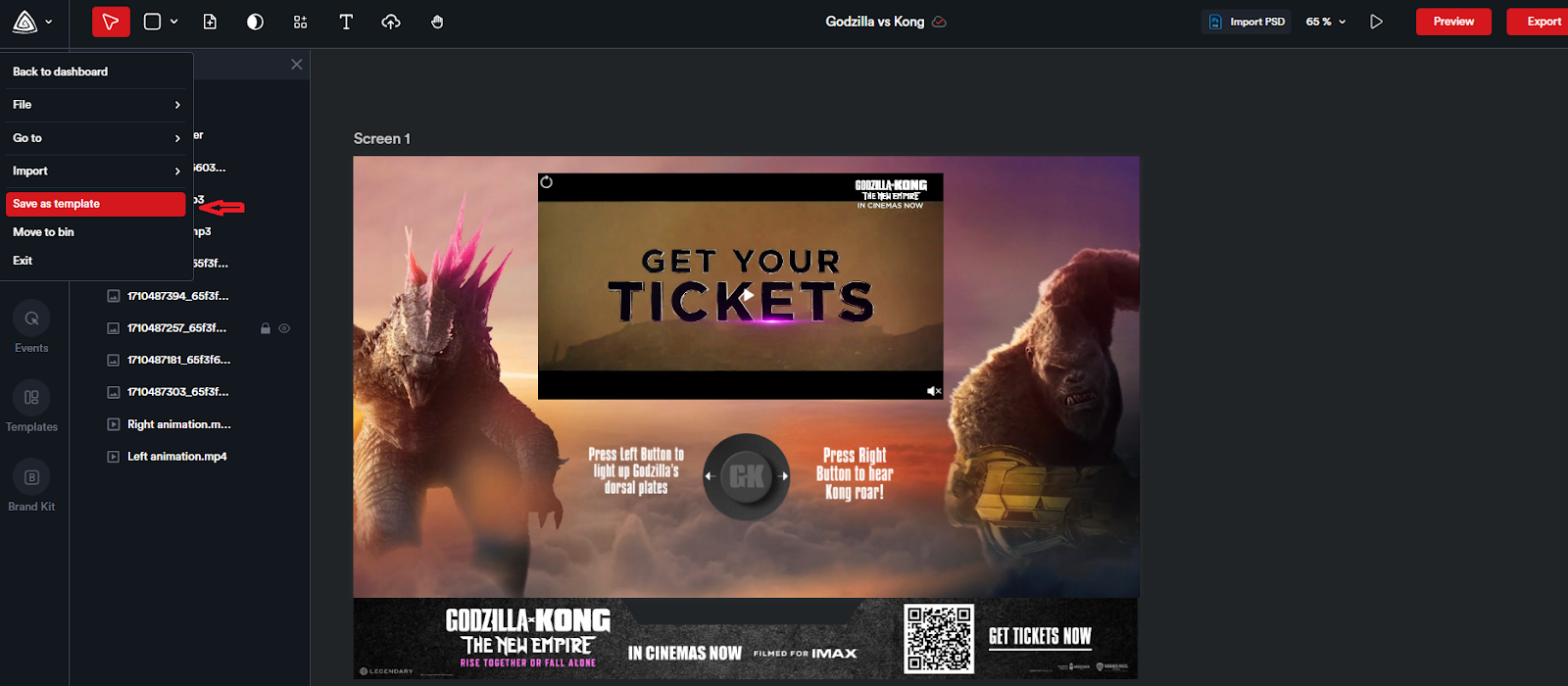
****1. From the Editor Page:****
While on the editor page of your creative, open the navigation menu and select ‘Save as Template’. A pop-up will appear prompting you to enter a name for your template. Click ‘Create’ to save it. All templates you create will be stored under Templates > My Templates, where you can view or customize them as needed.
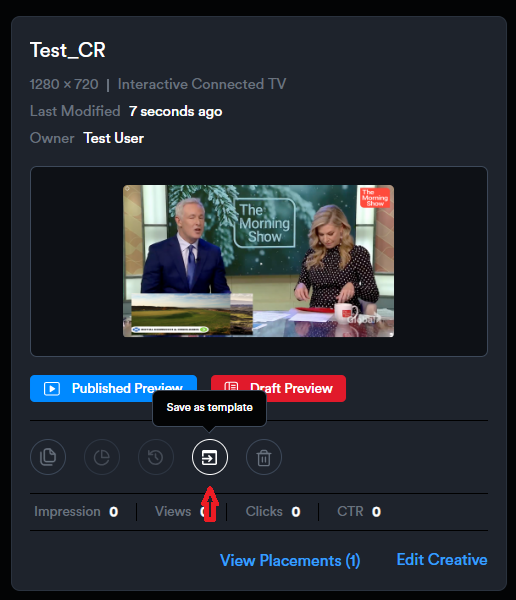
****2. From the Creative Card****
You can also save a creative as a template without opening the editor. Open your campaign and locate the creative you want to convert. On the creative card, click the ‘Save as Template’ icon. A pop-up will appear, allowing you to name the template. Click ‘Create’ to save it.
****Adding a Template to Your Creative****
Within the builder, you have the option to add a template to your current creative. On the left-hand side, you’ll find the ****Templates**** module.
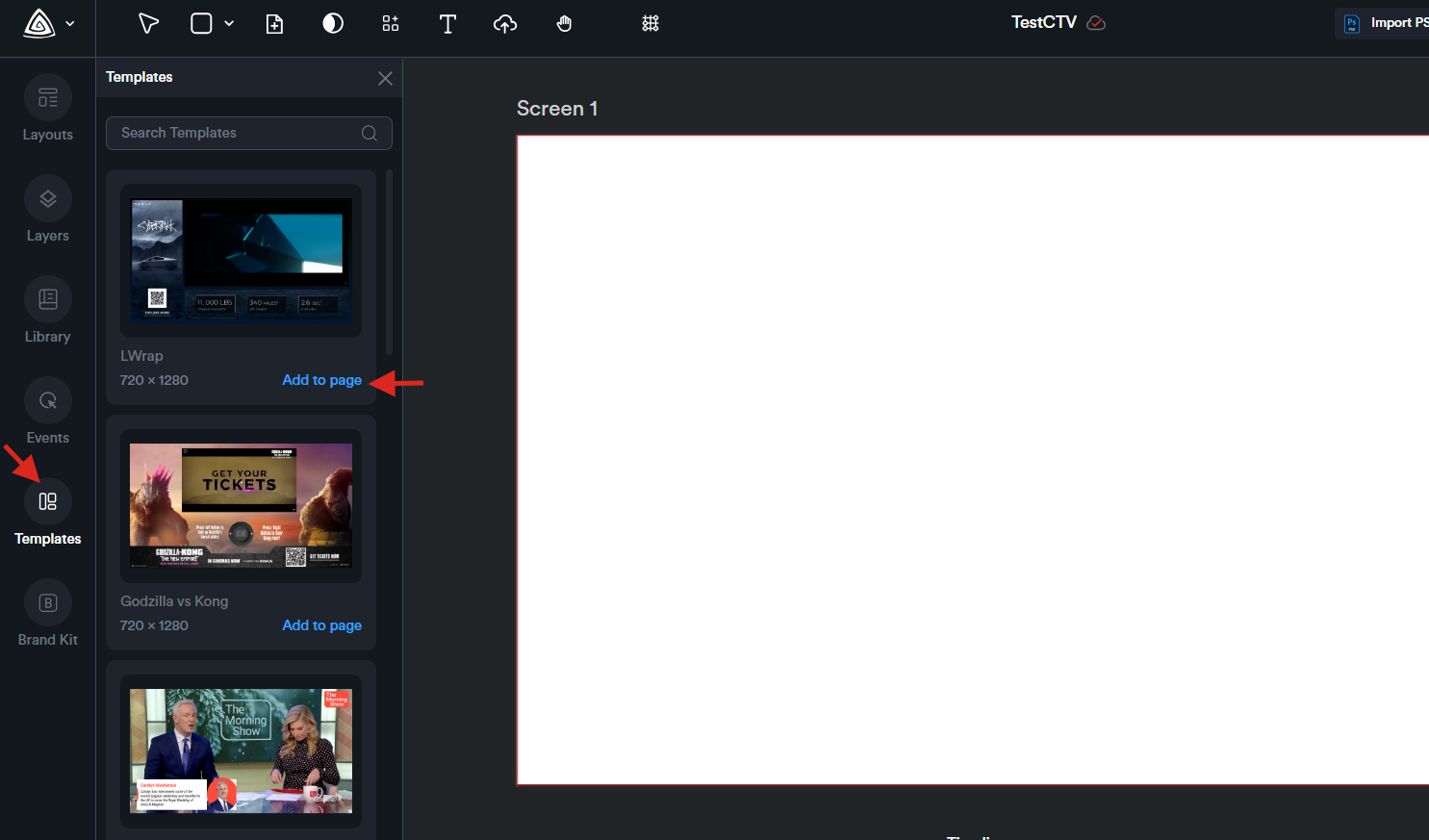
This module displays templates that match your selected canvas size, making it easy to choose one that fits your layout.
Simply browse through the available templates and click ****‘Add to Page’**** to instantly insert it into your creative for further customization.