# Creative Management
### ****Adding a New Creative to a Campaign****
To add a new creative to a campaign, click the ****"Add Creative"**** button.
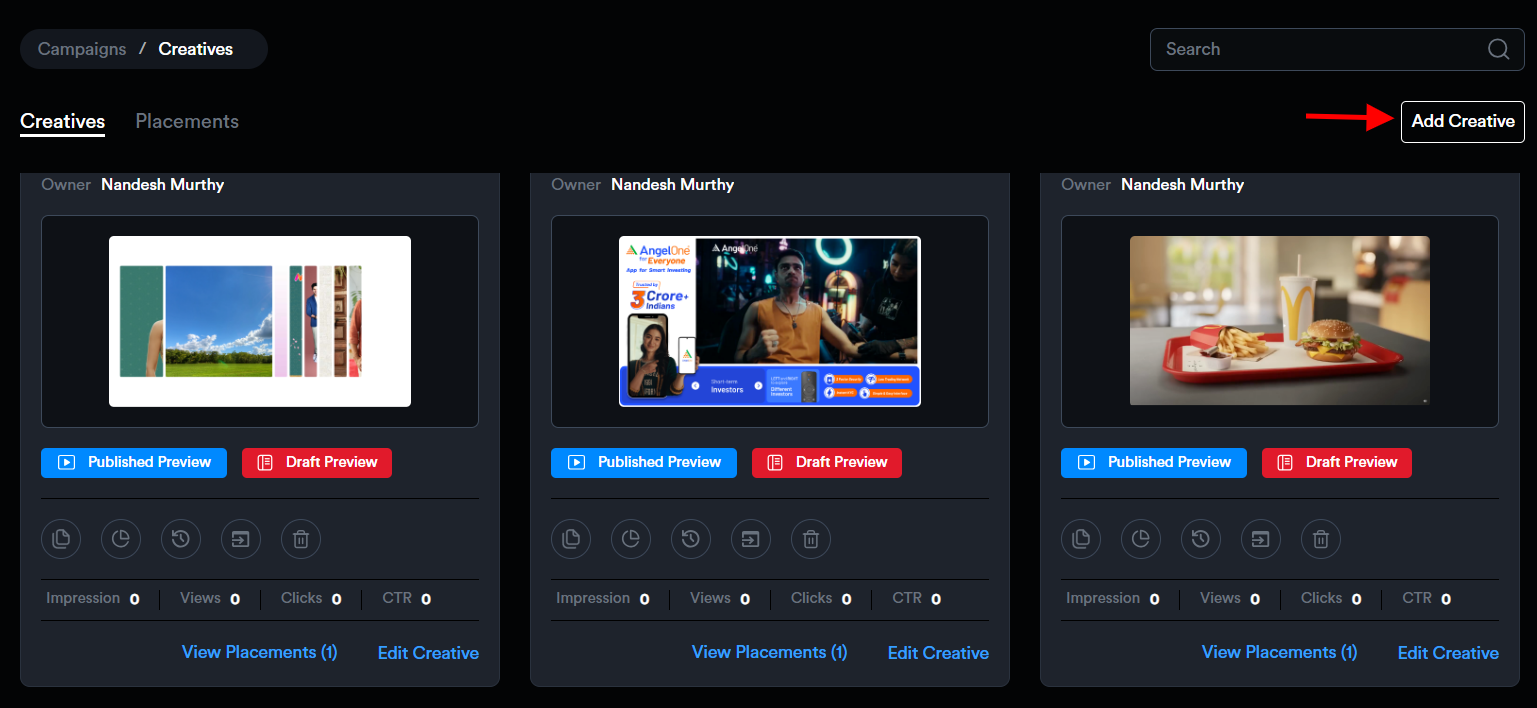
This will open the ****New Creative**** modal, where you can enter the required creative details. Campaign information will be auto-filled.
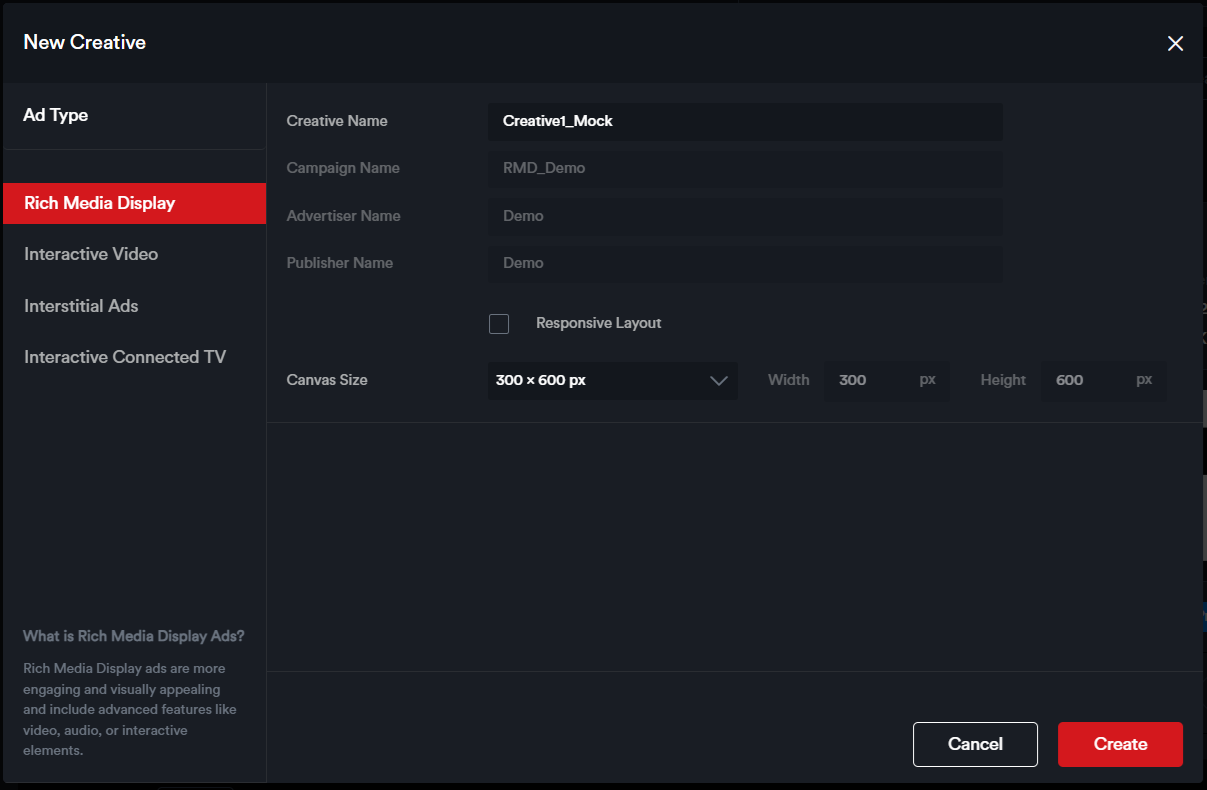
1. ****Select the Ad Type**** – Choose from the available options: **Rich Media Display, Interactive Video, Interstitial**, or **Interactive Connected TV**, depending on the format you wish to build.
2. ****Enter a Creative Name**** – Provide a name to help identify your creative.
3. ****Enable Responsive Layout**** (optional) – Check this box if you want the creative to be built with a responsive layout.
4. ****Choose Canvas Size**** – Select from predefined ad dimensions or enter custom dimensions as needed.
Once all necessary details are filled out, click the ****"Create"**** button. You will then be redirected to the Drag and Drop Ad Builder, where you can begin building your ad.
#### ****Viewing and Managing Creatives within a Campaign****
Once added, creatives are displayed as individual cards within the campaign view.
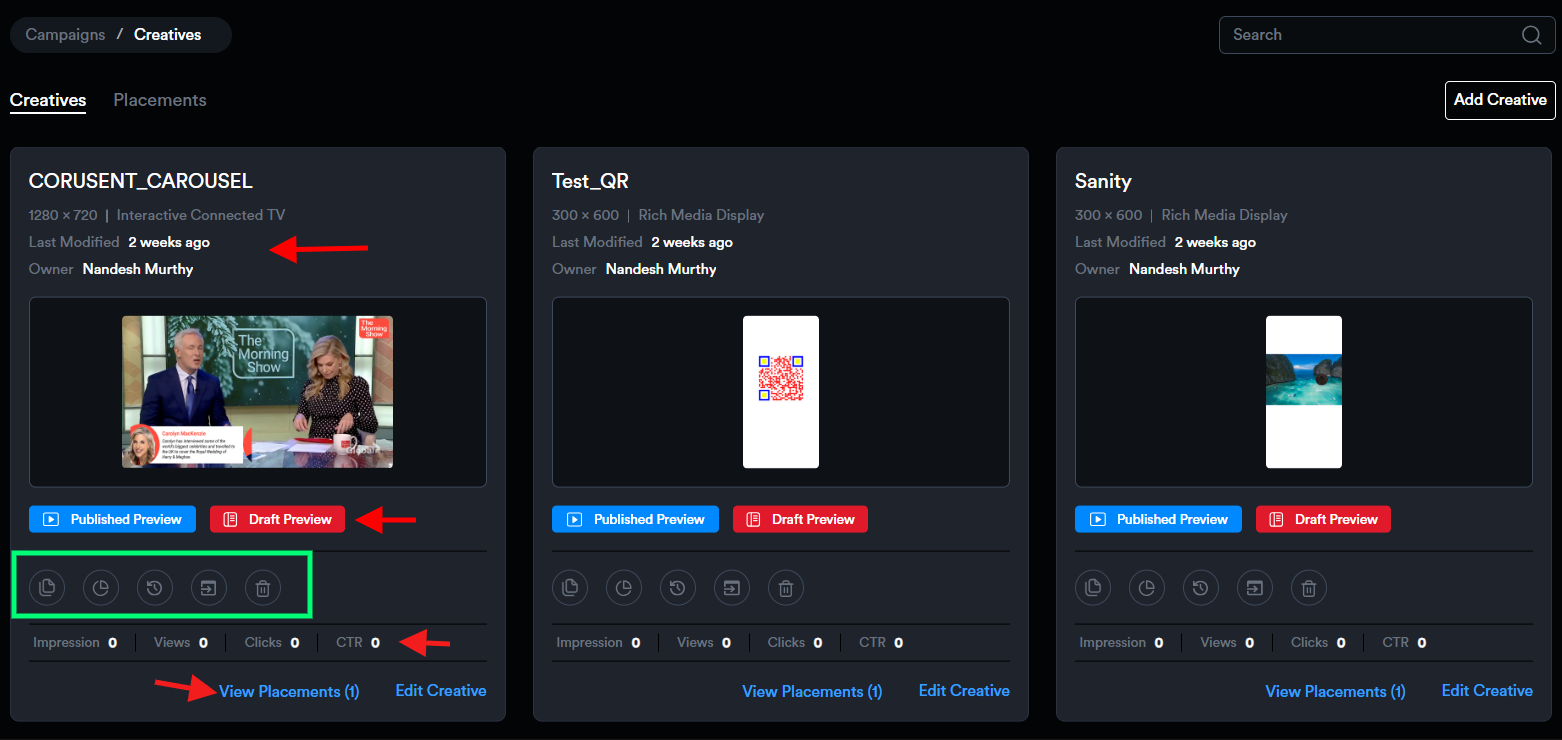
Each creative card provides key details, including:
- ****Last Modified Date****
- ****Creative Owner****
- ****Performance Metrics****: Lifetime impressions, views, clicks, and click-through rate (CTR)
Users have access to the following actions on each creative card:
- ****Preview Draft**** and ****Preview Published**** versions
- ****Edit Creative****
- ****Duplicate Creative****
- ****View Analytics****
- ****View Activity****
- ****Save as Template****
- ****Delete Creative****
Additionally, each card includes a button to navigate directly to the ****Placements Listing**** page associated with that creative.