# Layouts

<span style="color: rgb(0, 0, 0);">You can select and group multiple components to create a custom layout. Once created, the layout can be named, saved, and reused anytime.</span>

<span style="color: rgb(0, 0, 0);">This is particularly helpful for building reusable sections—such as headers or footers—that you can easily insert into your ads whenever needed.</span>

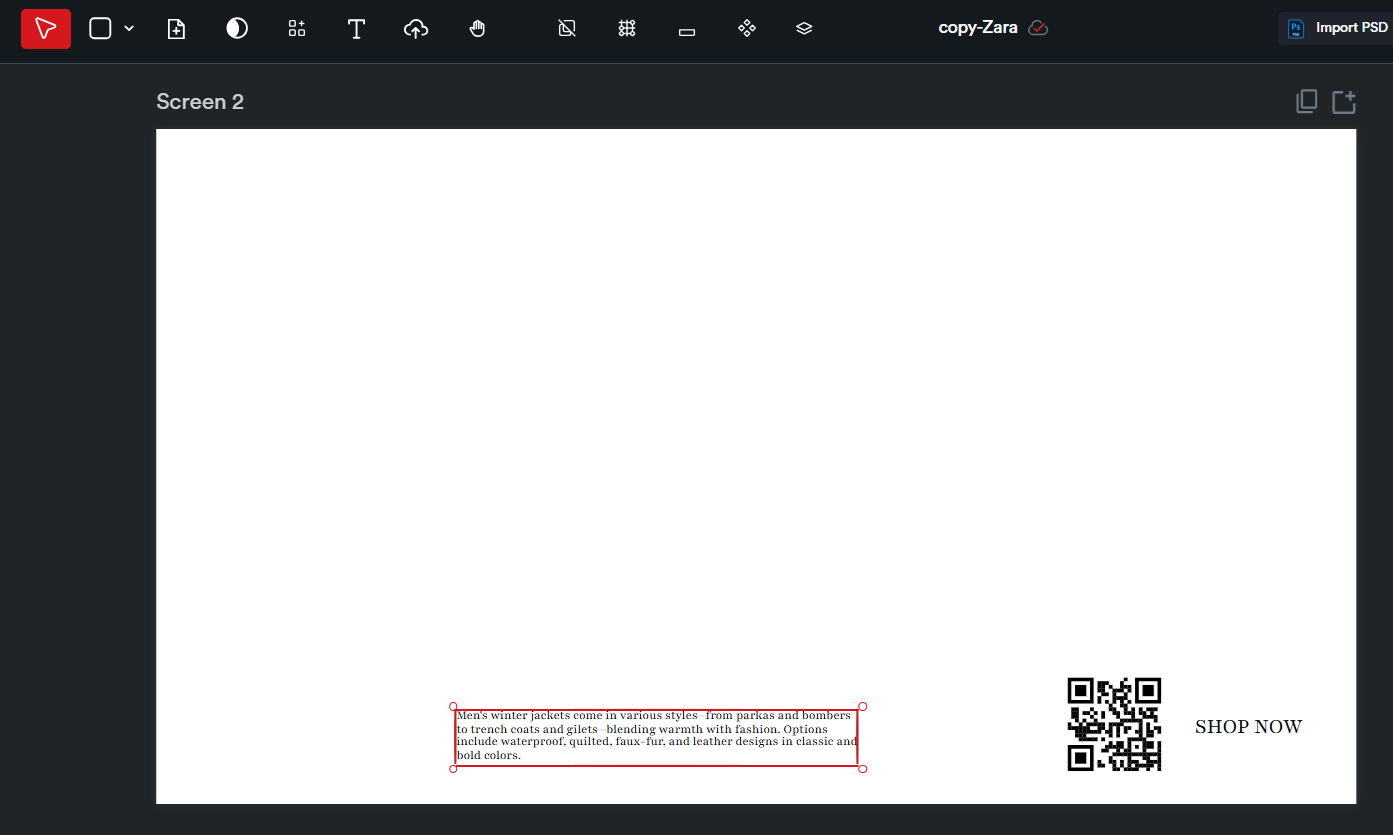
****For example, here I have a description text, a QR code, and a CTA text.****
![](https://docs.adctv.com/uploads/images/gallery/2025-09/embedded-image-2etzr4th.png)

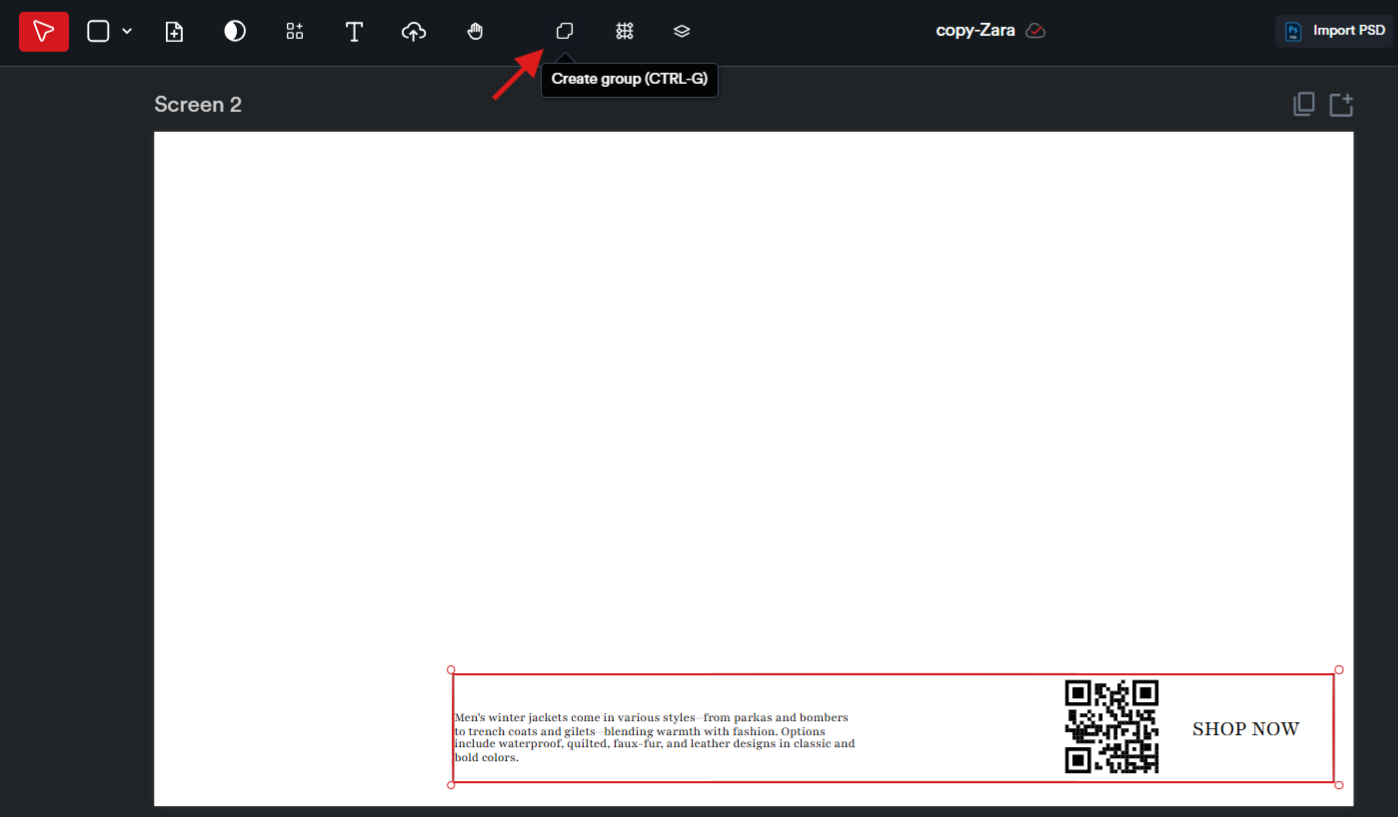
<span style="color: rgb(0, 0, 0); white-space: pre-wrap;">To turn these into a custom layout, start by selecting all three elements—hold the Shift key while clicking on each one. Then, click the </span>****‘Create Group’****<span style="color: rgb(0, 0, 0); white-space: pre-wrap;"> icon at the top to group them together.</span>

![](https://docs.adctv.com/uploads/images/gallery/2025-09/embedded-image-grrwkk75.png)

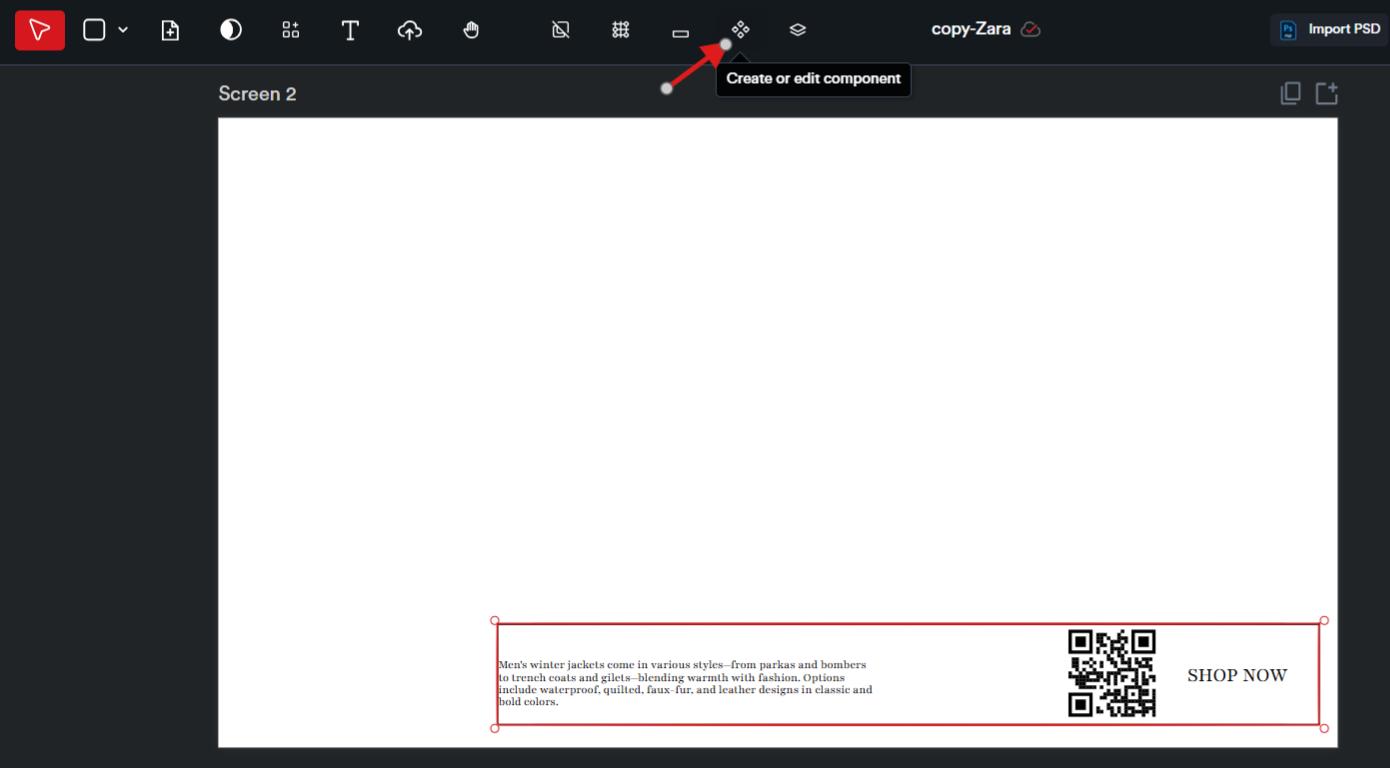
<span style="color: rgb(0, 0, 0); white-space: pre-wrap;">Next, click on the </span>****‘Create or Edit Component’****<span style="color: rgb(0, 0, 0); white-space: pre-wrap;"> button to begin creating your custom layout. </span>
![](https://docs.adctv.com/uploads/images/gallery/2025-09/embedded-image-z04omh3u.png)

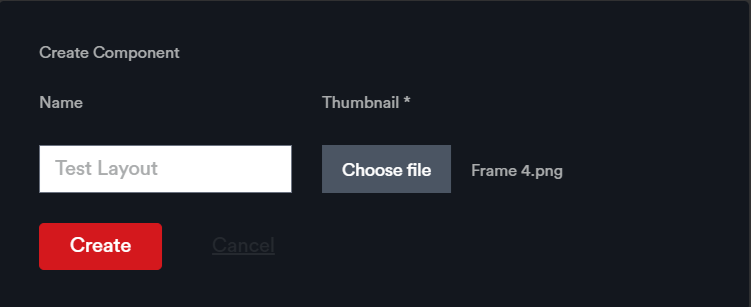
<span style="color: rgb(0, 0, 0); white-space: pre-wrap;">Give your layout a name and upload a thumbnail image. Once you're done, click </span>****‘Create’****<span style="color: rgb(0, 0, 0); white-space: pre-wrap;"> to save it.</span>

![](https://docs.adctv.com/uploads/images/gallery/2025-09/embedded-image-n9hmxzkr.png)

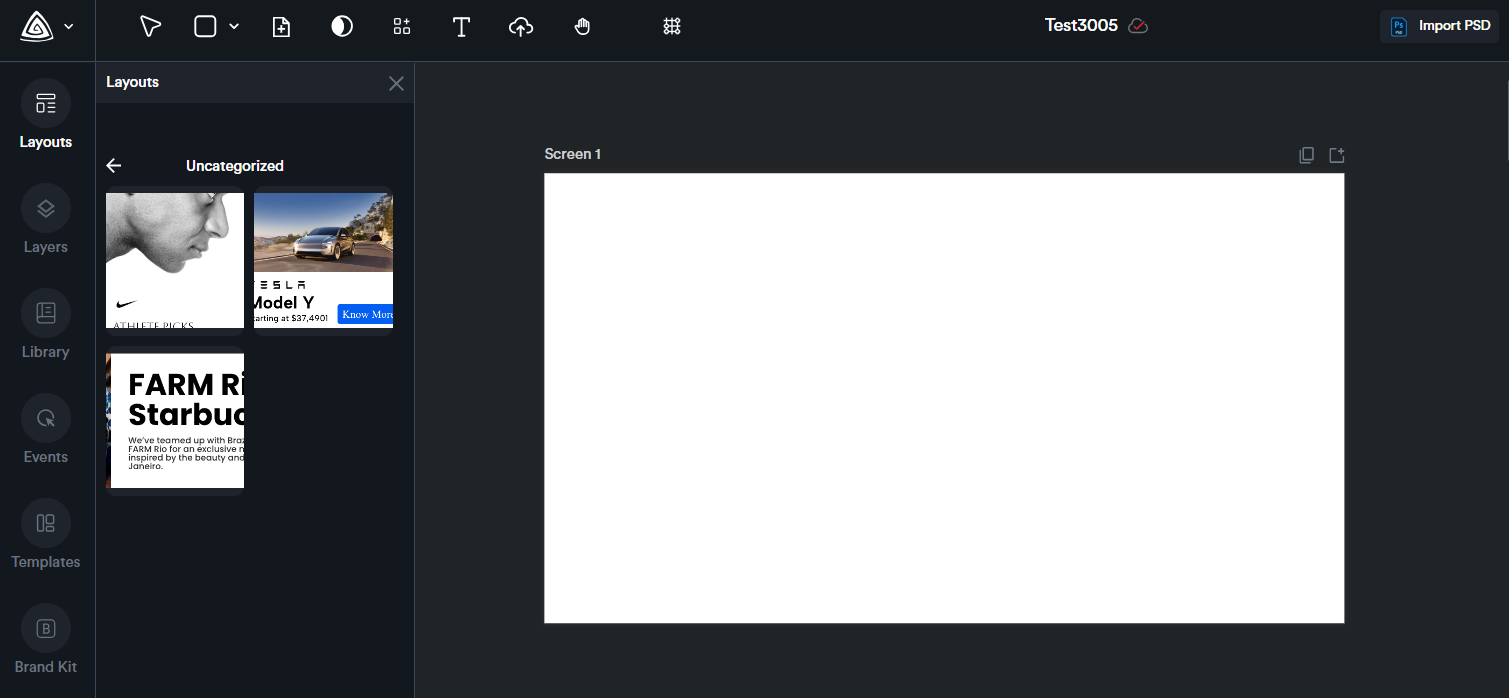
<span style="color: rgb(0, 0, 0); white-space: pre-wrap;">The saved layout will be available in the </span>****Layouts****<span style="color: rgb(0, 0, 0); white-space: pre-wrap;"> module within the creative editor page and can be reused in any future creatives.</span>

![](https://docs.adctv.com/uploads/images/gallery/2025-09/embedded-image-myevqwtj.png)