# Placement Management

#### ****How to Assign A Creative to Multiple Placements****

##### ****What is a Placement?**** 

****Placements**** <span style="color: rgb(0, 0, 0); white-space: pre-wrap;">is a new creative management method within Adctv allowing for a more granular view of different creatives in campaigns. </span>

<span style="color: rgb(0, 0, 0); white-space: pre-wrap;">Each creative setup will by default be assigned against a Placement and the Tags will now be generated at the Placement level. </span>

<span style="color: rgb(0, 0, 0); white-space: pre-wrap;">A single creative can now be assigned to multiple Placements and each Placement Tag can be provided to different media partners. This allows better tracking of the performance and optimizing accordingly. </span>

##### ****Accessing and Managing Placements within a Campaign****

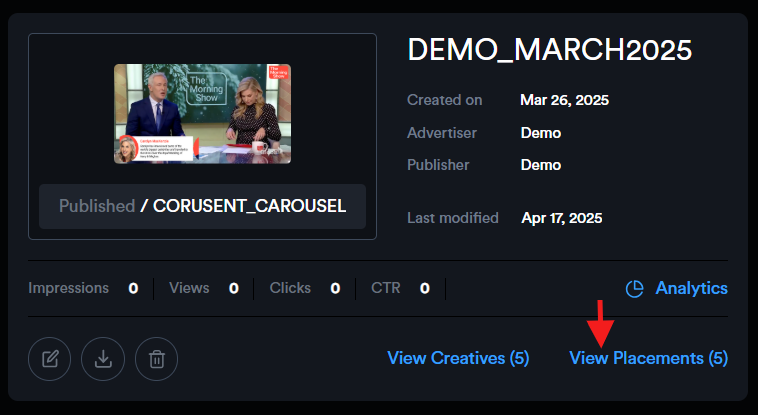
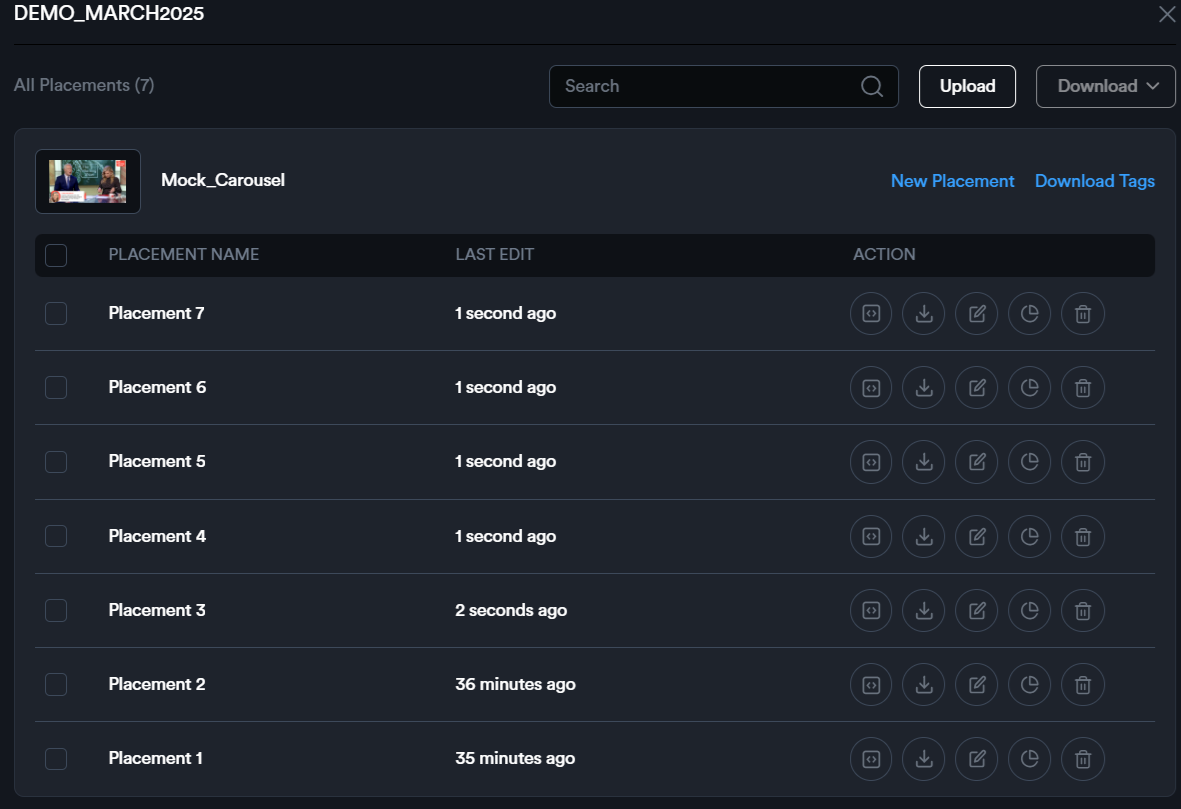
<span style="color: rgb(0, 0, 0); white-space: pre-wrap;">To view the list of placements associated with a campaign, navigate to the campaign card and click on </span>****"View Placements."****<span style="color: rgb(0, 0, 0); white-space: pre-wrap;"> This will open a sidebar displaying all placements linked to that campaign.</span>

![](https://docs.adctv.com/uploads/images/gallery/2025-09/embedded-image-wk9wq4jx.png)

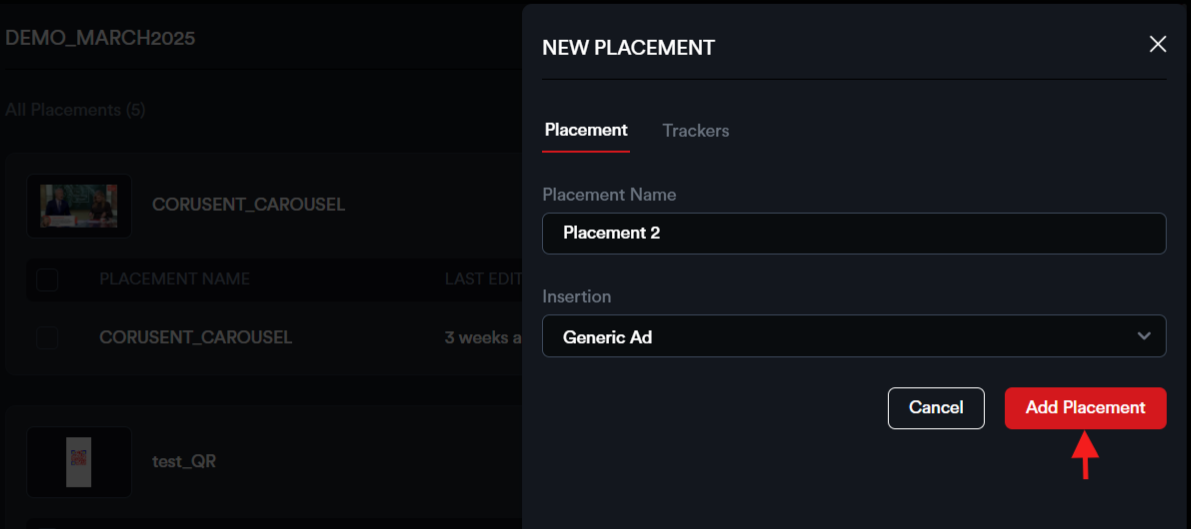
<span style="color: rgb(0, 0, 0); white-space: pre-wrap;">To create a new placement for a creative, click the </span>****"New Placement"****<span style="color: rgb(0, 0, 0); white-space: pre-wrap;"> button. </span>

![](https://docs.adctv.com/uploads/images/gallery/2025-09/embedded-image-vjotv2ef.png)

<span style="color: rgb(0, 0, 0); white-space: pre-wrap;">Provide the </span>****Placement Name****<span style="color: rgb(0, 0, 0); white-space: pre-wrap;"> and select the </span>****Insertion Type****<span style="color: rgb(0, 0, 0); white-space: pre-wrap;">, then click </span>****"Add Placement"****<span style="color: rgb(0, 0, 0); white-space: pre-wrap;"> to save.</span>

![](https://docs.adctv.com/uploads/images/gallery/2025-09/embedded-image-xbzgfo0n.png)

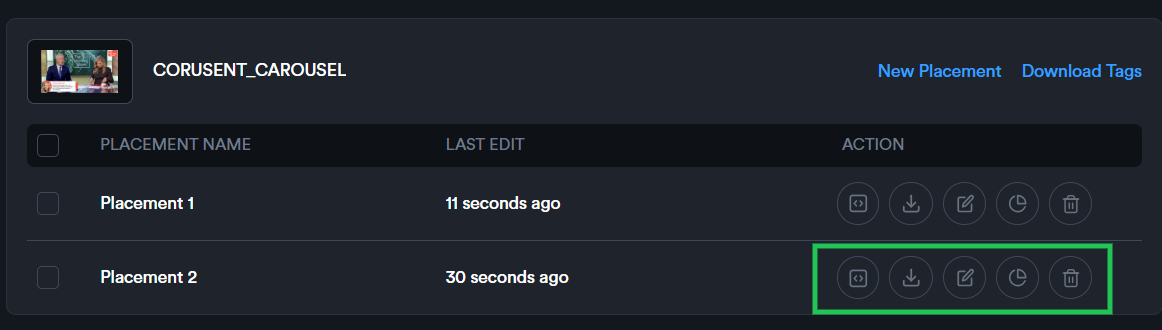
<span style="color: rgb(0, 0, 0); white-space: pre-wrap;">Each placement includes a set of action buttons under the </span>****Action****<span style="color: rgb(0, 0, 0); white-space: pre-wrap;"> section, allowing you to:</span>

- ****Export****<span style="color: rgb(0, 0, 0); white-space: pre-wrap;"> the placement to view the tag and preview.</span>
- ****Download****<span style="color: rgb(0, 0, 0); white-space: pre-wrap;"> the placement tag as an Excel file, including all selected macros.</span>
- ****Edit****<span style="color: rgb(0, 0, 0); white-space: pre-wrap;"> the placement details to make updates.</span>
- ****View Analytics****<span style="color: rgb(0, 0, 0); white-space: pre-wrap;"> to access performance data.</span>
- ****Delete****<span style="color: rgb(0, 0, 0); white-space: pre-wrap;"> the placement if it is no longer needed.</span>

![](https://docs.adctv.com/uploads/images/gallery/2025-09/embedded-image-ruxcgy2r.png)

****Upload Placements:****

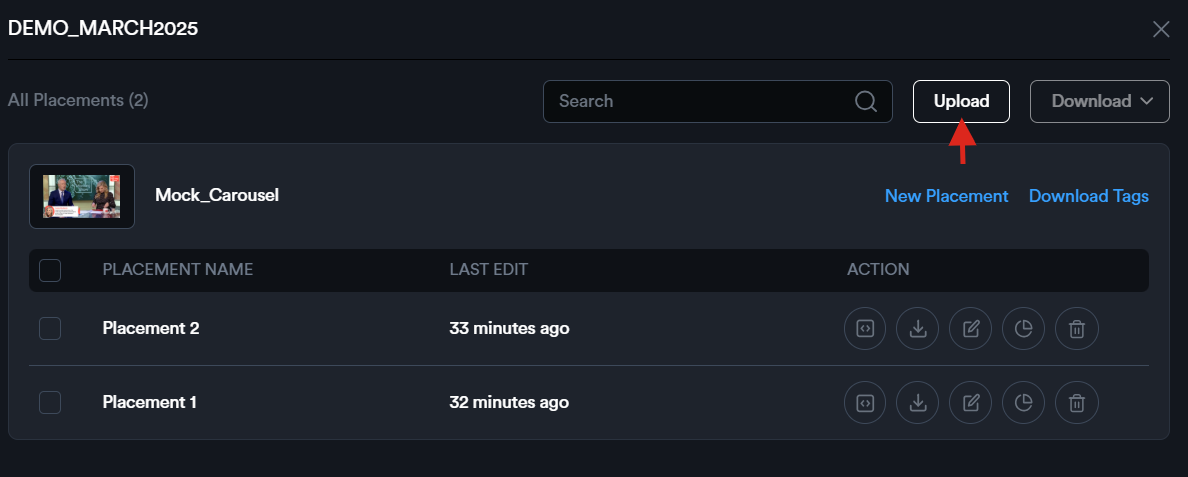
<span style="color: rgb(0, 0, 0);">To create multiple placements at once, use the bulk upload feature.</span>

![](https://docs.adctv.com/uploads/images/gallery/2025-09/embedded-image-txt9jet3.png)

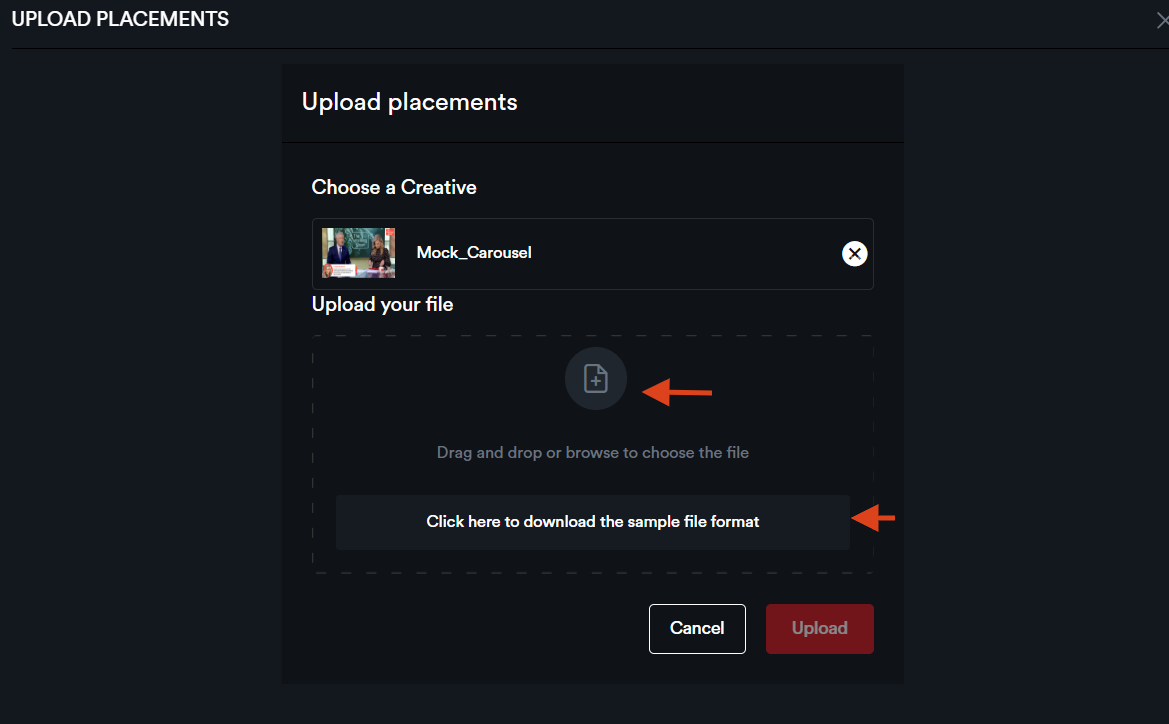
<span style="color: rgb(0, 0, 0);">Begin by downloading the sample Excel sheet and entering the desired placement names.</span>

![](https://docs.adctv.com/uploads/images/gallery/2025-09/embedded-image-ythwu0ll.png)

<span style="color: rgb(0, 0, 0);">Then, select the appropriate creative within the '</span>****Upload Placements****<span style="color: rgb(0, 0, 0); white-space: pre-wrap;">' modal and upload the completed file. </span>

![](https://docs.adctv.com/uploads/images/gallery/2025-09/embedded-image-xrnqcnfd.png)

<span style="color: rgb(0, 0, 0);">All specified placements will be added accordingly.</span>

![](https://docs.adctv.com/uploads/images/gallery/2025-09/embedded-image-qya8nhu2.png)

****How to export tags?****

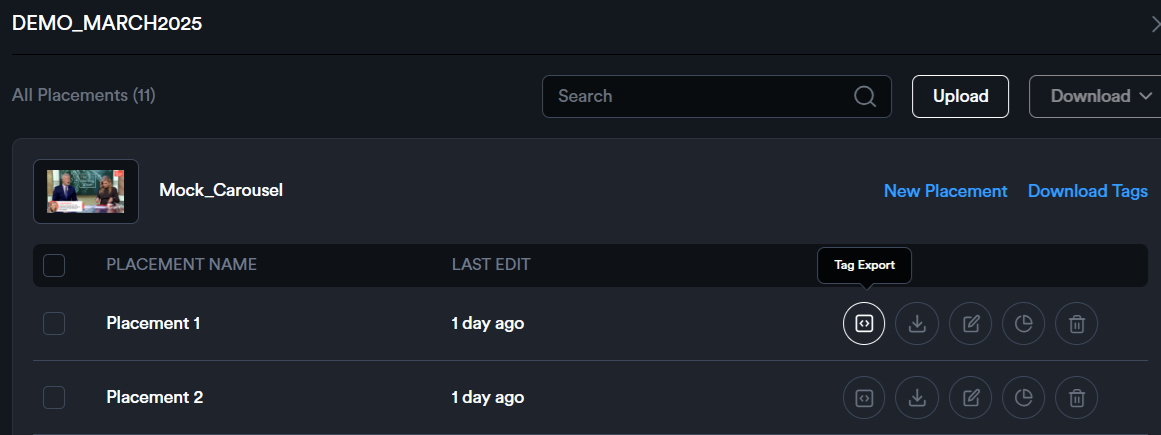
<span style="color: rgb(0, 0, 0);">To export the tag for a placement, click the '</span>****Tag Export****<span style="color: rgb(0, 0, 0);">' icon to open the Tag Export modal.</span>

![](https://docs.adctv.com/uploads/images/gallery/2025-09/embedded-image-82z1auwi.png)

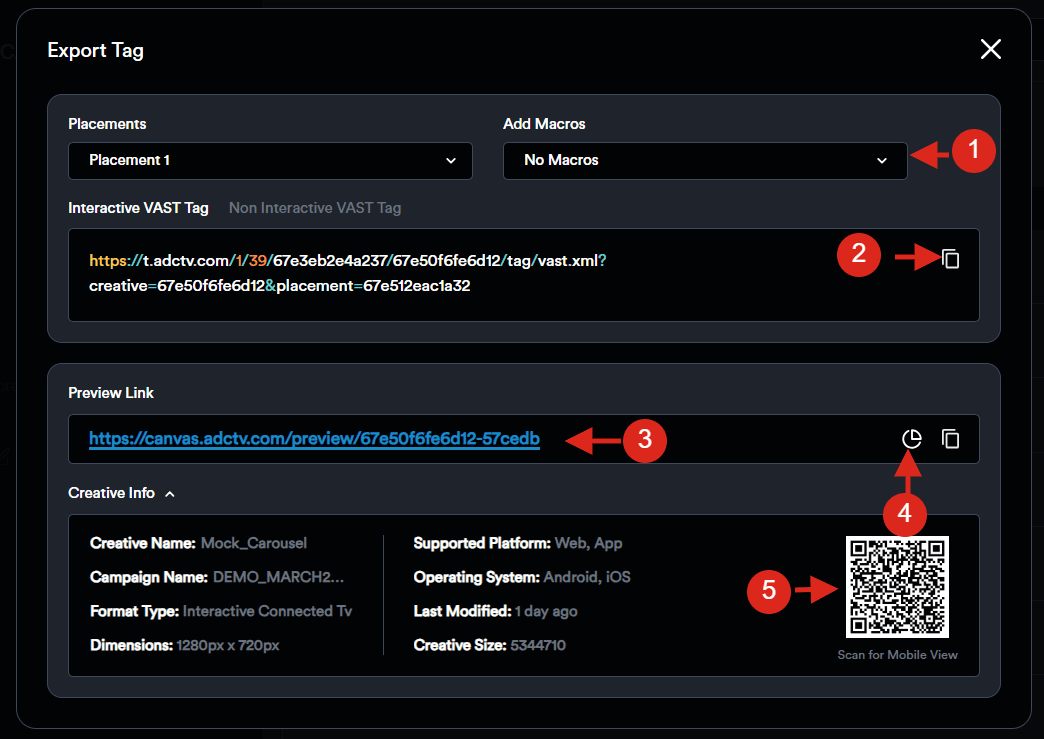
<span style="color: rgb(0, 0, 0);">1. From the drop-down menu ‘</span>****Add Macro****<span style="color: rgb(0, 0, 0); white-space: pre-wrap;">’, select your Media Partner—this will automatically insert the appropriate macro into the ad tag. </span>

[![SS_TagExport.png](https://docs.adctv.com/uploads/images/gallery/2025-09/scaled-1680-/B55ss-tagexport.png)](https://docs.adctv.com/uploads/images/gallery/2025-09/B55ss-tagexport.png)

<span style="color: rgb(0, 0, 0);">2. Click the 'Copy' icon to copy the tag.</span>

<span style="color: rgb(0, 0, 0);">3. The modal also includes a shareable preview link.</span>

<span style="color: rgb(0, 0, 0);">4. Clicking the 'Analytics' icon will direct you to the Placement Analytics page.</span>

<span style="color: rgb(0, 0, 0);">5. Additionally, creative details are provided along with a QR code that allows you to preview the ad on a mobile device.</span>

****How to download tags?****

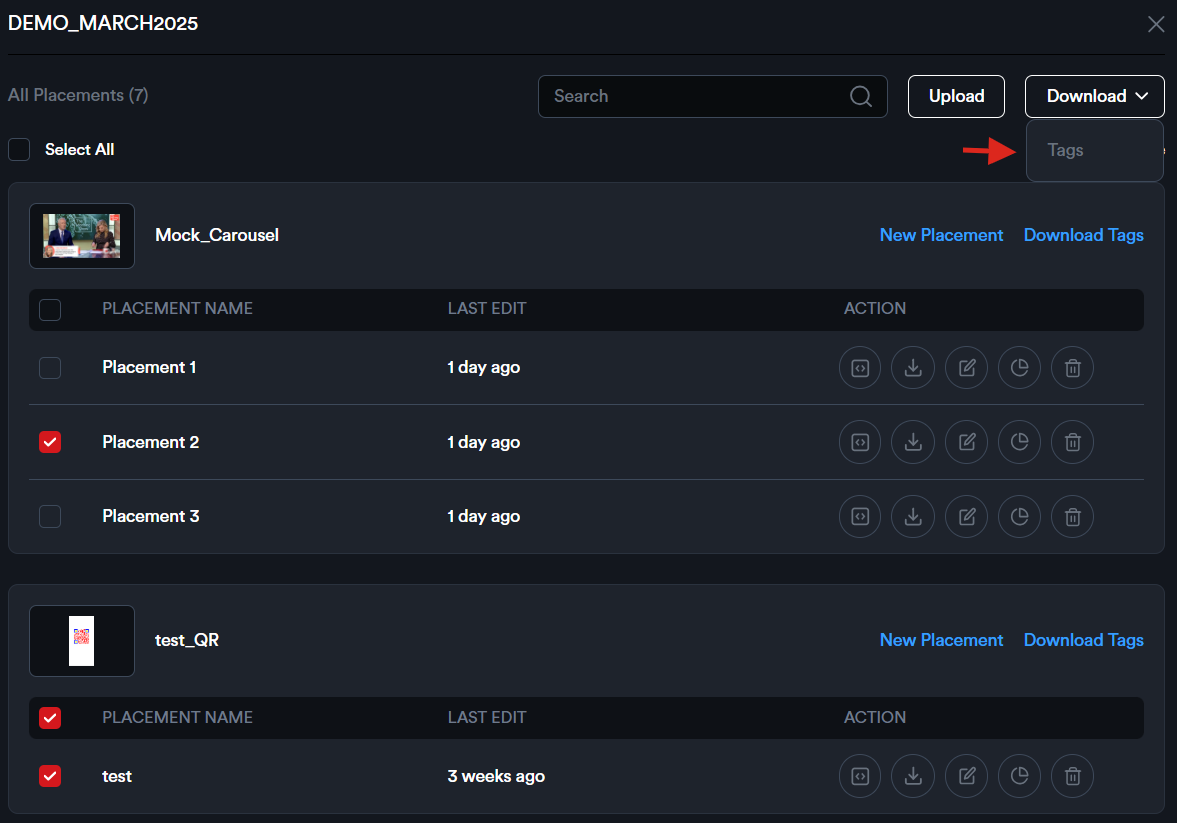
<span style="color: rgb(0, 0, 0); white-space: pre-wrap;">To download tags for all or selected placements linked to one or more creatives within the campaign, select the desired placements and click </span>****Download**** <span style="color: rgb(0, 0, 0);">&gt; Tags.</span>

![](https://docs.adctv.com/uploads/images/gallery/2025-09/embedded-image-kbhm1nhr.png)

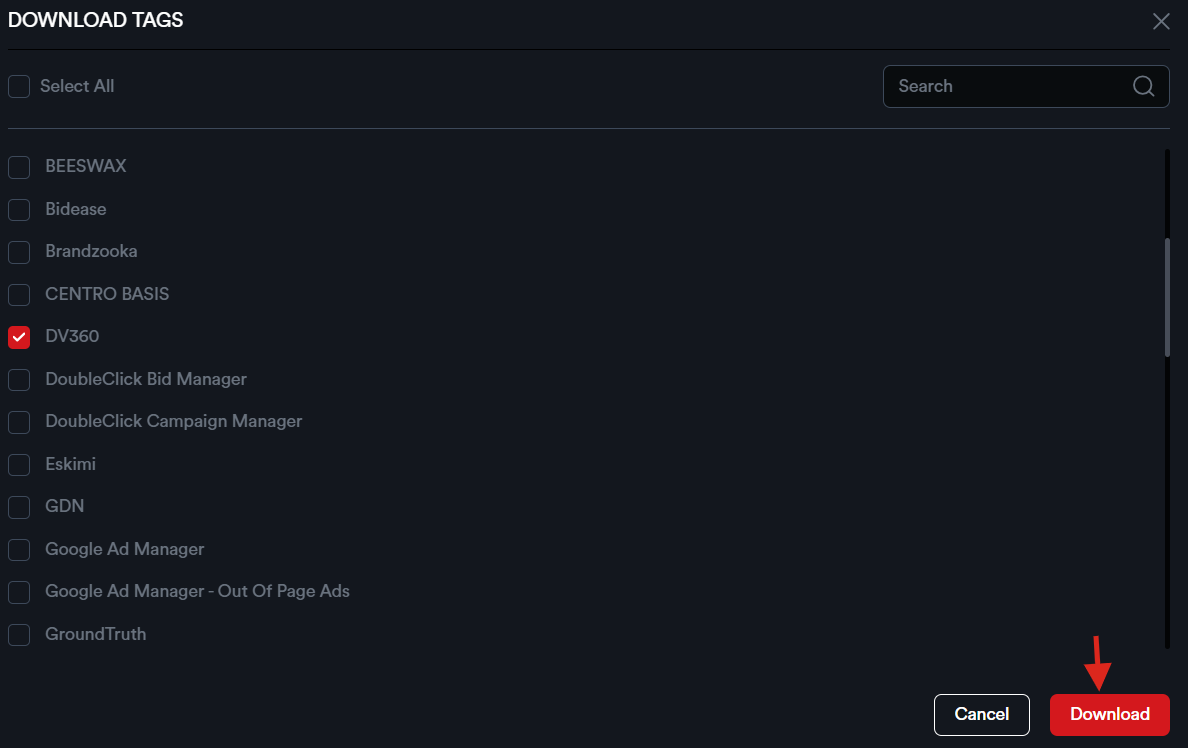
<span style="color: rgb(0, 0, 0);">To download tags for all or selected placements of a creative associated with a specific DSP, start by selecting the placements and clicking '</span>****Download Tags****<span style="color: rgb(0, 0, 0);">'.</span>

![](https://docs.adctv.com/uploads/images/gallery/2025-09/embedded-image-p9cyuirh.png)

<span style="color: rgb(0, 0, 0); white-space: pre-wrap;"> Next, choose the media partner and click </span>****'Download'****<span style="color: rgb(0, 0, 0);">.</span>

![](https://docs.adctv.com/uploads/images/gallery/2025-09/embedded-image-oq4t9pve.png)

<span style="color: rgb(0, 0, 0);">An Excel sheet containing the tags for the selected placements will be downloaded.</span>