# Timeline
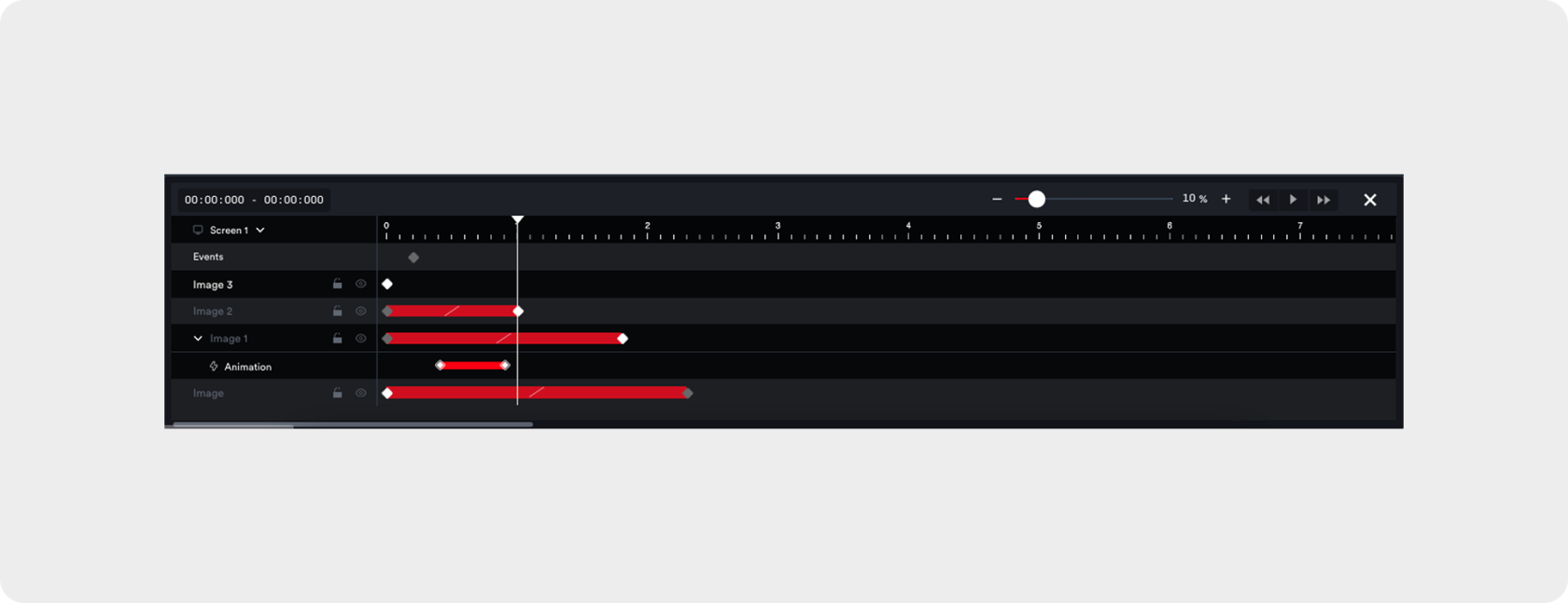
The timeline provides a visual interface for ****organising and controlling how elements appear, move, and interact in an animation****. It has three main sections: the Header, which includes tools like the timer, zoom, and playback toggles; the Timeline Elements panel on the left, for managing screens, events, layers, and quick animations; and the Timeline Panel on the right, offering detailed controls for keyframes, spans, easing, and events.
Together, these sections let users sequence, edit, and fine-tune animations efficiently and intuitively, making complex interactions easier to create and manage.
[](https://docs.adctv.com/uploads/images/gallery/2025-09/scaled-1680-/timeline-image.png)
---
### ****Header****
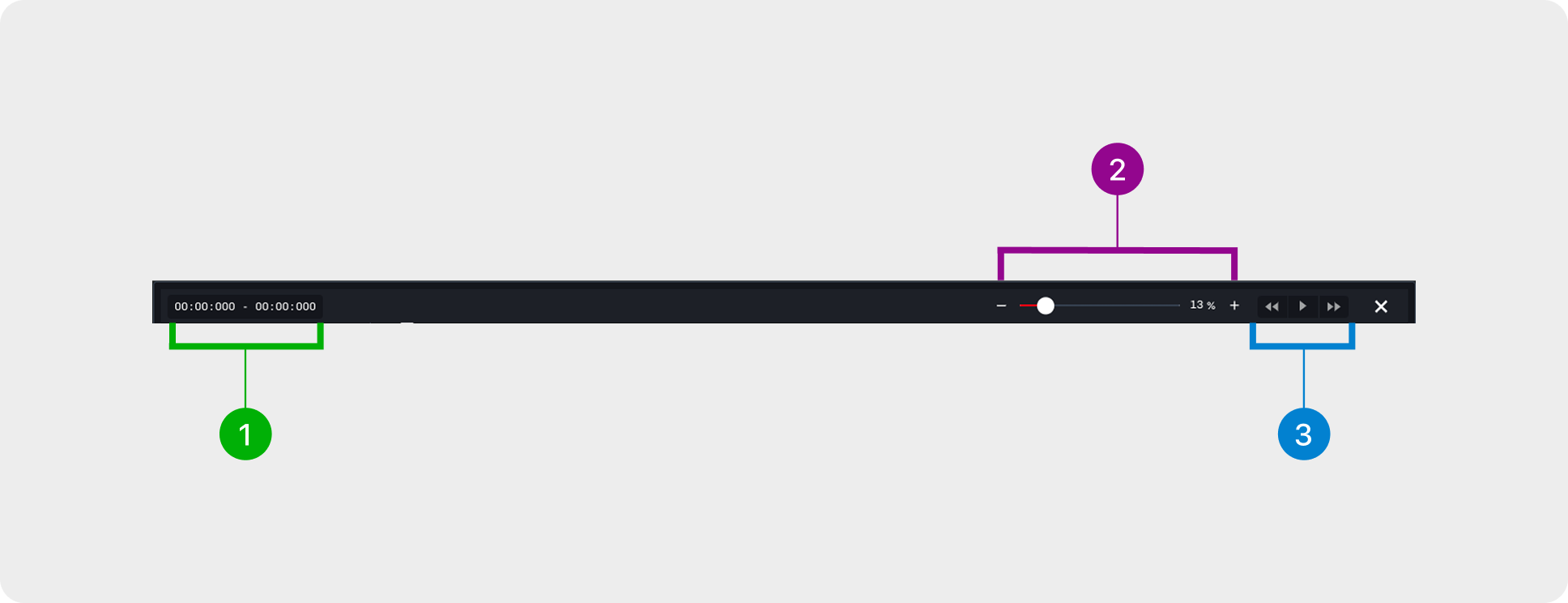
The header ****provides essential controls for managing the timeline****. It includes a Timer to display the current playback time and total duration, a Zoom slider for adjusting the timeline view and focusing on specific sections, and Toggle buttons to play, pause, or navigate forward/backward in small increments. Together, these tools allow users to monitor, control, and navigate the animation efficiently.
[](https://docs.adctv.com/uploads/images/gallery/2025-09/scaled-1680-/header.png)
##### ****1. Timer****
****Displays the current playback time alongside the total duration of the animation****, helping users track progress within the timeline.
##### ****2. Zoom****
Adjusts the timeline view, allowing users to focus on specific sections or see the animation in full for better navigation.
##### ****3. Toggle****
Allows users to play or pause the animation and jump 100 ms backward or forward, enabling precise navigation within the timeline.
---
### ****Elements****
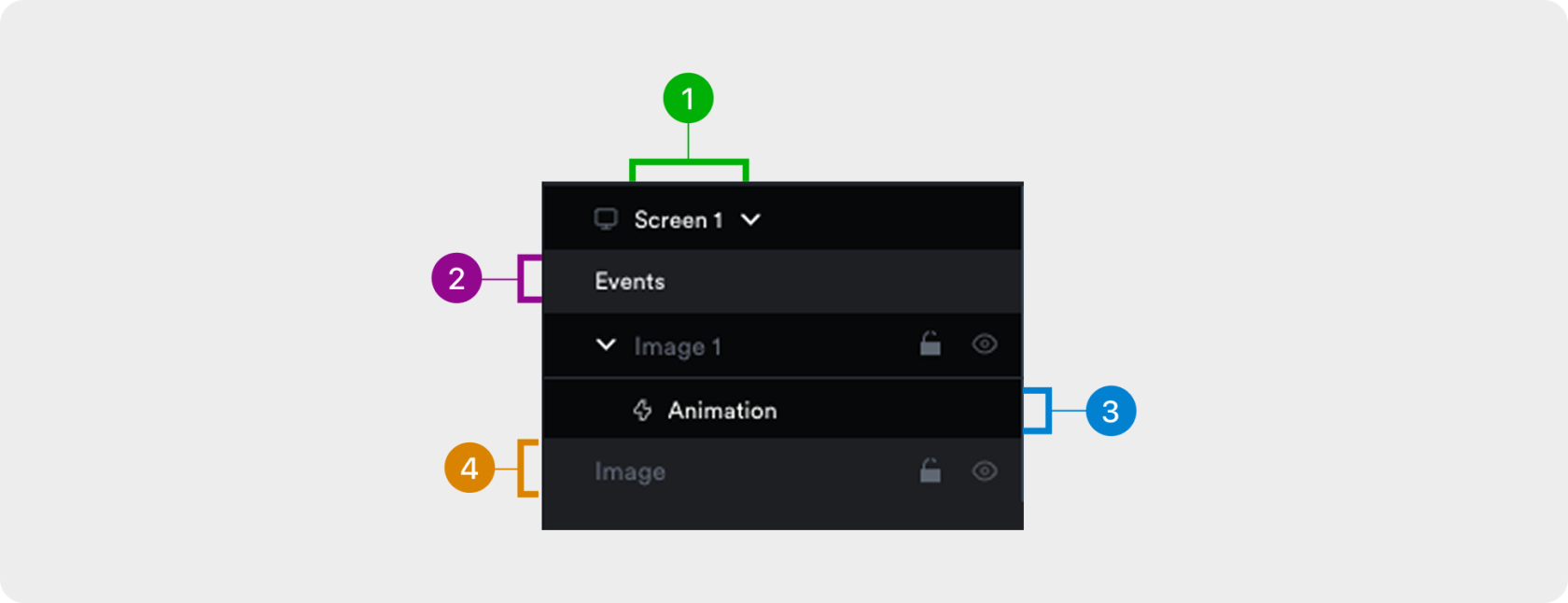
Displays the structure of the animation, including screens, events, layers, and quick animations. It helps users organize, manage, and navigate different components of the timeline. ****Users can perform actions like renaming, configuring, or deleting elements****, making it easier to keep the animation well-structured and accessible
[](https://docs.adctv.com/uploads/images/gallery/2025-09/scaled-1680-/elements.png)
##### ****1. Screens****
Lists all design screens, letting users switch between them to view and edit each screen’s timeline.
##### ****2. Events****
****Defines timeline triggers that control playback**** such as play, pause, restart, or jump ****or activate actions**** in other elements.
##### ****3. Animations****
Shows quick animations applied to elements, displayed as sublayers under their respective layers for easy management.
##### ****4. Layers****
Lists all elements on the screen, allowing users to arrange their order and manage visibility with the [](https://docs.adctv.com/uploads/images/gallery/2025-09/scaled-1680-/nG5eye-icon.png)
or lock them with the [](https://docs.adctv.com/uploads/images/gallery/2025-09/scaled-1680-/MAElock-icon.png)to prevent edits.
---
###
### ****Panel****
****Displays the timing and duration of elements within the animation****. It helps users manage keyframes, spans, animations, easing, and events to fine-tune playback. This section focuses on controlling motion, transitions, and sequencing for smooth, precise animations.
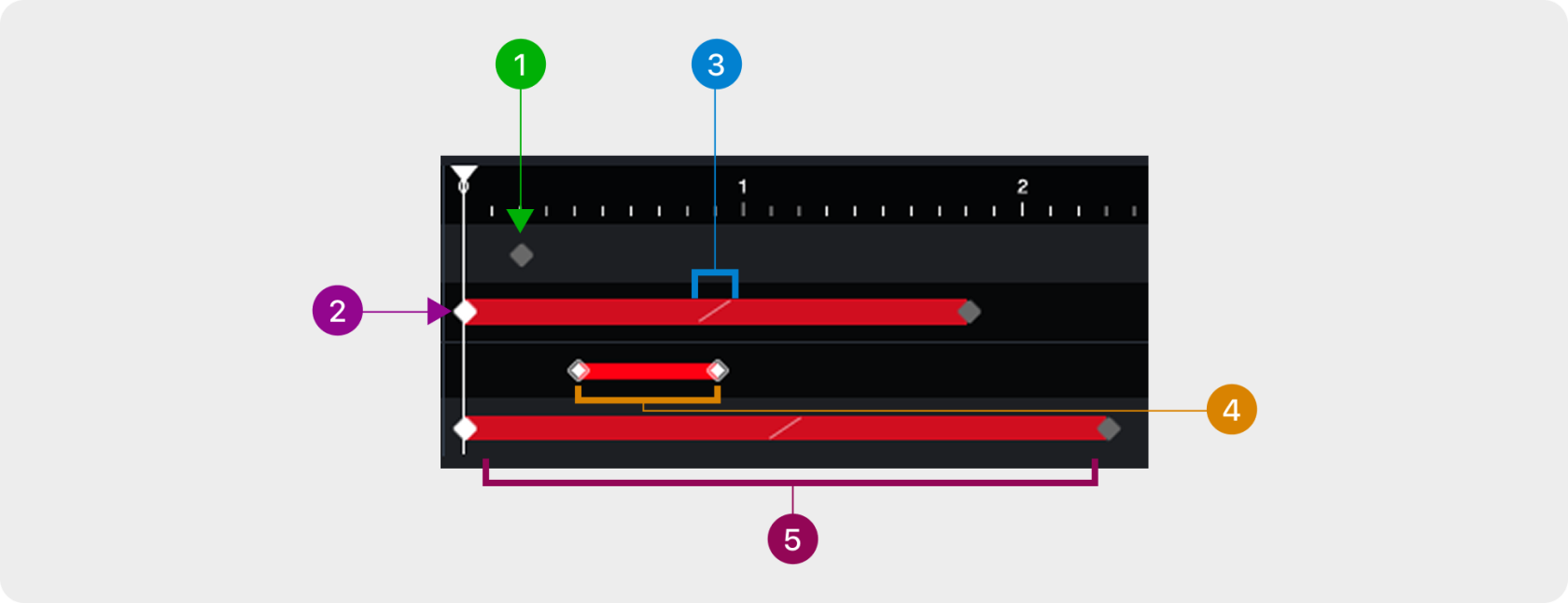##### ****1. Events****
Marks points in the timeline that trigger actions. Right-click an event to delete it, configure it, or set a label.
##### ****2. Keyframes****
Marks the start and end values of properties to create motion or change. Right-click the timeline to add a keyframe, or right-click a keyframe to delete it.
##### ****3. Easing****
Adjusts the acceleration and deceleration between keyframes for smoother transitions. Right click on the easing option icon to access the easing options.
##### ****4. Animations****
****Displays quick animations as sublayers under element layers****, allowing users to adjust their position on the timeline.
##### ****5. Span****
Shows the duration between keyframes, controlling how long a change takes.