Brand Kits
The BrandKit module allows you to seamlessly store and manage assets for multiple brands in one place.
Easily upload logos, define color palettes, add fonts, and include other media such as images and videos.
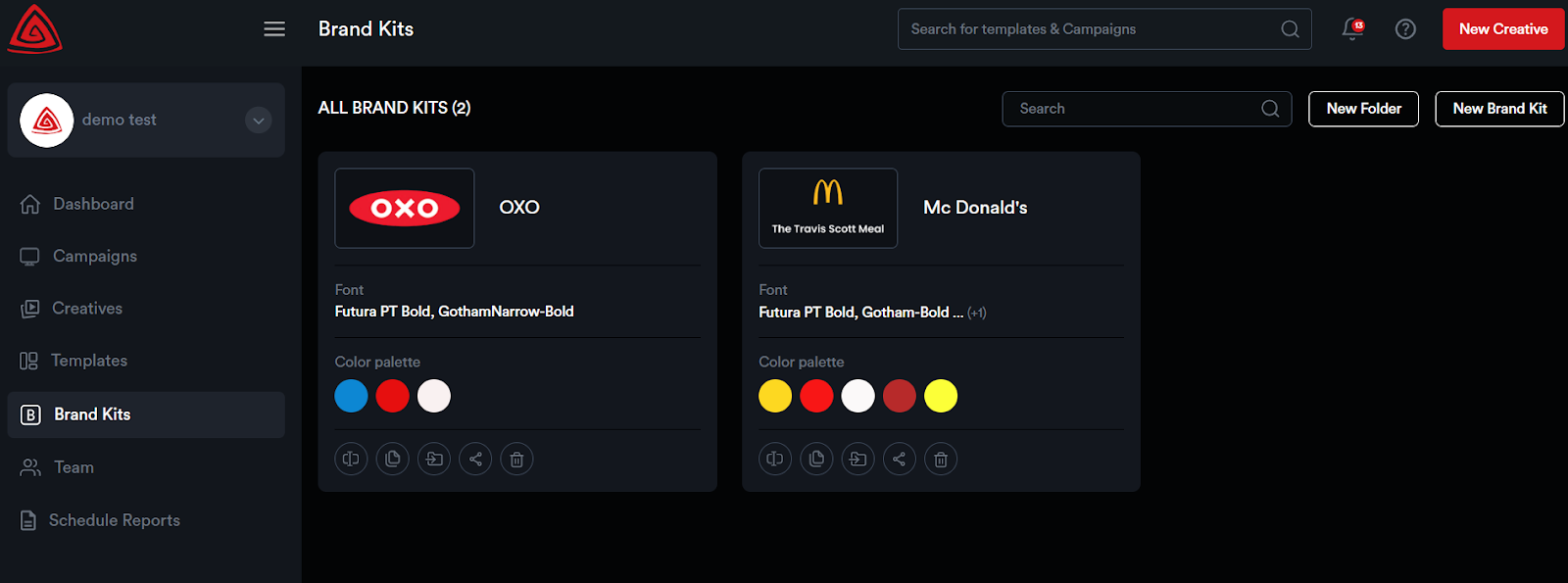
On the Dashboard, click ‘Brand Kits’ from the navigation bar on the left.
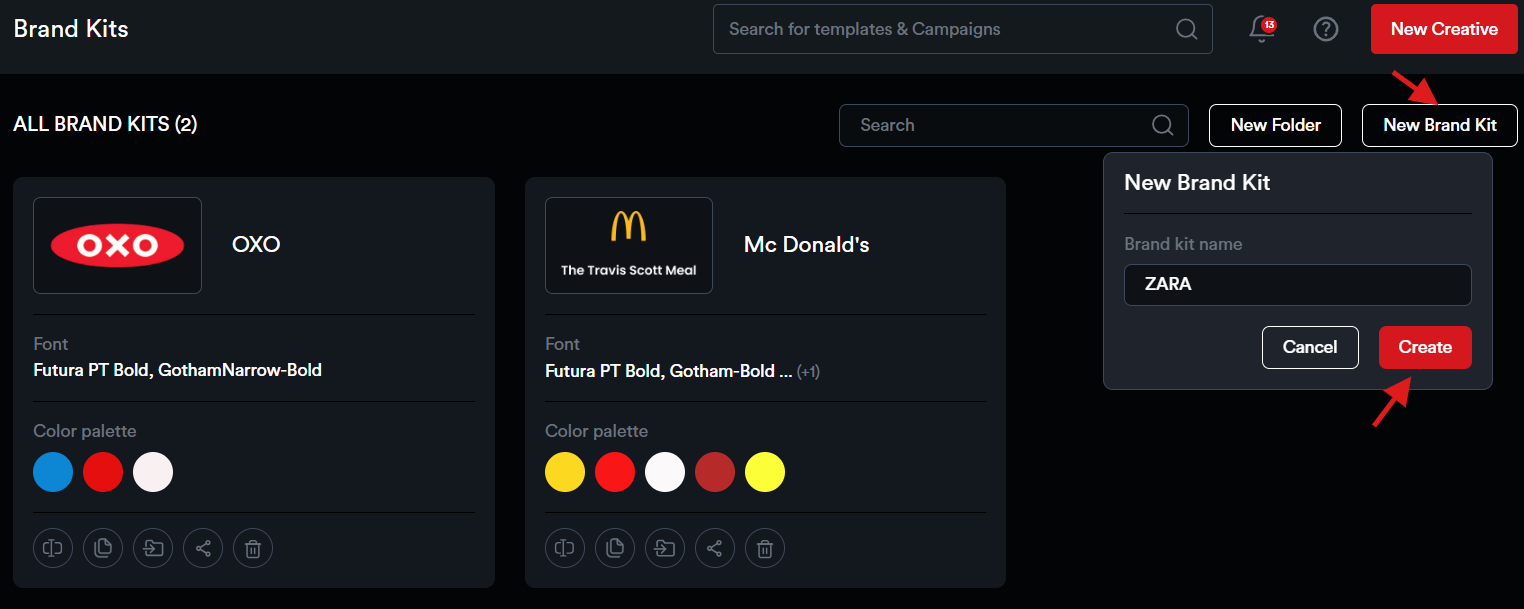
To create a new Brand Kit, click on ‘New Brand Kit’, enter a name, and then click ‘Create’.
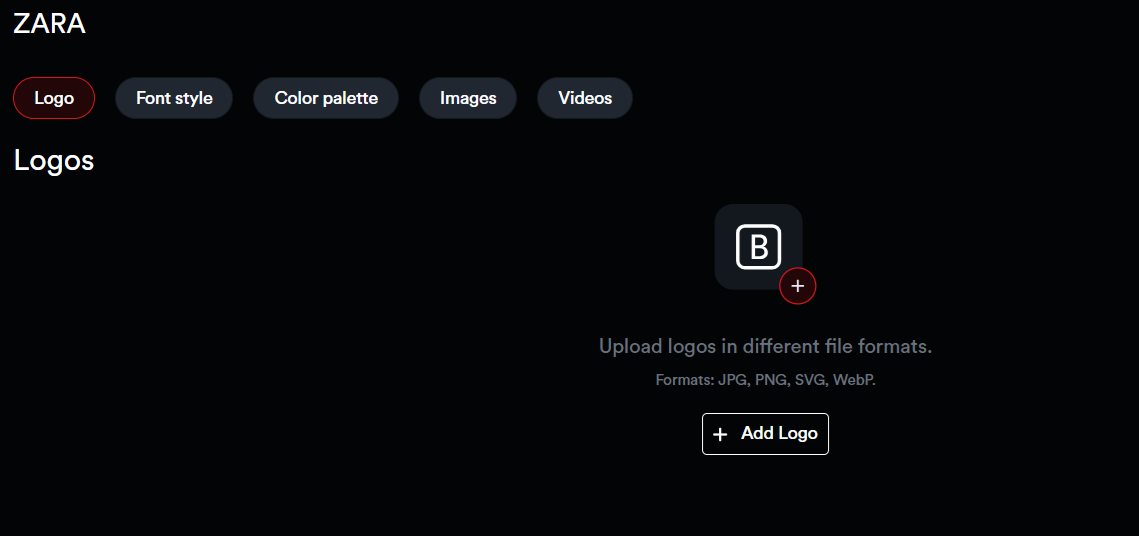
You're now inside the Brand Kit. Here, you can add logos, fonts, colors, images, and videos to customize your brand kit.
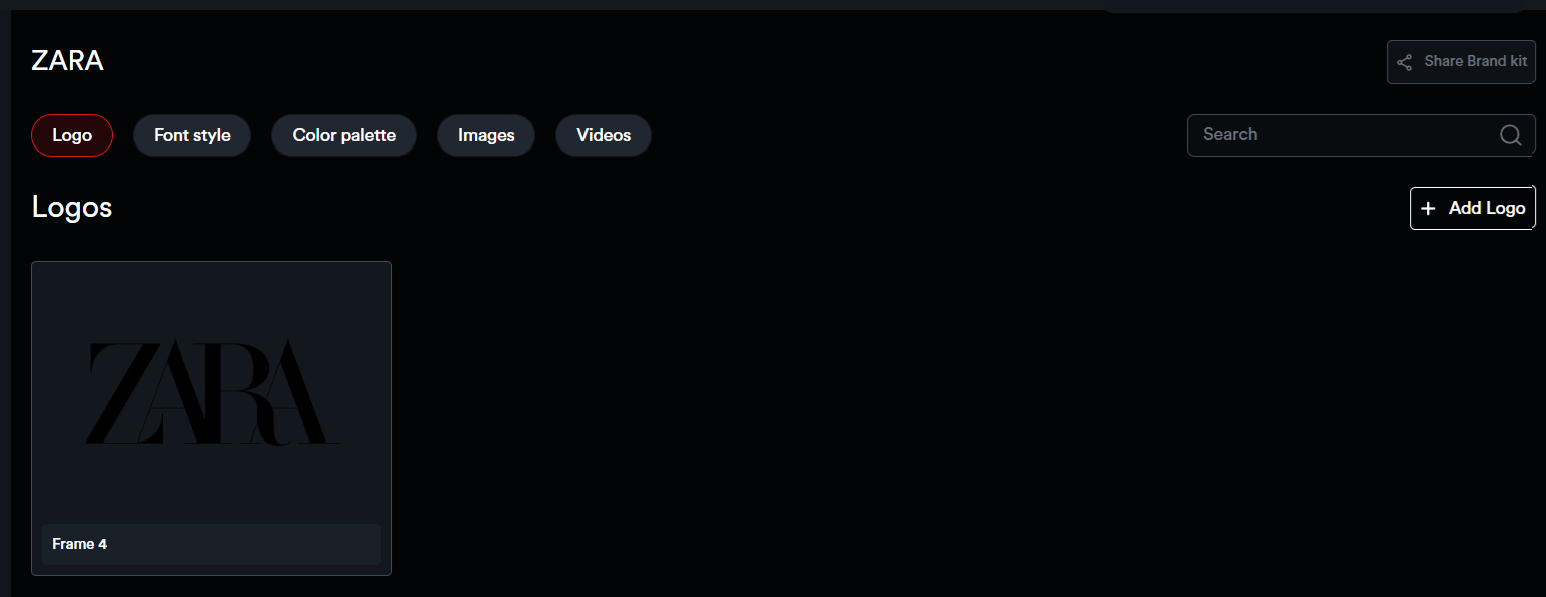
Click ‘Add Logo’ to upload your brand logos.
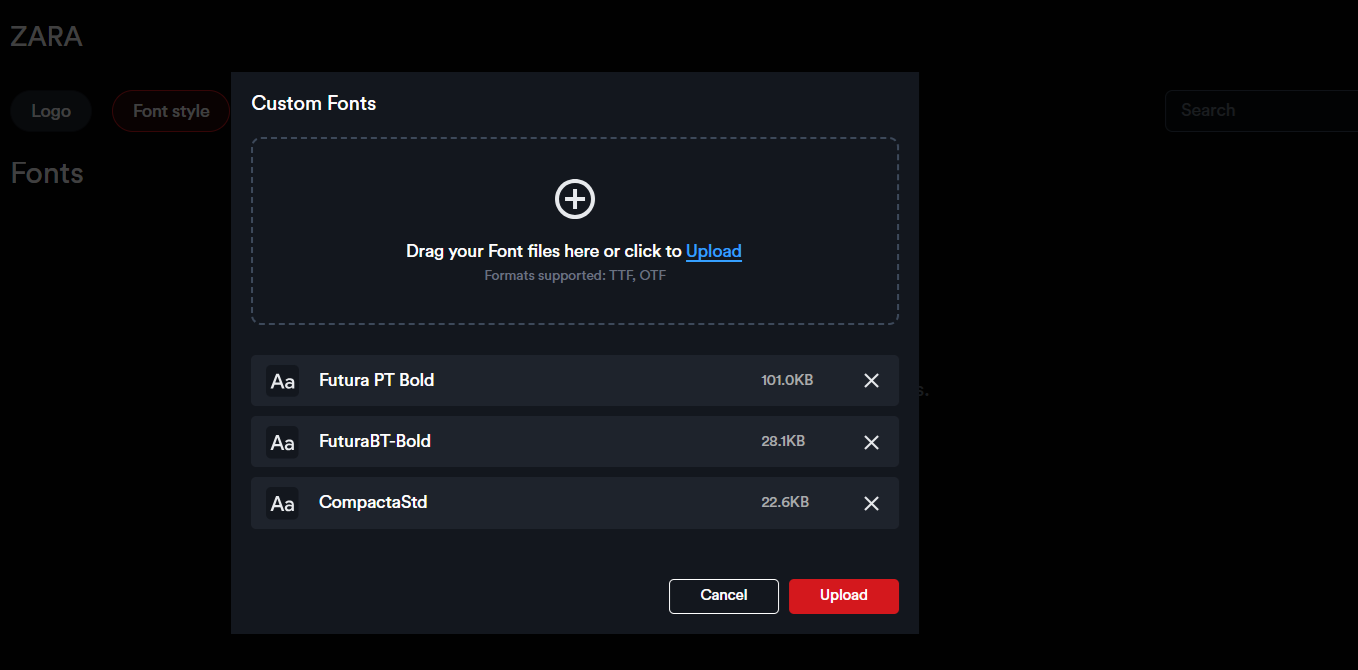
Click ‘Add Fonts’ to select and upload font files.
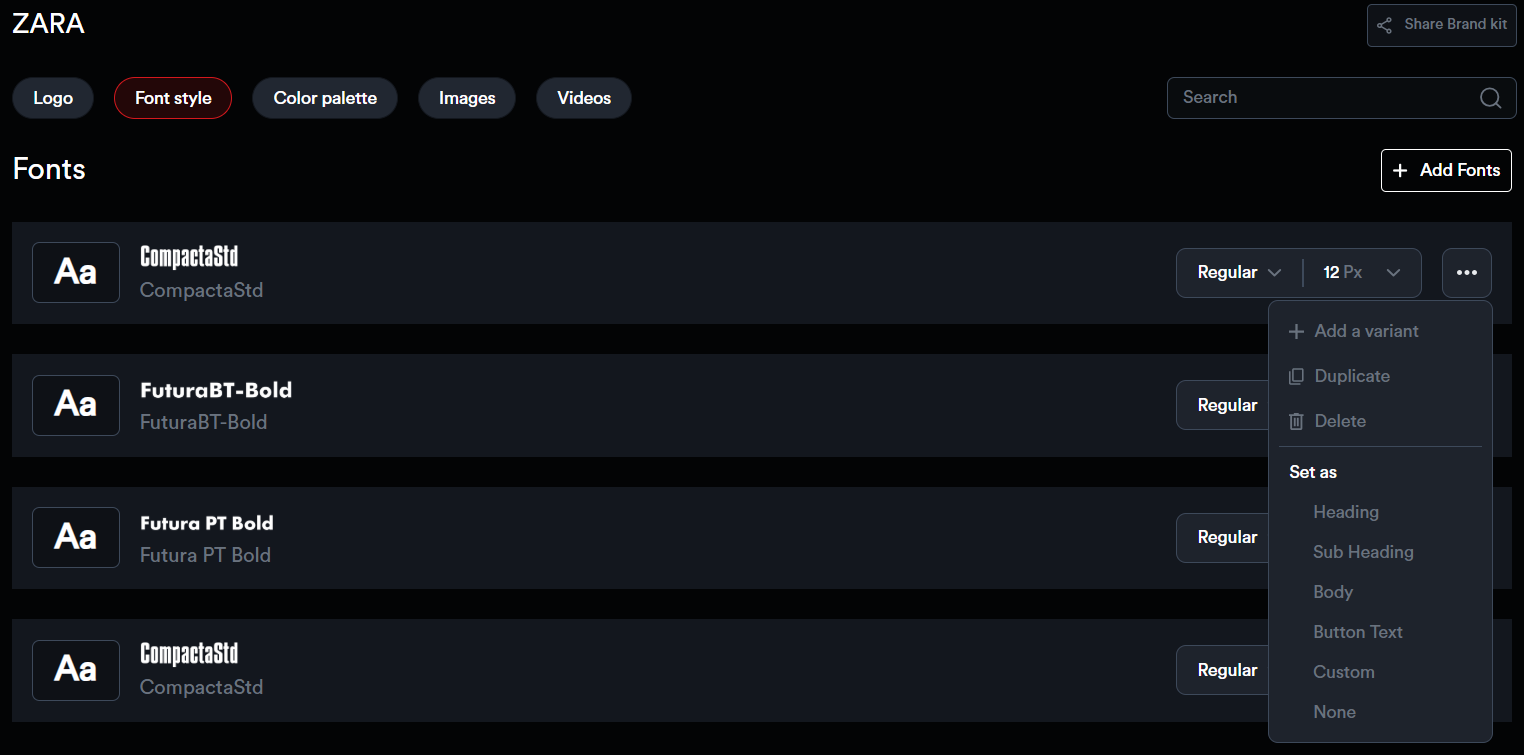
For each font added to the kit, users can create a variant, duplicate it, or delete it. Fonts can also be categorized by setting them as Heading, Subheading, Body, Button Text, Custom, or None.
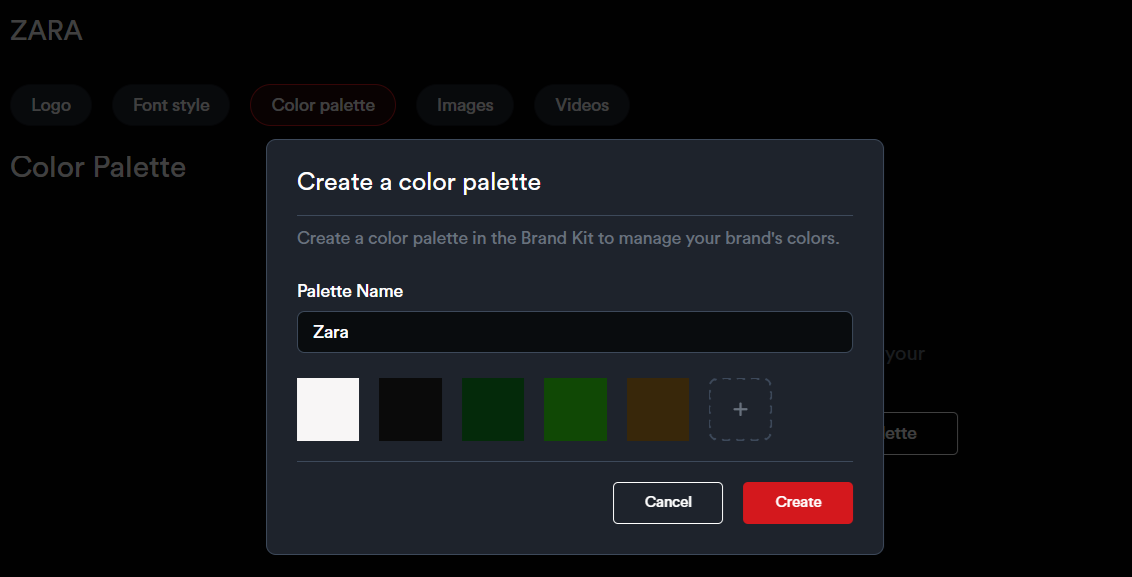
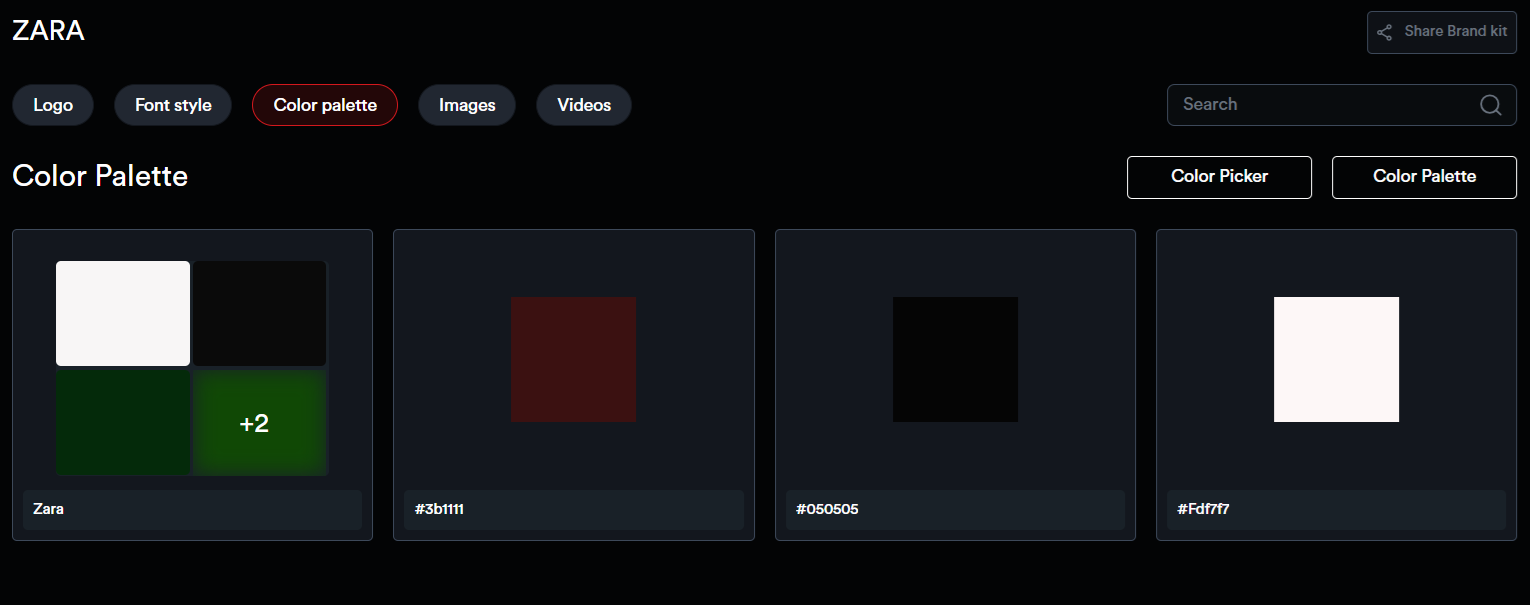
Under the Color Palette section, use the color picker to select and save individual colors, or create complete color palettes.
In the Images section, users can upload and save image assets for the brand.
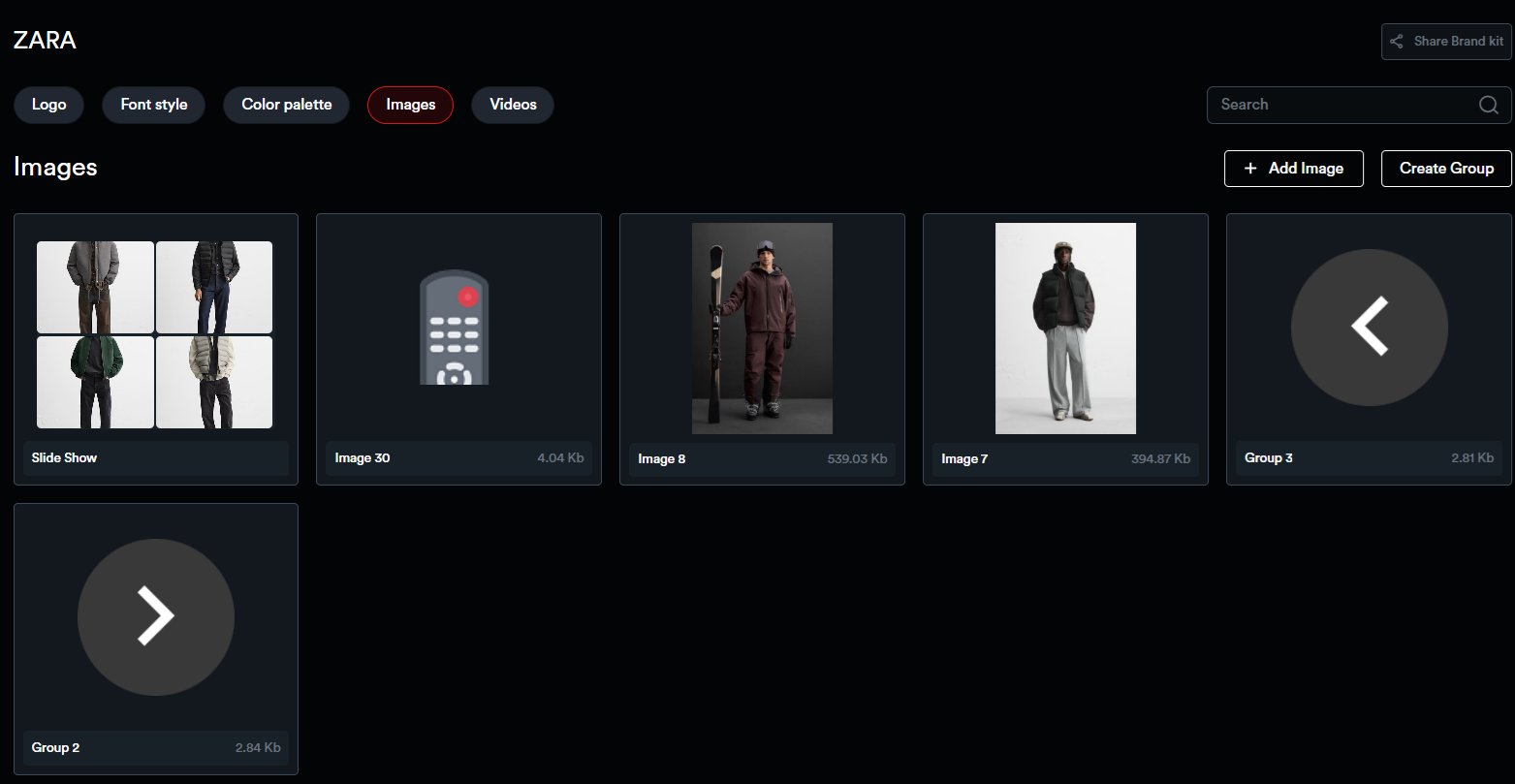
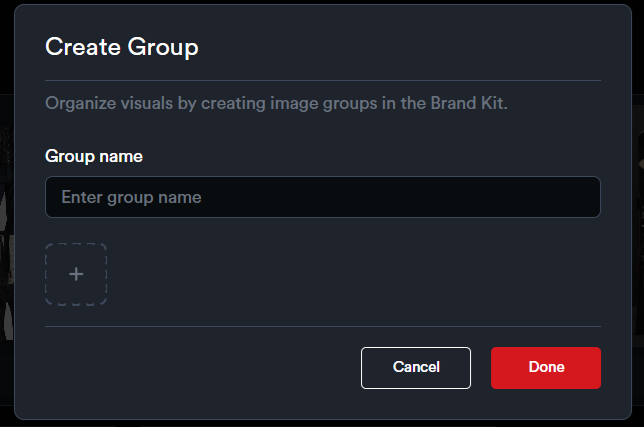
These assets can also be organized into different groups. To create a group, click on ‘Create Group’, enter a name, and upload images directly from the popup.