
Placement Management
How to Assign A Creative to Multiple Placements
What is a Placement?
Placements is a new creative management method within Adctv allowing for a more granular view of different creatives in campaigns.
Each creative setup will by default be assigned against a Placement and the Tags will now be generated at the Placement level.
A single creative can now be assigned to multiple Placements and each Placement Tag can be provided to different media partners. This allows better tracking of the performance and optimizing accordingly.
Accessing and Managing Placements within a Campaign
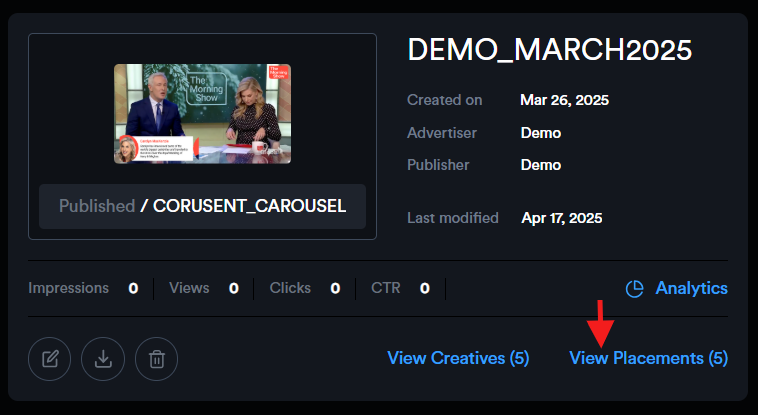
To view the list of placements associated with a campaign, navigate to the campaign card and click on "View Placements." This will open a sidebar displaying all placements linked to that campaign.
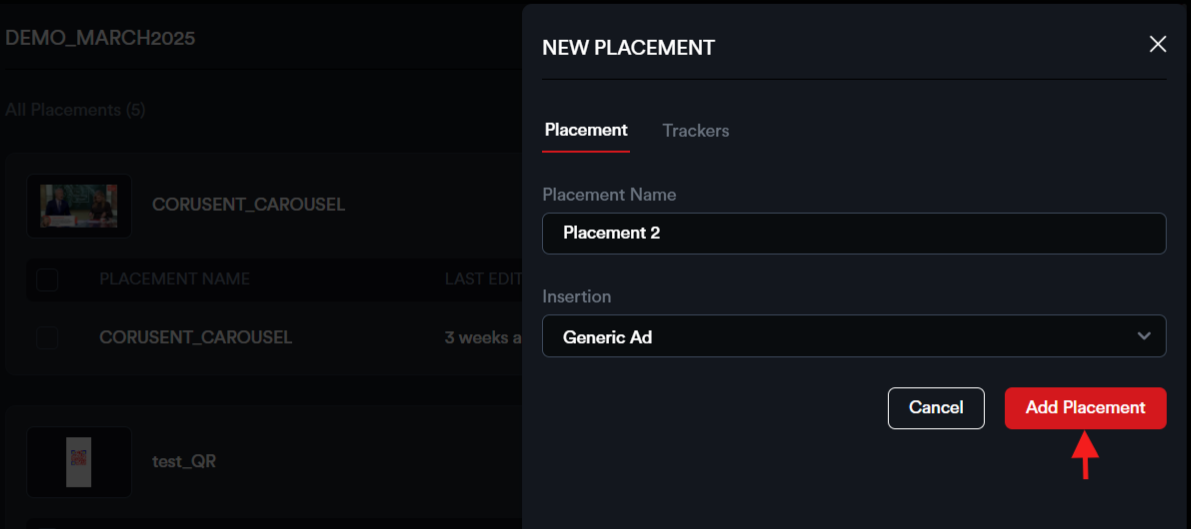
To create a new placement for a creative, click the "New Placement" button.

Provide the Placement Name and select the Insertion Type, then click "Add Placement" to save.
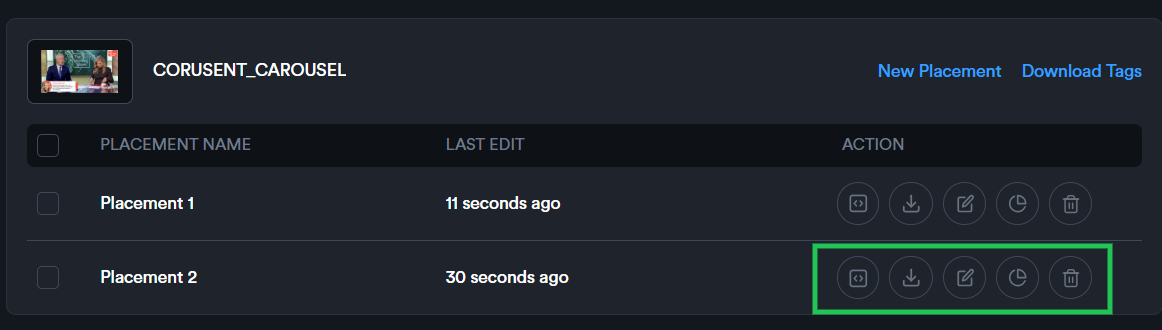
Each placement includes a set of action buttons under the Action section, allowing you to:
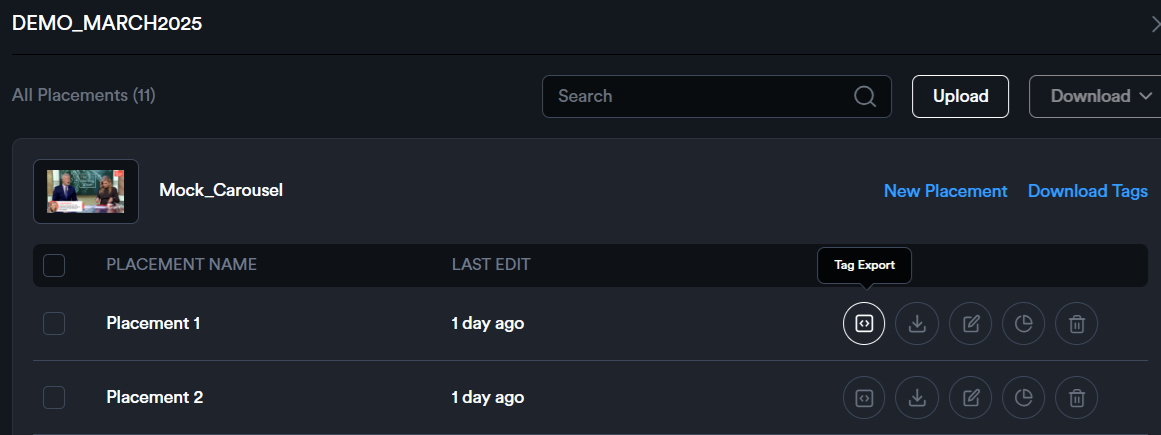
- Export the placement to view the tag and preview.
- Download the placement tag as an Excel file, including all selected macros.
- Edit the placement details to make updates.
- View Analytics to access performance data.
- Delete the placement if it is no longer needed.
Upload Placements:
To create multiple placements at once, use the bulk upload feature.
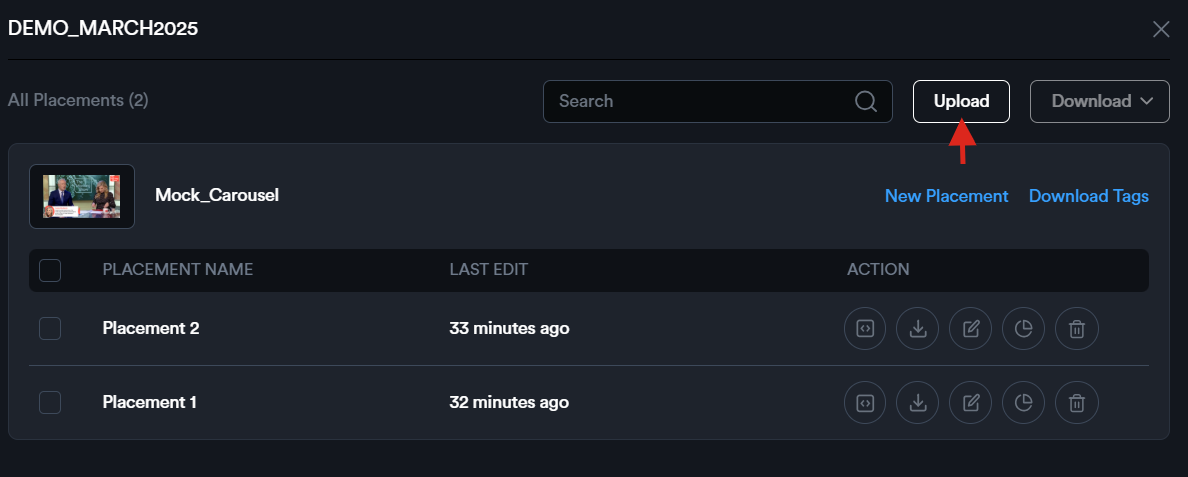
Begin by downloading the sample Excel sheet and entering the desired placement names.

Then, select the appropriate creative within the 'Upload Placements' modal and upload the completed file.
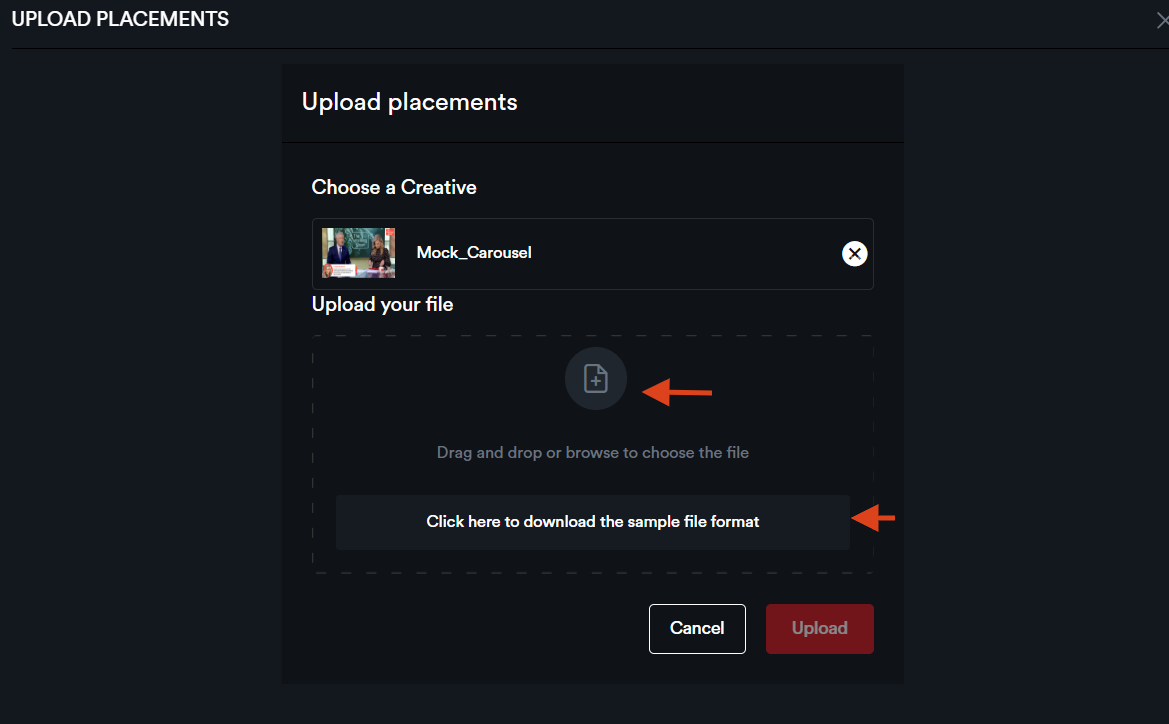
All specified placements will be added accordingly.
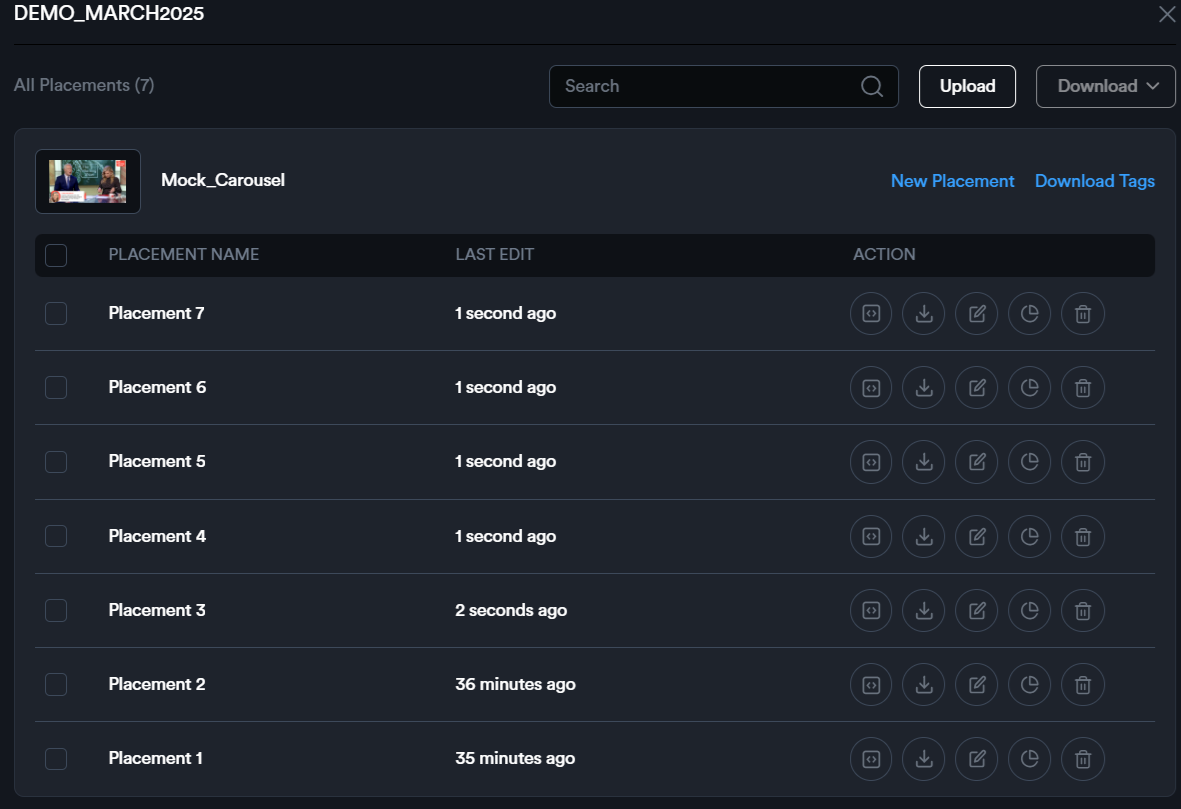
To export the tag for a placement, click the 'Tag Export' icon to open the Tag Export modal.
1. From the drop-down menu ‘Add Macro’, select your Media Partner—this will automatically insert the appropriate macro into the ad tag.

2. Click the 'Copy' icon to copy the tag.
3. The modal also includes a shareable preview link.
4. Clicking the 'Analytics' icon will direct you to the Placement Analytics page.
5. Additionally, creative details are provided along with a QR code that allows you to preview the ad on a mobile device.
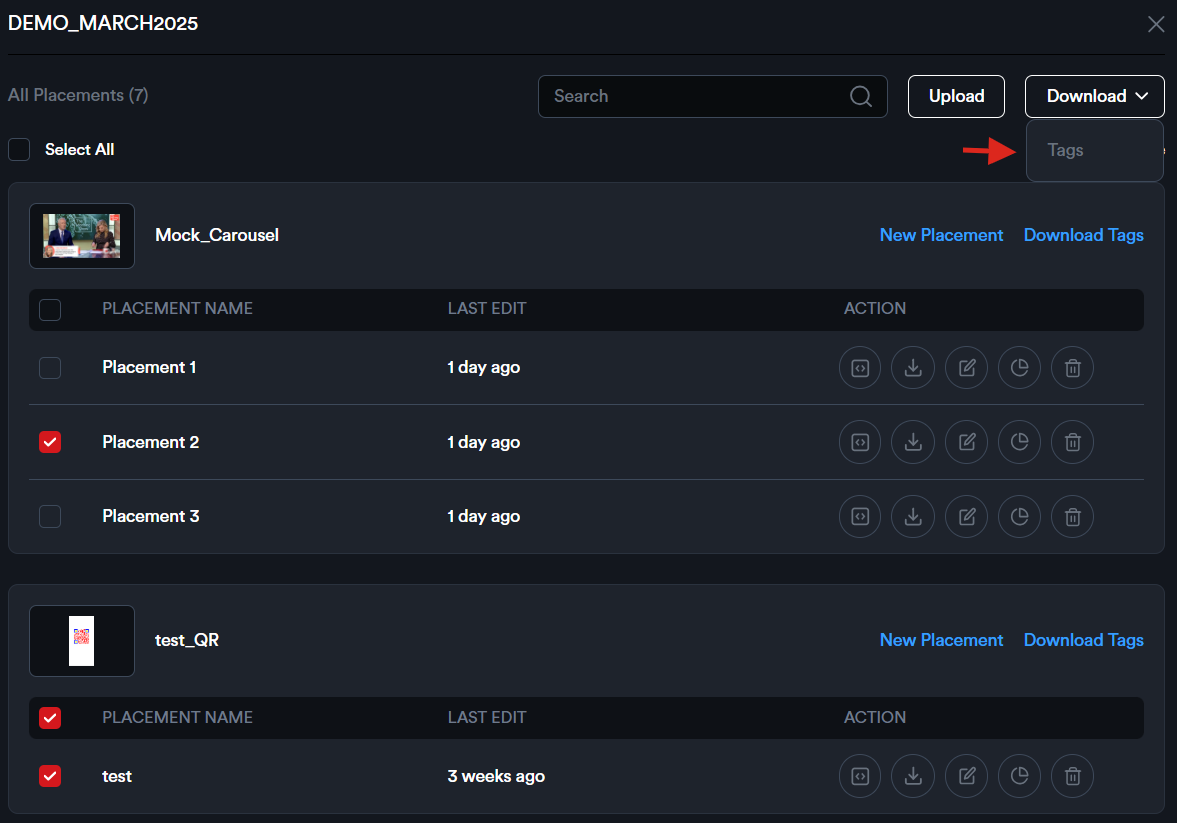

Next, choose the media partner and click 'Download'.
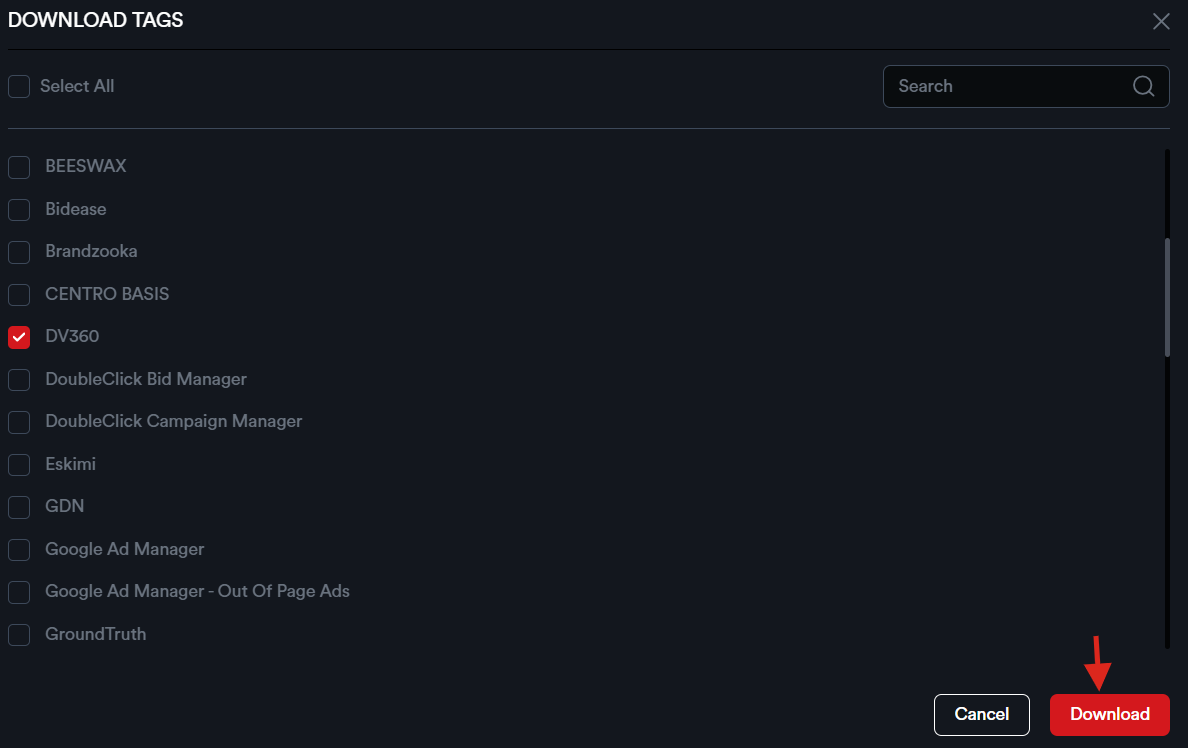
An Excel sheet containing the tags for the selected placements will be downloaded.