
New Page
Timeline
The timeline provides a visual interface for organising and controlling how elements appear, move, and interact in an animation. It has three main sections: the Header, which includes tools like the timer, zoom, and playback toggles; the Timeline Elements panel on the left, for managing screens, events, layers, and quick animations; and the Timeline Panel on the right, offering detailed controls for keyframes, spans, easing, and events.
Together, these sections let users sequence, edit, and fine-tune animations efficiently and intuitively, making complex interactions easier to create and manage.
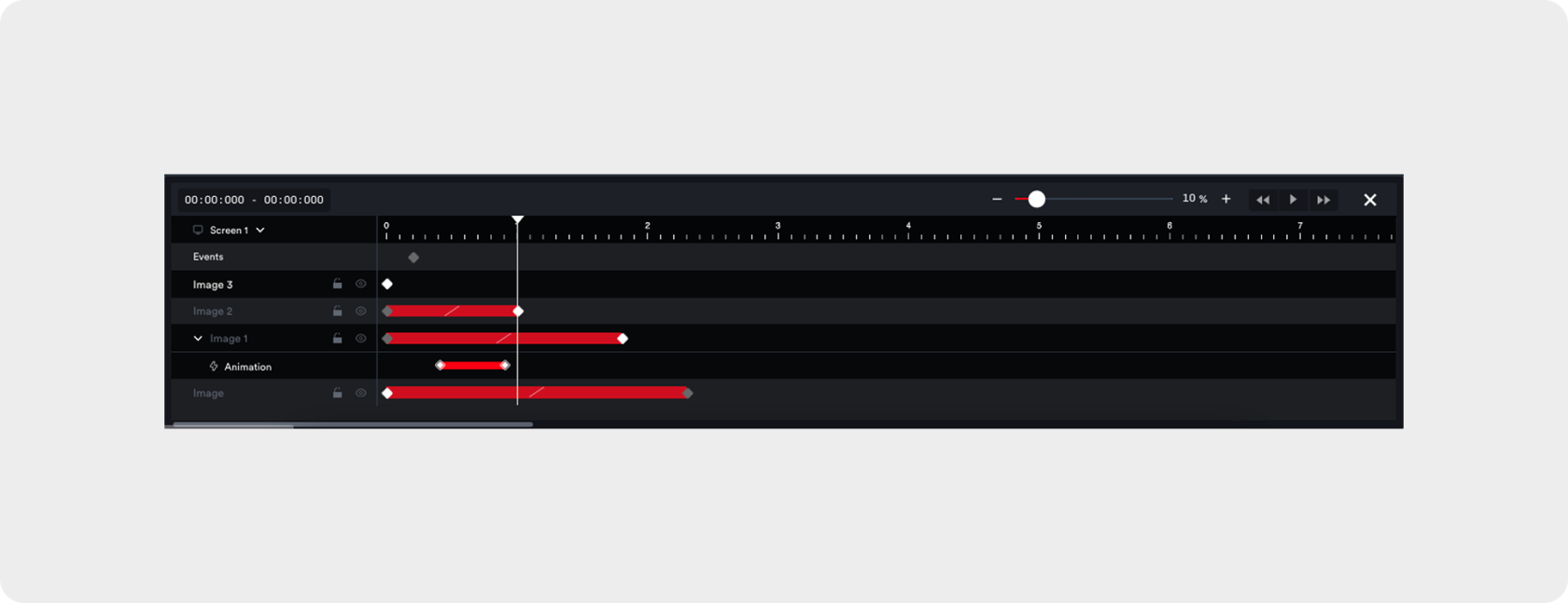
Header
The header provides essential controls for managing the timeline. It includes a Timer to display the current playback time and total duration, a Zoom slider for adjusting the timeline view and focusing on specific sections, and Toggle buttons to play, pause, or navigate forward/backward in small increments. Together, these tools allow users to monitor, control, and navigate the animation efficiently.
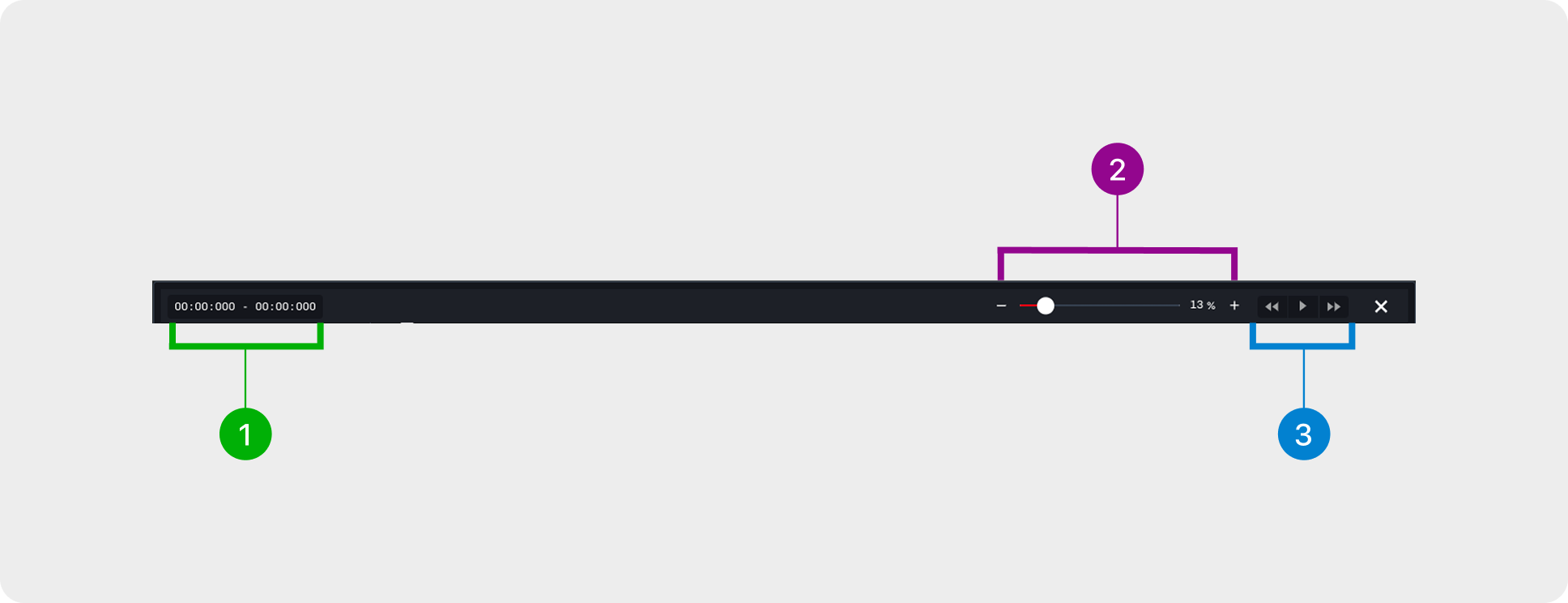
- Timer 2. Zoom
Displays the current playback time alongside the Adjusts the timeline view, allowing users to focus
total the total duration of the animation, helping users on specific sections or see the animation in
track full progress within the timeline. full for better navigation.
3. Toggle
Allows users to play or pause the animation and jump
100 ms backward or forward, enabling precise
navigation within the timeline.
Elements
Displays the structure of the animation, including screens, events, layers, and quick animations. It helps users organise, manage, and navigate different components of the timeline. Users can perform actions like renaming, configuring, or deleting elements, making it easier to keep the animation well-structured and accessible.
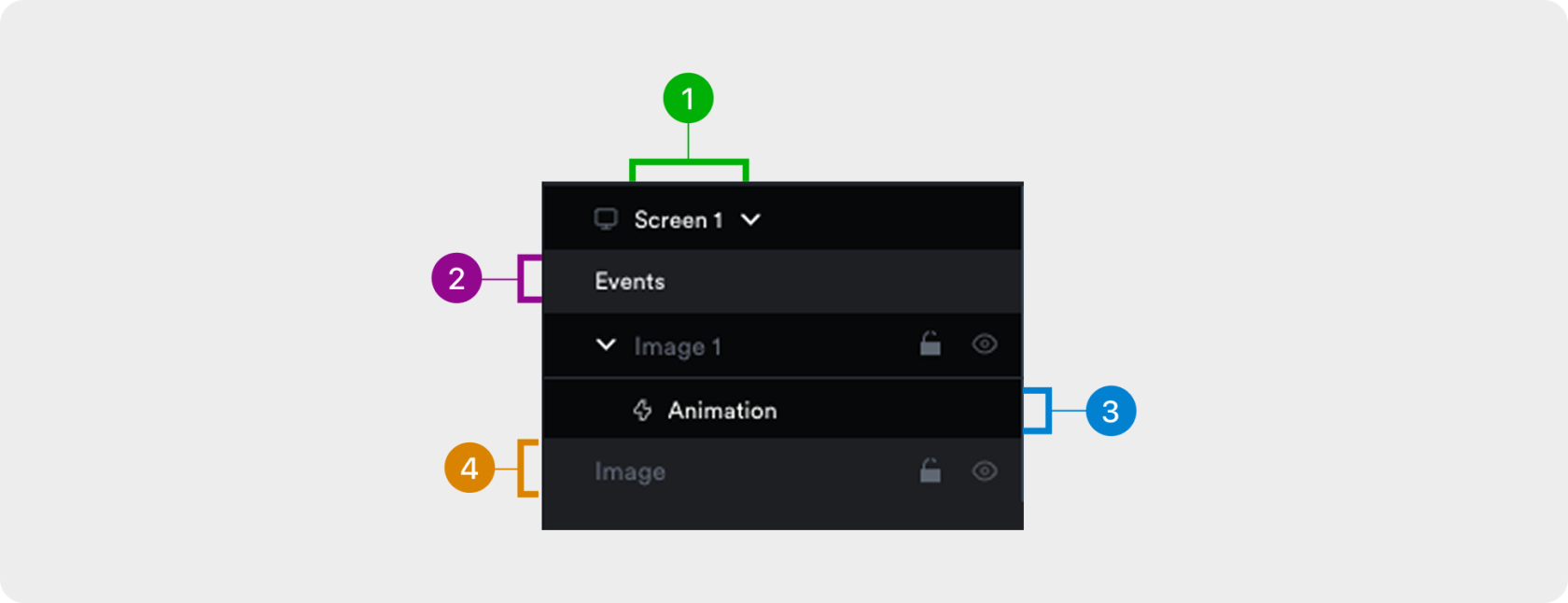
- Screens 2. Events
Lists all design screens, letting users switch between Defines timeline triggers that control playback
them to view and edit each screen’s timeline. such as play, pause, restart, or jump or activate
actions in other elements.
3. Animations 4. Layers
Shows quick animations applied to elements, Lists all elements on the screen, allowing users to
displayed as sublayers under their respective layers arrange their order and manage visibility with the
for easy management.  or lock them with the
Panel
Displays the timing and duration of elements within the animation. It helps users manage keyframes, spans, animations, easing, and events to fine-tune playback. This section focuses on controlling motion, transitions, and sequencing for smooth, precise animations.
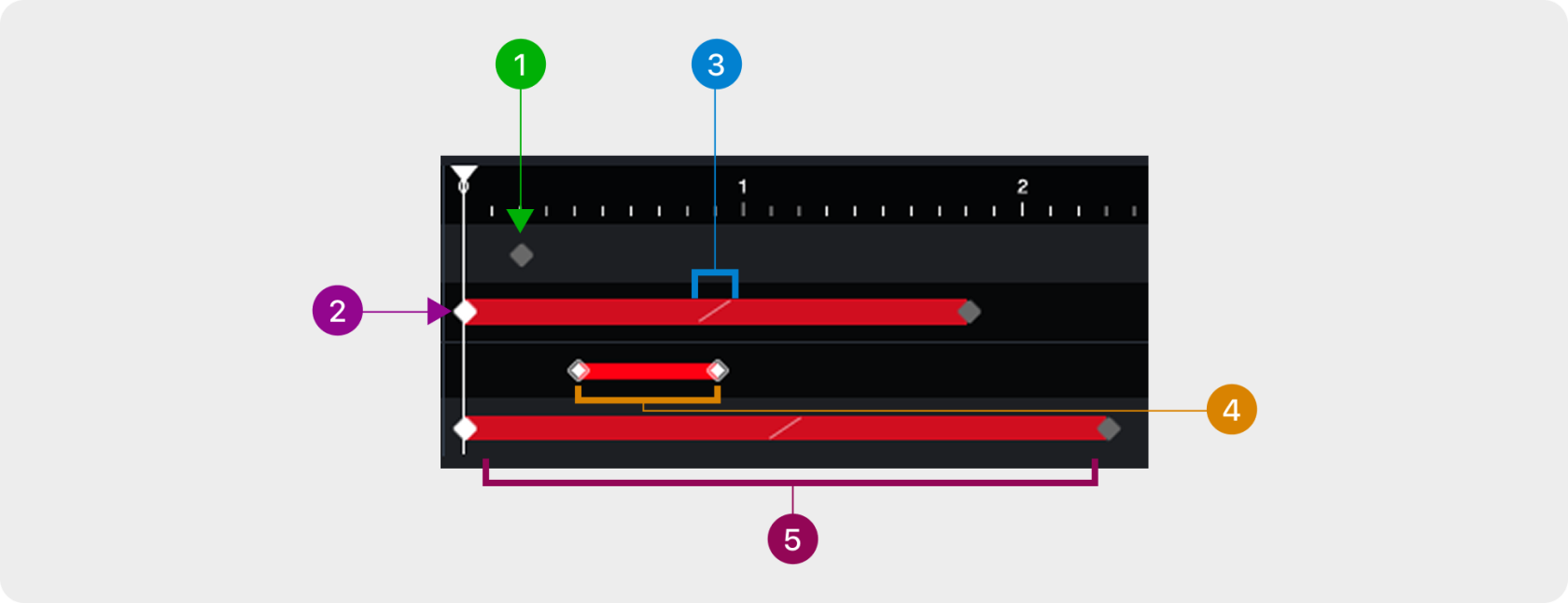
- Events 2. Keyframes
Marks points in the timeline that trigger actions. Right- Marks the start and end values of properties to
click an event to delete it, configure it, or set a label. create motion or change. Right-click the timeline
to add a keyframe, or right-click a keyframe to
delete it.
3. Easing 4. Animations
Adjusts the acceleration and deceleration between Displays quick animations as sublayers under
keyframes for smoother transitions. Right click on element layers, allowing users to adjust their
the easing option icon to access the easing options. position on the timeline
5. Span
Shows the duration between keyframes, controlling
how long a change takes.