Toolbar and panels
Adctv Creative Builder
Here is a quick walkthrough of the Adctv Creative Builder.
1. Canvas
Let’s start with the drag-and-drop ad builder. Here’s your canvas where you’ll be creating your ads.

It’s simple to get started, just drag and drop components from the Components(Interactive Widgets) list at the top directly into your canvas.
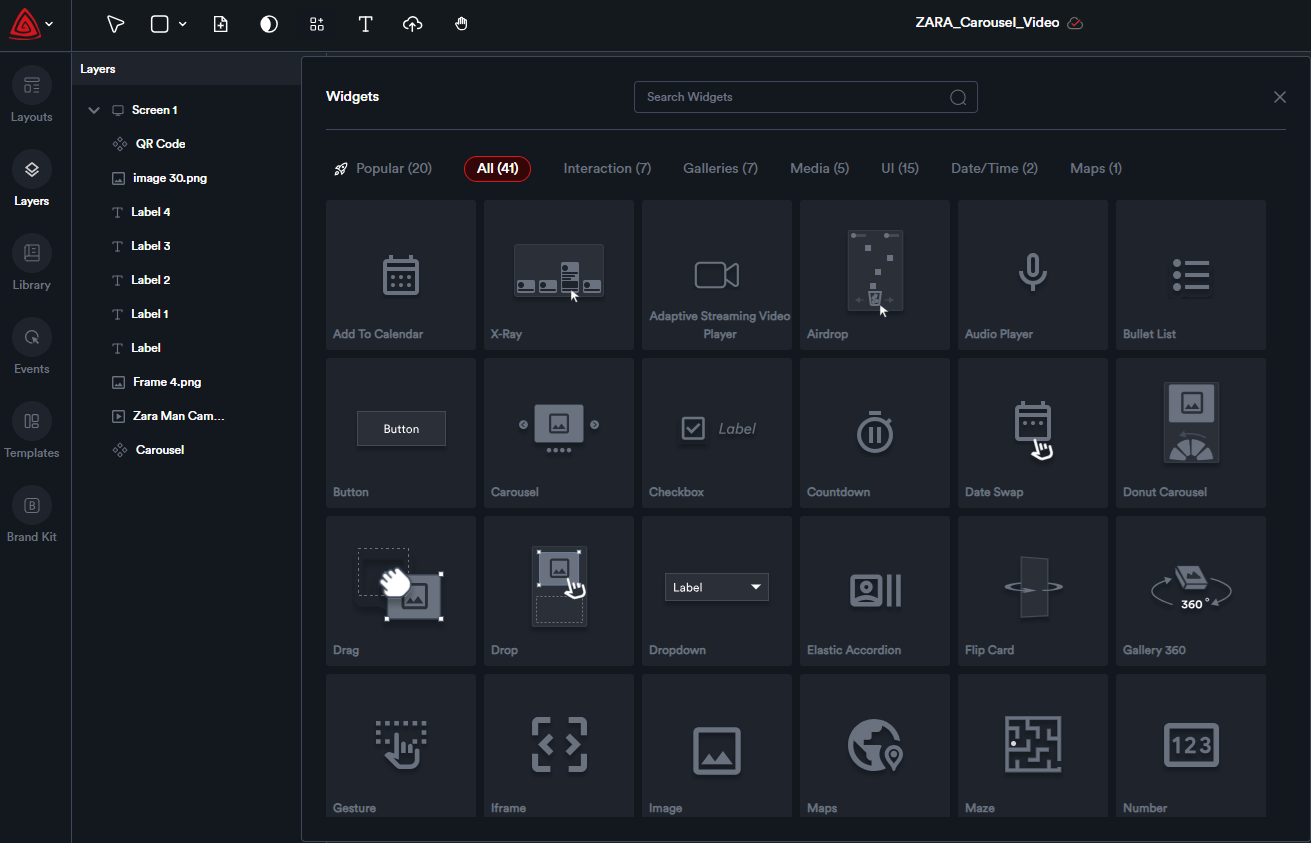
You can add new pages, view, and edit different pages/screens all in a single view.
2. Toolbar
The toolbar with various icons, each serving a unique purpose:

1 - Selector icon
2 - Add Basic elements
3 - Add Screens
4 - Add Interactive Widgets
5 - Text Element
6 - Asset Uploader
7 - Move Canvas
3. LayersPanelLayers Panel
Each component added to the canvas is automatically placed as a separate layer.

You can reorder layers by selecting the desired layer and dragging it to the preferred position.
Layers can be locked to prevent selection or editing. Locked layers are uneditable.
You have the option to hide or unhide a layer. Hidden layers become invisible on the canvas and cannot be selected or modified. To toggle visibility, click the corresponding icon.

Additionally, by right-clicking on any component within the canvas, you can duplicate it, delete it, undo or redo changes, copy its style, apply a quick animation, or send the layer to the front or back.

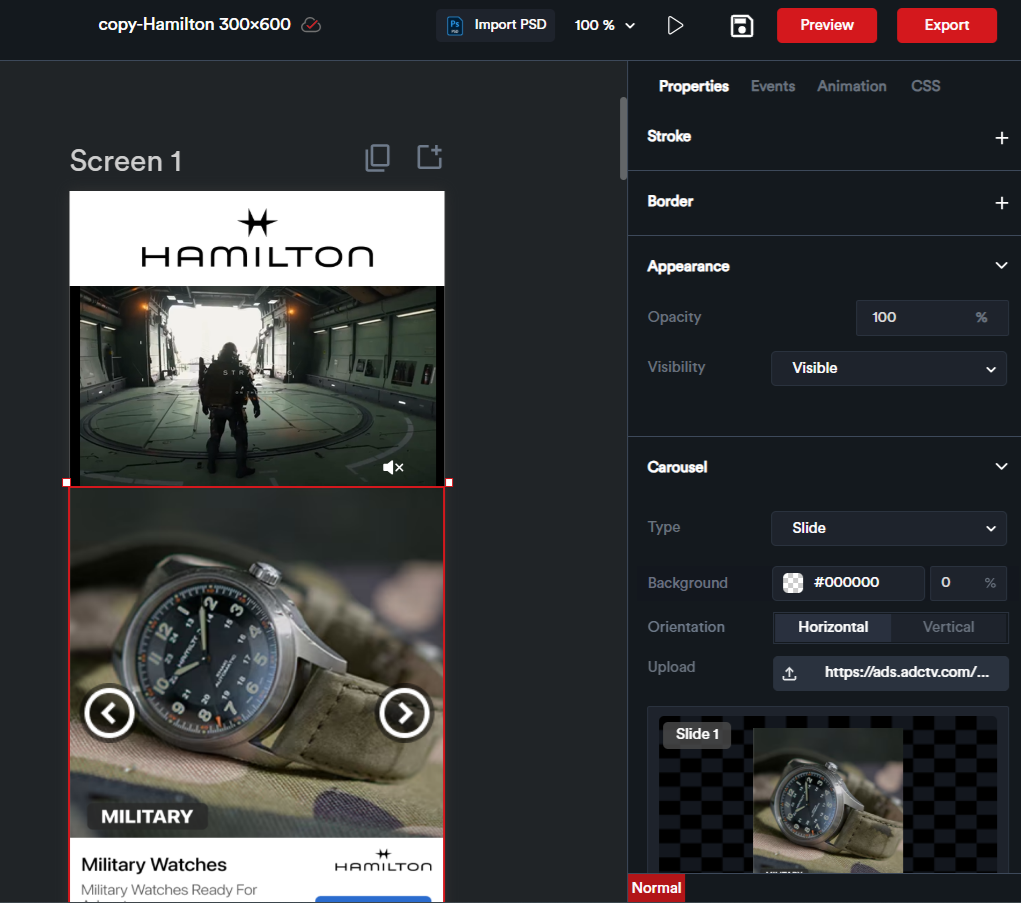
4. Properties Panel
After adding a component, click on it to open the properties panel on the right. Here, you can easily adjust settings such as size, color, position, and more.
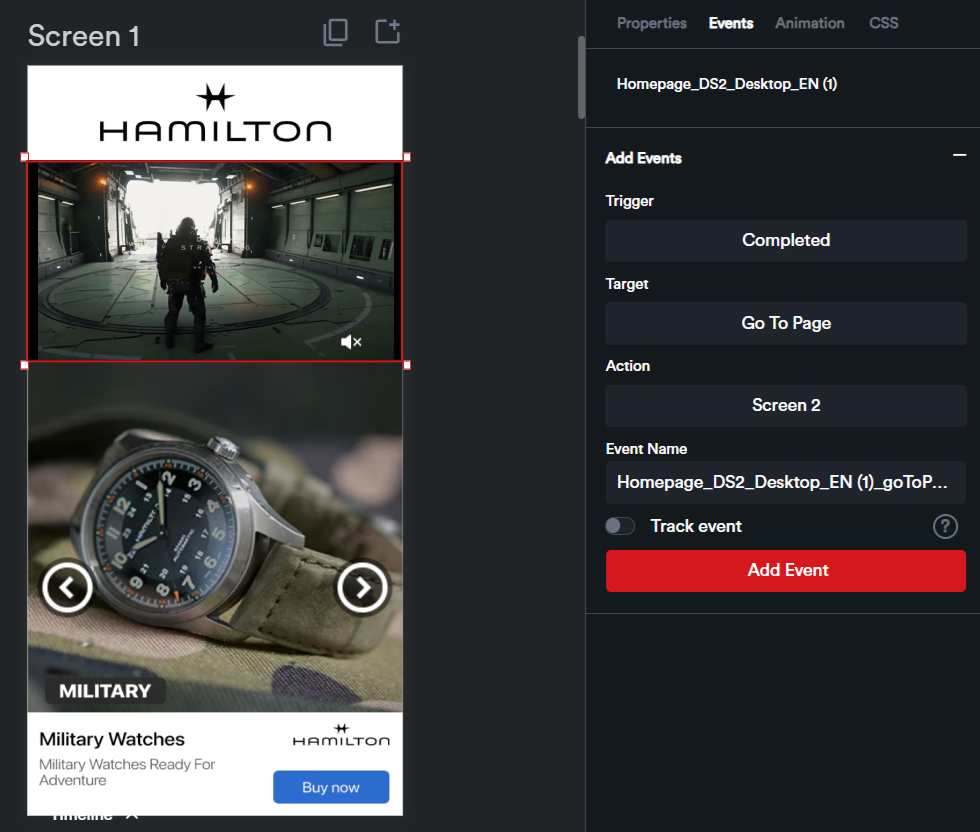
5. Events Panel
The ‘Events’ tab allows you to set up events and apply quick animations to your components.
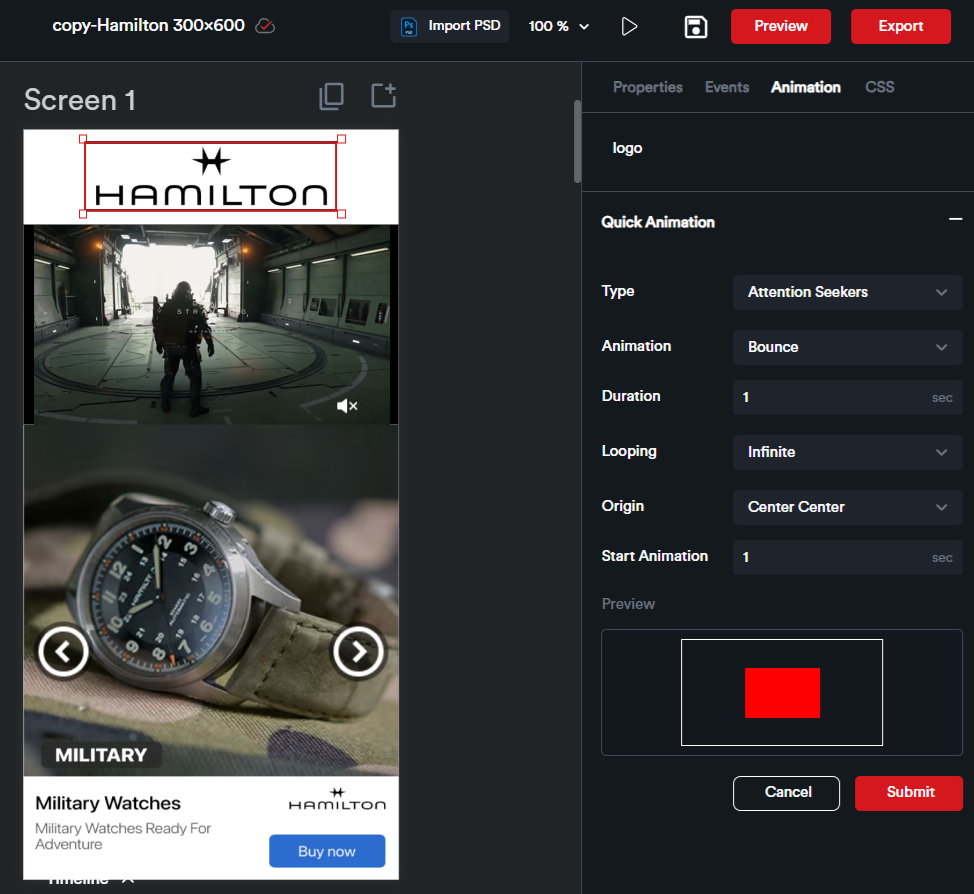
6. Animation Panel
Adctv offers a range of predefined Quick Animations for ease of use. From the Animation Panel, you can easily apply these animations to any element in your ad.