
Toolbar and panels
Adctv Creative Builder
Here is a quick walkthrough of the Adctv Creative Builder.
1. Canvas
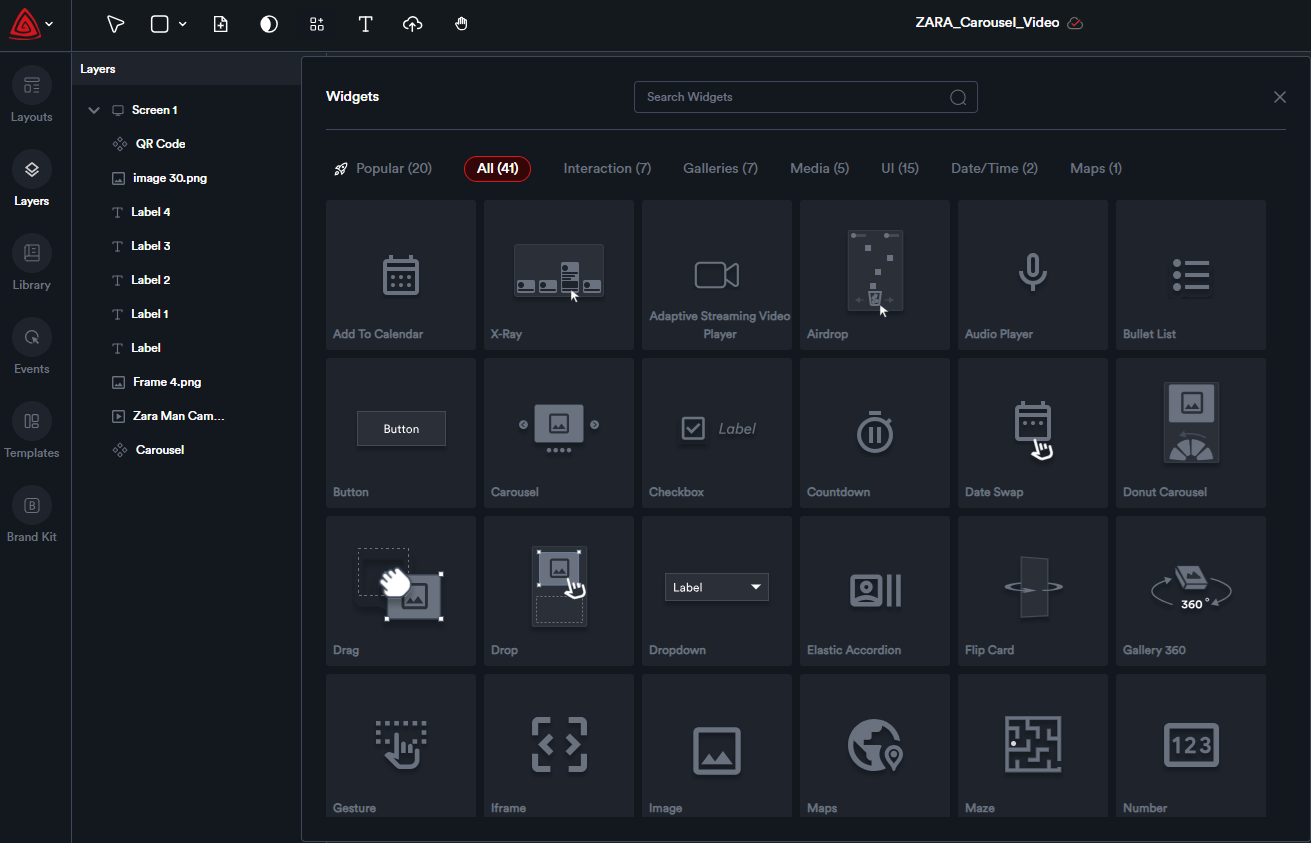
Let’s start with the drag-and-drop ad builder. Here’s your canvas where you’ll be creating your ads.

It’s simple to get started, just drag and drop components from the Components(Interactive Widgets) list at the top directly into your canvas.
You can add new pages, view, and edit different pages/screens all in a single view.
2. Toolbar
The toolbar with various icons, each serving a unique purpose:

1 - Selector icon
2 - Add Basic elements
3 - Add Screens
4 - Add Interactive Widgets
5 - Text Element
6 - Asset Uploader
7 - Move Canvas
3. Layers Panel
Each component added to the canvas is automatically placed as a separate layer.

You can reorder layers by selecting the desired layer and dragging it to the preferred position.
Layers can be locked to prevent selection or editing. Locked layers are uneditable.
You have the option to hide or unhide a layer. Hidden layers become invisible on the canvas and cannot be selected or modified. To toggle visibility, click the corresponding icon.

Additionally, by right-clicking on any component within the canvas, you can duplicate it, delete it, undo or redo changes, copy its style, apply a quick animation, or send the layer to the front or back.

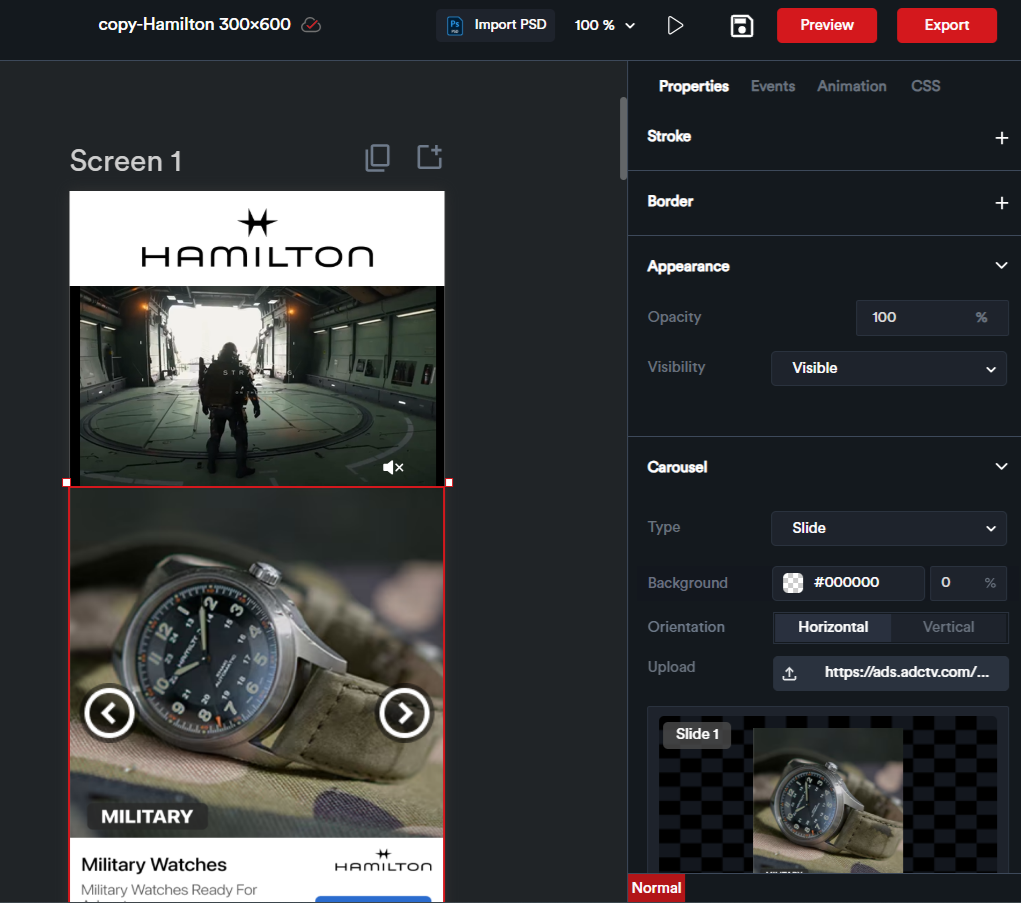
4. Properties Panel
After adding a component, click on it to open the properties panel on the right. Here, you can easily adjust settings such as size, color, position, and more.
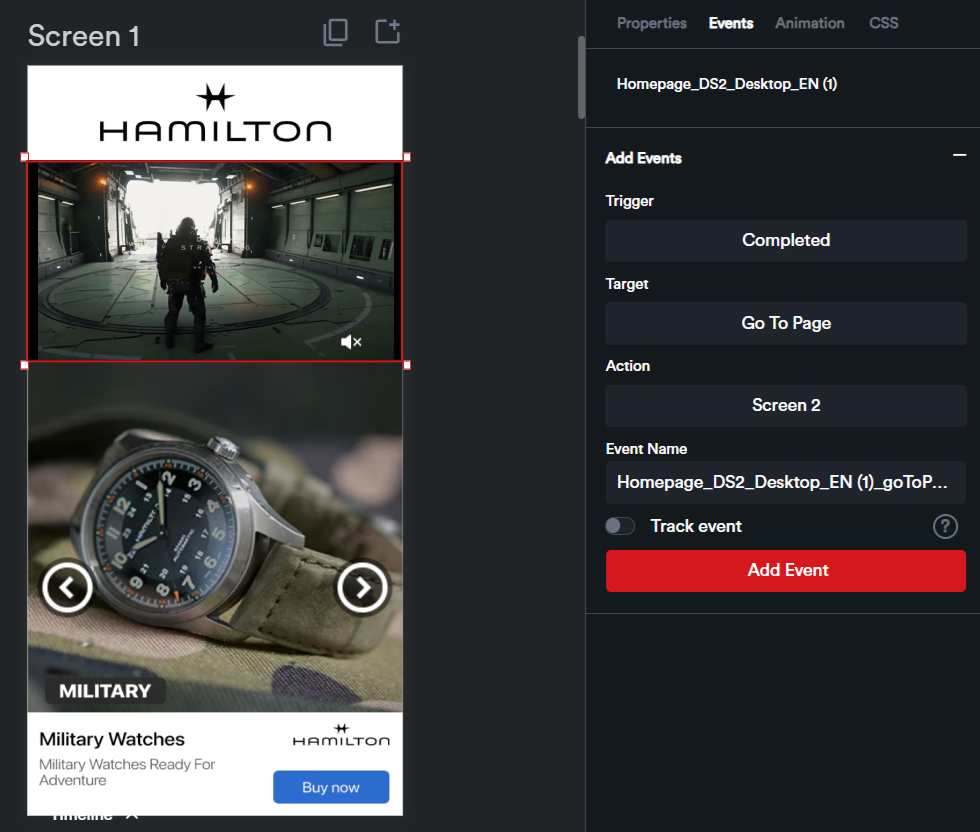
5. Events Panel
You can add events to control the behavior of your ad, such as defining actions triggered when a user clicks on an image or a button.
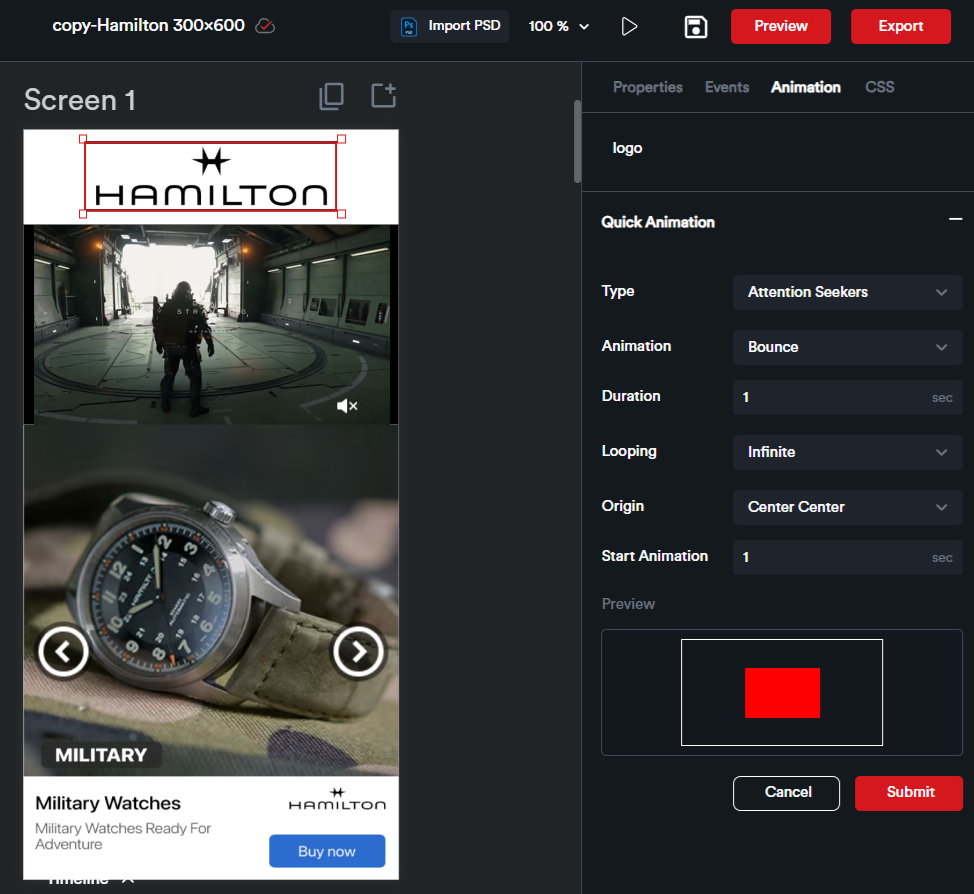
6. Animation Panel
Adctv offers a range of predefined Quick Animations for ease of use. From the Animation Panel, you can easily apply these animations to any element in your ad.
All the configured events will be listed here in the Events module.

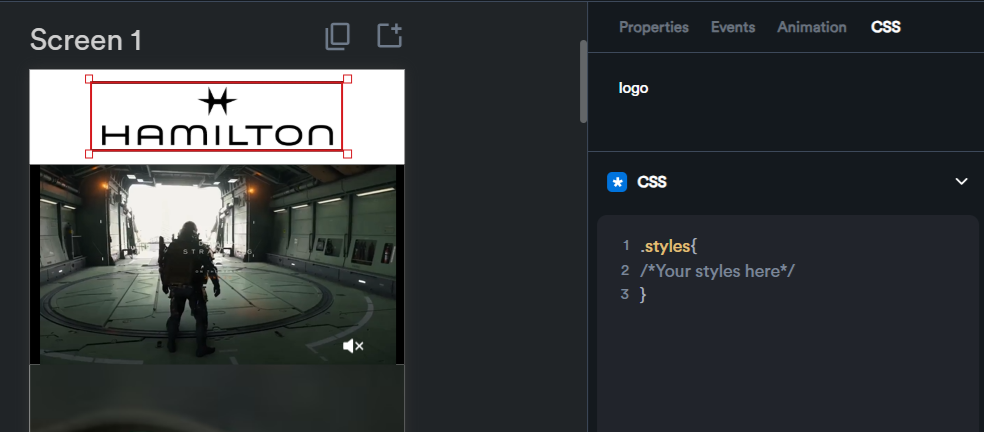
8. CSS Panel
The CSS Block allows you to add custom styling to any element in your ad.
8. Timeline Panel
Here, you can create complex animations and set up time-based events. Each component is represented as a layer on the timeline, allowing you to animate elements individually.
You can add keyframes to the timeline to indicate where your animation starts and ends.

9. Library
The Library panel displays the images, videos, and other assets that you're using or planning to use in your creative.
You can upload new assets anytime and store them for future use, making it simple to manage and reuse content across multiple pages.

10. Layouts
You can select and group multiple components to create a layout. The layout can be named, saved, and reused at any time.
This is especially useful for creating reusable sections, like a header or footer, that you can save and bring into your ads whenever you need them. Know More..
11. Templates
Here you’ll find templates that match your selected canvas size, so you can quickly pick one and start customizing it for your needs.
Just browse through the list and click ‘Add to Page’ to instantly add a template to your current creative. Know More..
12. Brand Kit
With the BrandKit module, you can easily store and manage assets for multiple brands. You can effortlessly share the Brand Kit with collaborators via a unique link, granting them access to brand assets. You can upload logos, save color palettes, add fonts, and include other assets like images and videos. Know More..