
Tags and Implementation
Adctv is a creative management platform designed to help advertisers build CTV, Rich Media Display, and Video ads with a strong focus on user engagement.
The output from Adctv Studio is an ad tag that can be seamlessly implemented across various media partners, including DSPs, publishers, and ad networks.
AdCTV is a custom, rich media creative platform tailored for building HTML5 and VAST creative units.
- For CTV creatives, the output is a VAST tag.
- For Rich Media Display creatives, an INS tag is generated.
- For Interactive Video creatives, both an INS tag and a VAST tag are provided, allowing users to choose based on their preferred implementation.
Compatibility and Interactivity across VAST versions
Creative compatibility largely depends on the VAST version supported by the inventory, with VAST 4.0/4.2 (SIMID) offering the most robust support for interactive experiences. While our ad tags are designed to gracefully fall back to VAST 2.0, some interactive features may be limited at that level.
How do we offer interactivity on VAST 3.0 and above?
Our proprietary technology layer extends standard VAST 3.0 capabilities by implementing a sophisticated progressive fallback mechanism across Connected TV (CTV), Over-The-Top (OTT), and traditional video inventory.
At its core, the system employs a waterfall approach that initiates with SIMID (Secure Interactive Media Interface Definition), leveraging its secure iframe-based execution environment and comprehensive interactive capabilities. When SIMID support isn't detected, the system gracefully degrades to VAST 4.0, which maintains advanced functionality through native script execution and standardized APIs while supporting comprehensive verification features.
Should VAST 4.0 prove unavailable, the system falls back to VAST 3.0, where our proprietary extensions that are compliant with VAST3 APIs enable a custom interactive layer while maintaining compatibility with major ad servers and supporting essential interaction tracking. As a final fallback measure, the system defaults to VAST 2.0, ensuring universal compatibility by executing the creative as a standard linear video advertisement with basic impression and quartile event tracking.
This implementation is fully compatible with major demand-side platforms (DSPs) including Display & Video 360 (DV360), requiring only standard video codec support and HTTPS delivery capabilities from the player environment.
The ad response includes sophisticated conditional logic for format detection and server-side adaptation based on player capabilities, enabling real-time format negotiation. Our measurement framework maintains consistent tracking across all VAST versions while supporting extended metrics for interactive events when available.
The system optimizes performance through conditional loading of interactive assets and bandwidth-aware resource management, specifically tuned for the unique latency requirements of CTV and OTT environments. This comprehensive approach ensures maximum delivery capability while maintaining the highest possible level of interactive functionality across diverse video inventory types.
Exporting Ads in Adctv
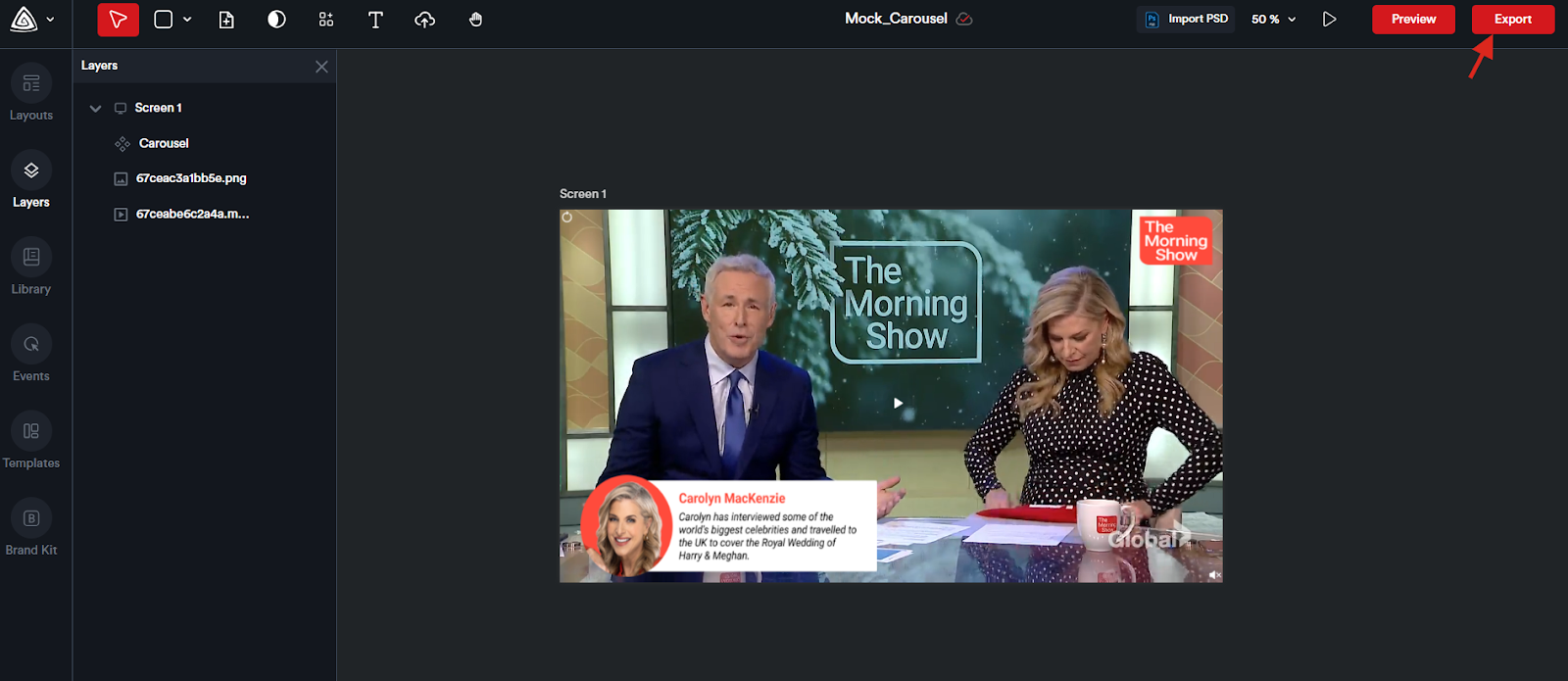
Ad creation in Adctv is done using a drag-and-drop ad builder. After selecting the desired canvas size, the user is taken to the builder interface where they can choose from a variety of components to start building their ad.
Once the ad is complete, clicking the Export button generates the corresponding ad tag. This action opens the Tag Export modal, which provides several options for copying the tag.
Alternative Ways to Access and Copy the Ad Tag
From the Campaign Card
Option 1:
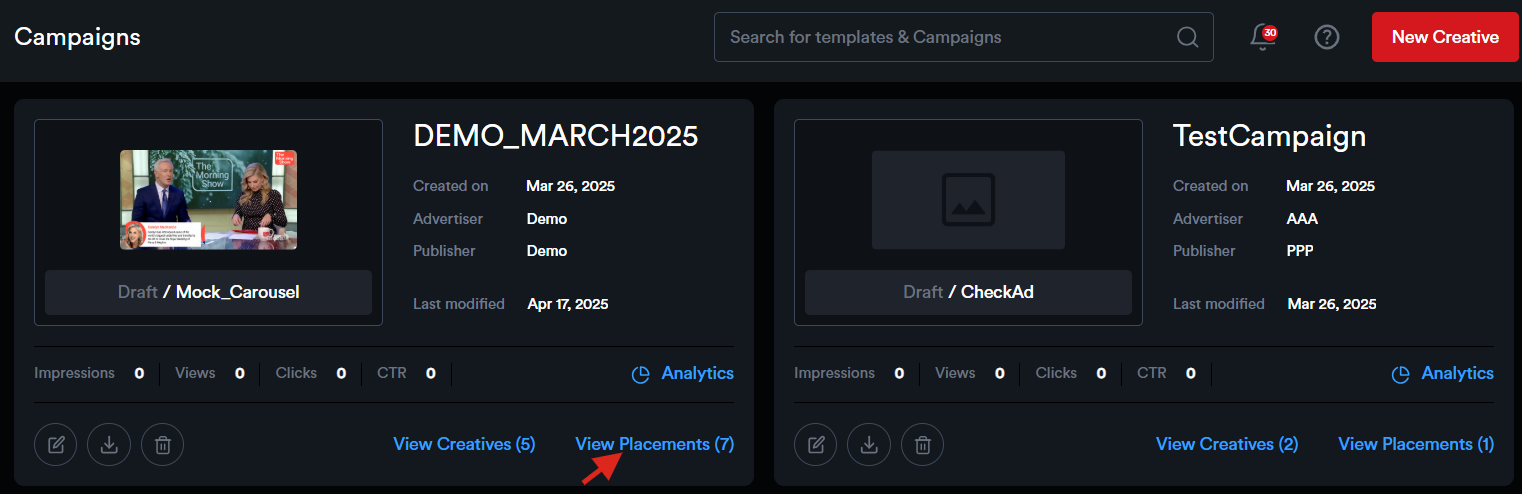
On the campaign card, click the "View Placements" link.
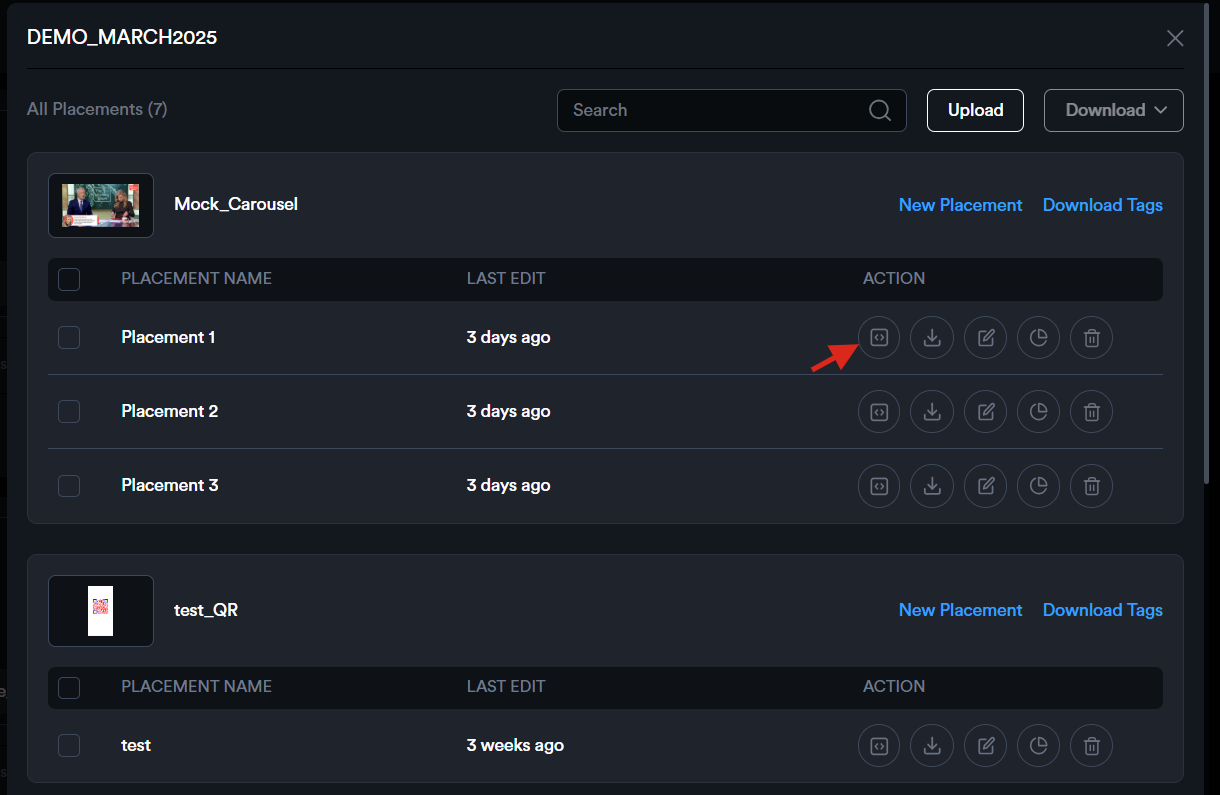
Click the Tag Export icon next to the desired placement to open the Tag Export modal.
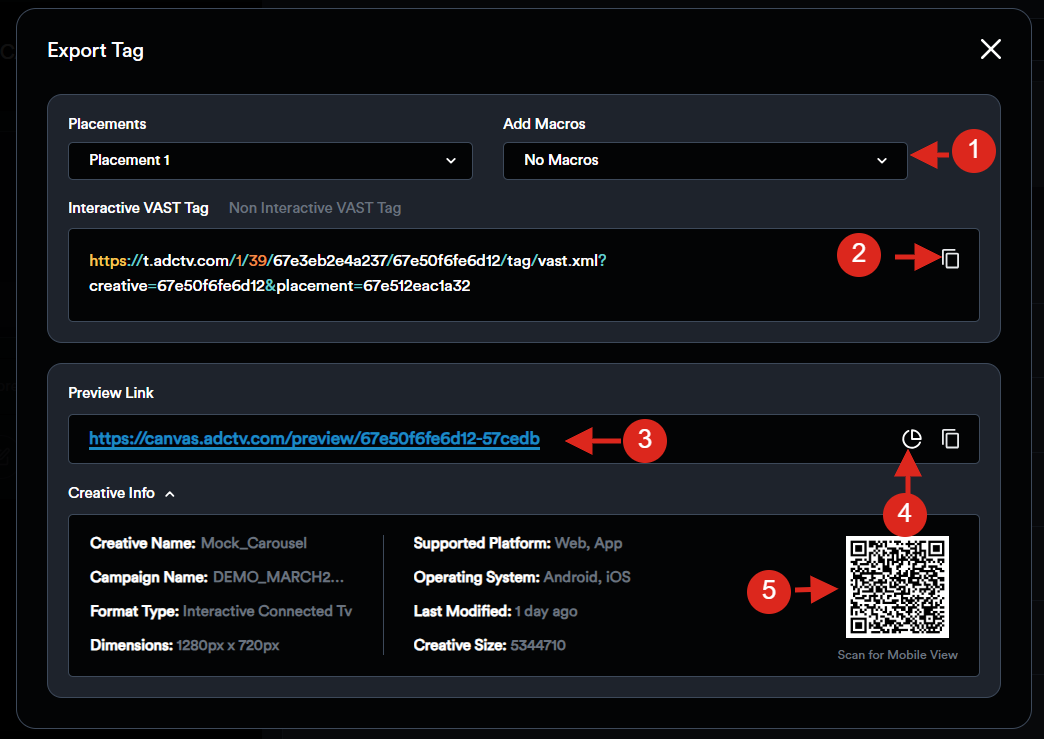
- From the drop-down menu ‘Add Macro’, select your Media Partner—this will automatically insert the appropriate macro into the ad tag.
- Click the 'Copy' icon to copy the tag.
- The modal also includes a shareable preview link.
- Clicking the 'Analytics' icon will direct you to the Placement Analytics page.
- Additionally, creative details are provided along with a QR code that allows you to preview the ad on a mobile device.
In case you do not see the Macro of your preferred media partner in the list, please contact us and we will get it added within 24 hours.
Option 2:
On the campaign card, click "View Creatives" to go to the creative listing page.
Switch to the Placements tab to view all placements for that campaign.
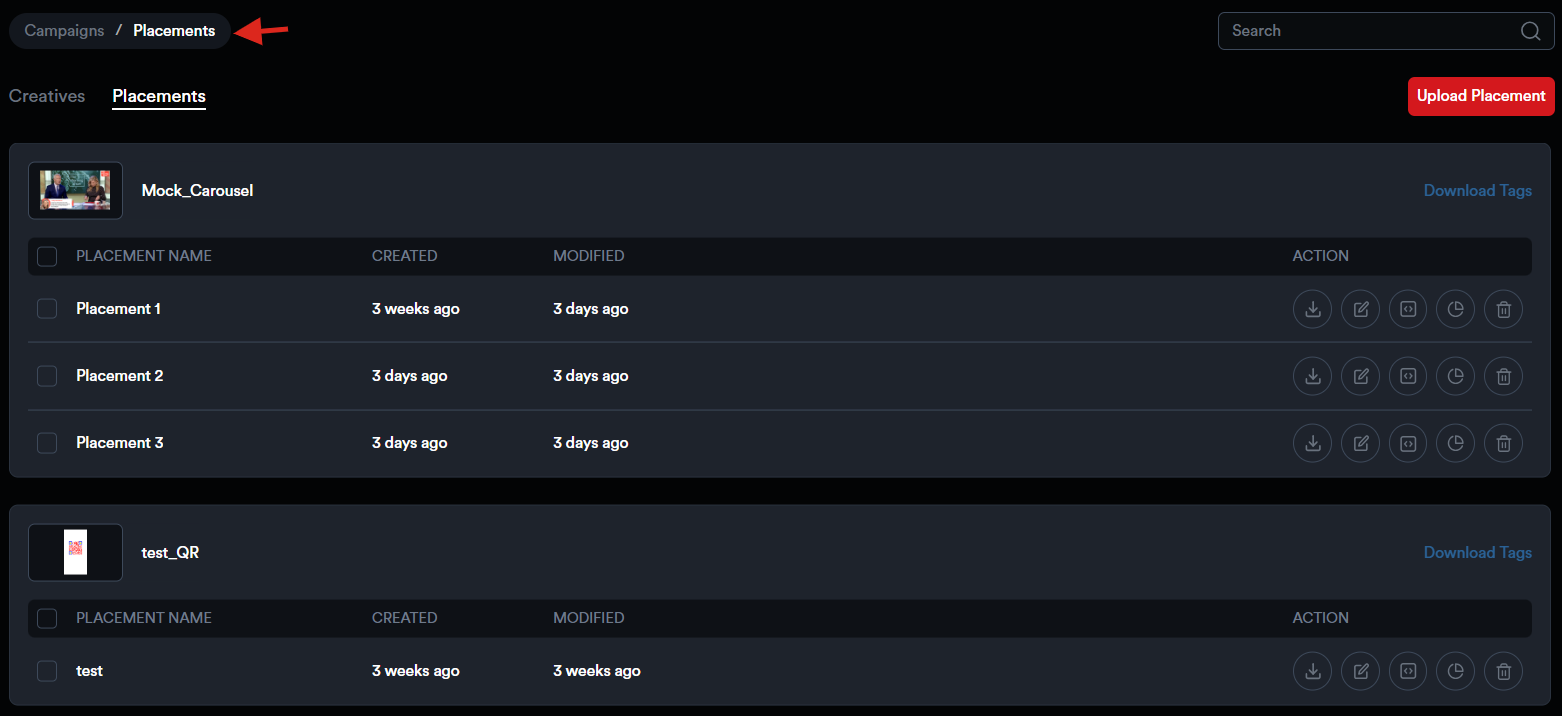
Click the Tag Export icon next to the desired placement to open the modal and copy the tag.
From the Creative Card
On the creative card, click "View Placements".
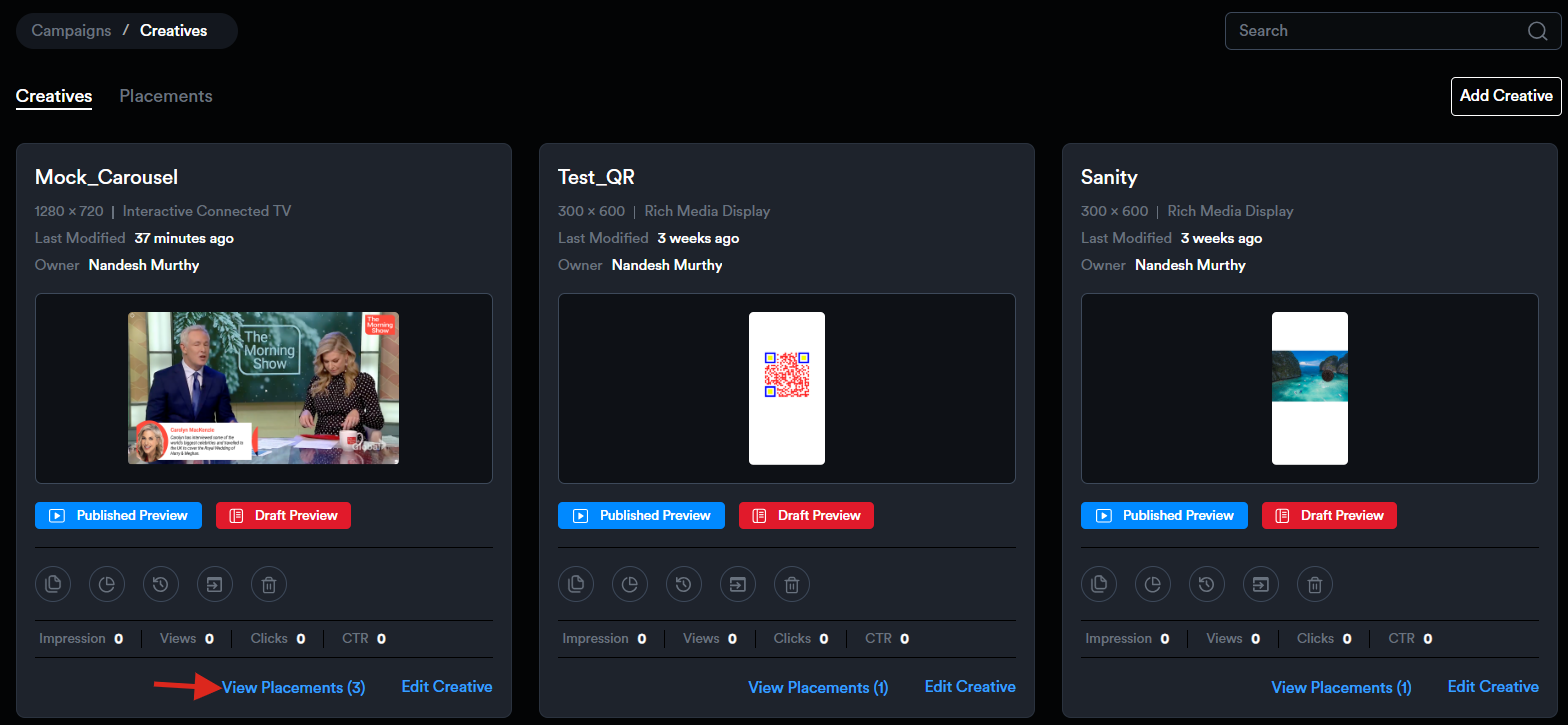
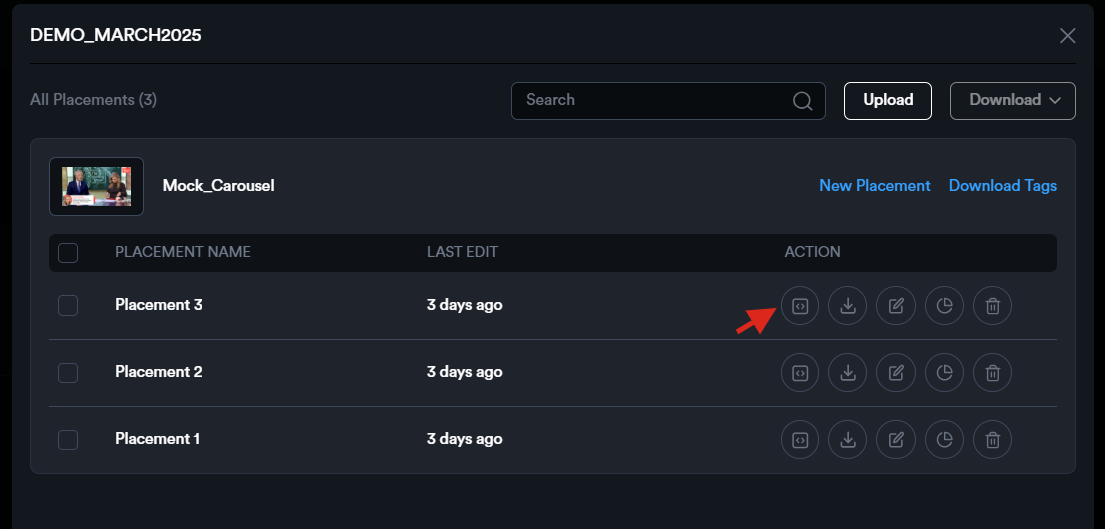
Click the Tag Export icon next to the required placement to open the modal and copy the tag.
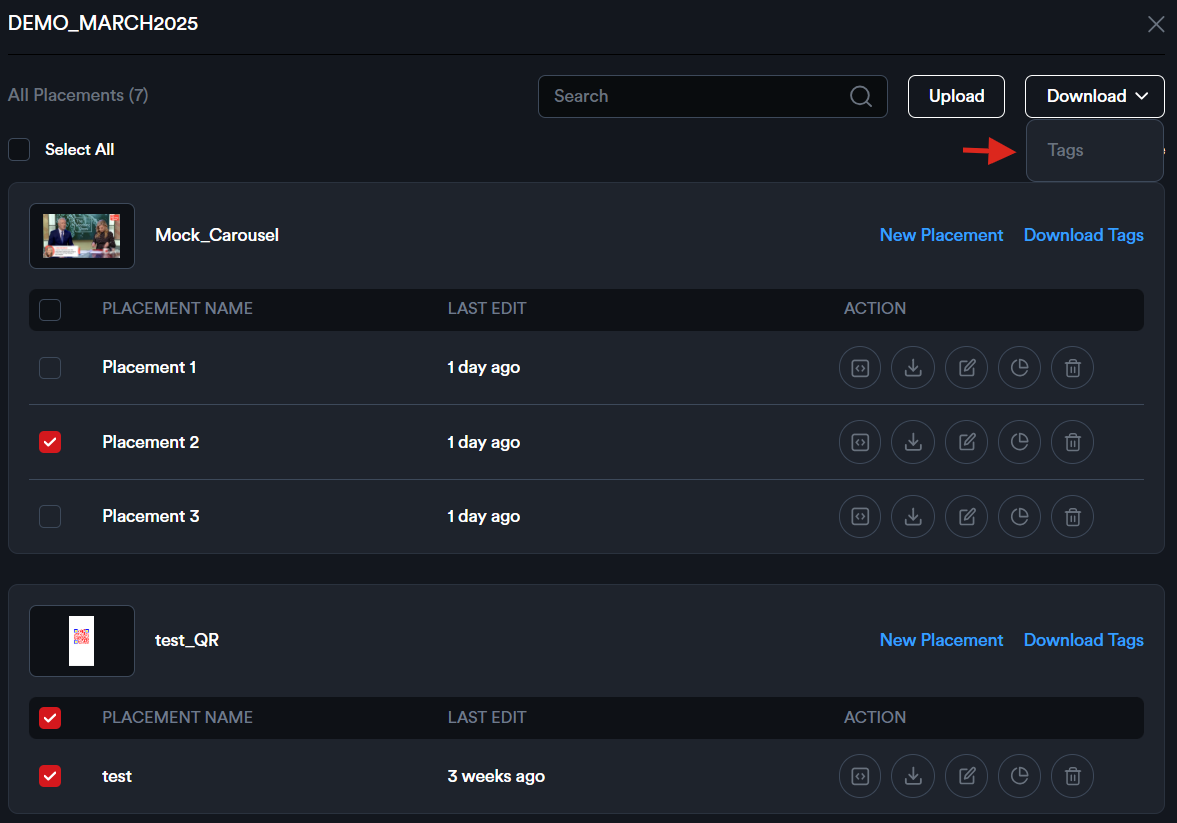
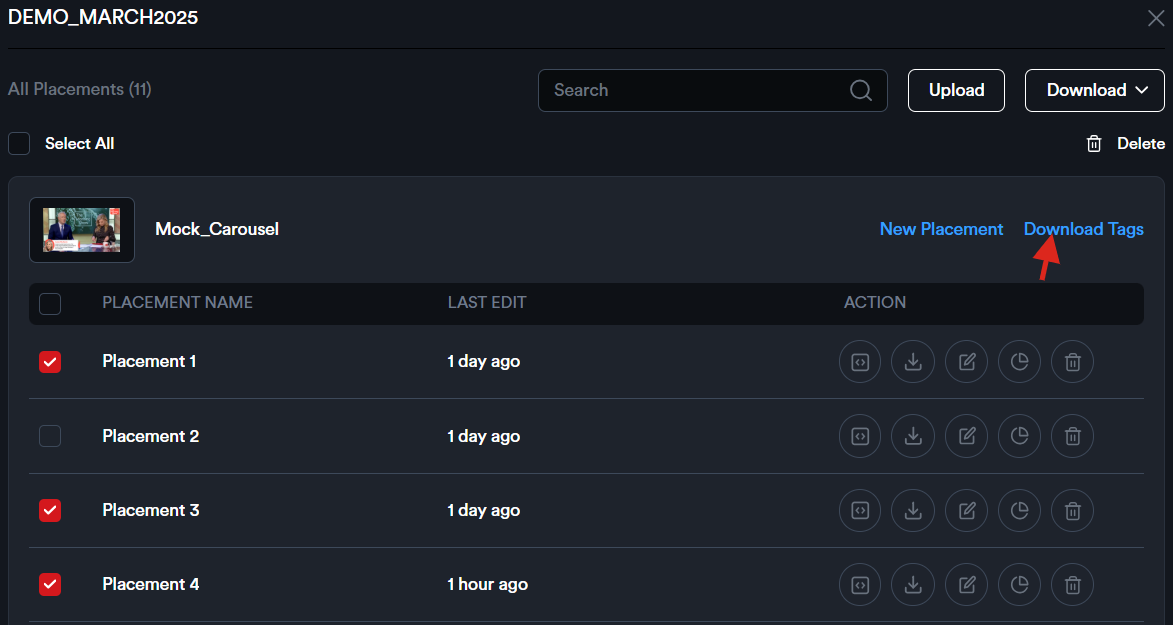
Next, choose the media partner and click 'Download'.
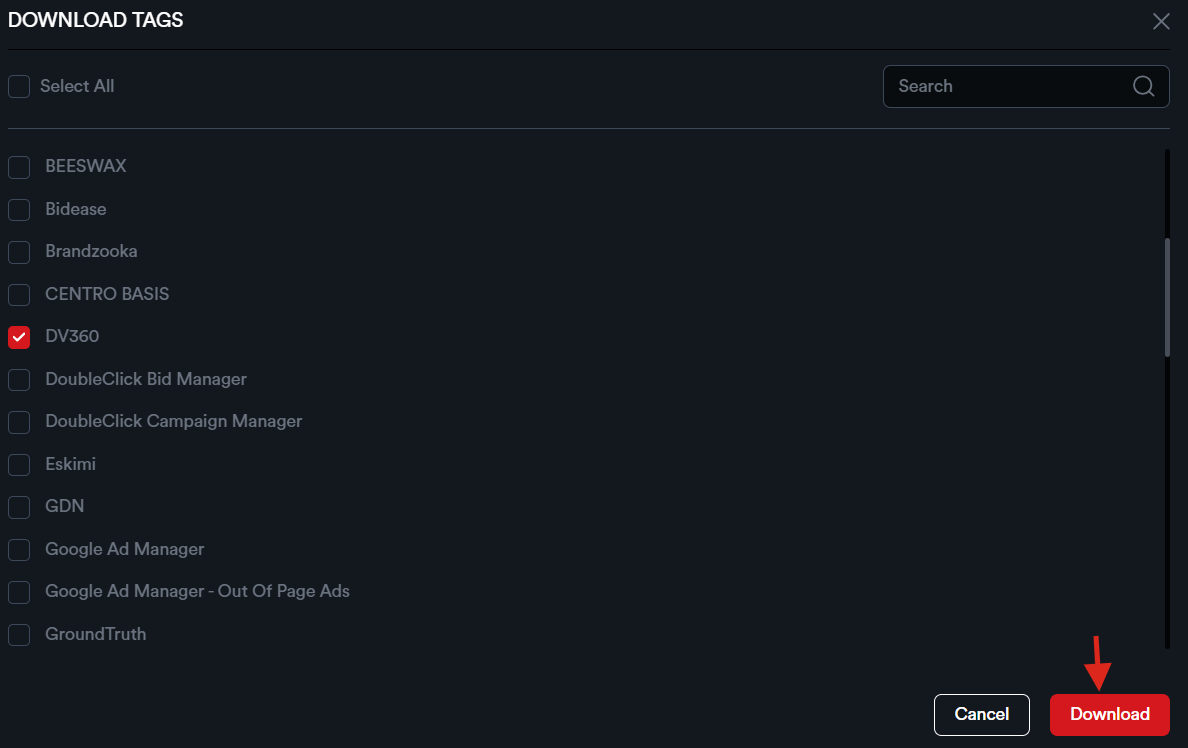
An Excel sheet containing the tags for the selected placements will be downloaded.