
Variables From Tags to_Custom_Codes
This document explains how to define variables inside INS tags and VAST tags, and how these variables are accessed inside your custom methods.
It also includes syntax, examples, naming conventions, usage flow, and best practices.
1. Overview
Variables allow you to pass dynamic values from the ad tag (INS or VAST) directly into your custom code logic.
You can control creative behavior such as:
- Colors
- Text
- URLs
- Durations
- Images & assets
- Screen properties
- Widget-level properties
This helps make creatives dynamic without re-uploading or editing visuals.
2. Variables in INS Tags
data-var-{name}="{value}"
Rules
- Replace {name} with your variable name
- Replace {value} with your desired value
- Use lowercase, hyphen-friendly variable names
- Add unlimited variables
- All variables become available in your custom code
<ins id="adctv"
     class="adctv-ads"
     data-tenant="1"
     data-cdn="https://ads.adctv.com/"
     data-user="54"
     data-campaign="69284d2b2282b"
     data-placement="69313f977d871"
     data-creative="69313829e374f"
     data-height="600"
     data-width="300"
     data-responsive="false"
     data-adtype="generic_ad"
     data-env="false"
     data-var-img="https://ads.adctv.com/assets/1/3b/6931551b16f3b.png"
     data-var-bgcolor="yellow">
</ins>

<script src="https://ads.adctv.com/scripts/src/v2/tag.ins/tag.ins.js"></script>
How variables appear inside your custom method
variables.bgcolor
variables.img
3. Variables in VAST Tags
&var-{name}={value}
Example — VAST URL
https://example.com/vast.xml?creative=123&placement=45 &var-theme=dark &var-autoplay=true &var-volume=0.5
Inside your custom logic
variables.theme       // "dark"
variables.autoplay    // "true"
variables.volume      // "0.5"
4. Accessing Variables Inside Custom Methods
Below are the steps required to apply tag variables inside your creative.
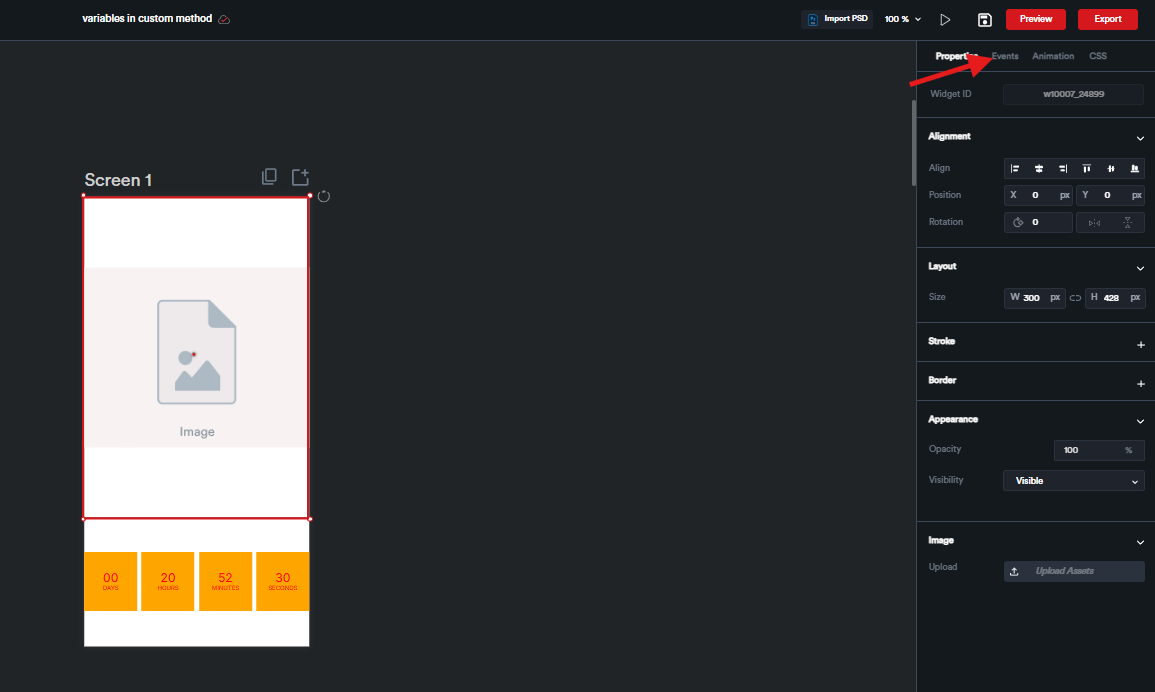
4.1 Select “Events” Tab
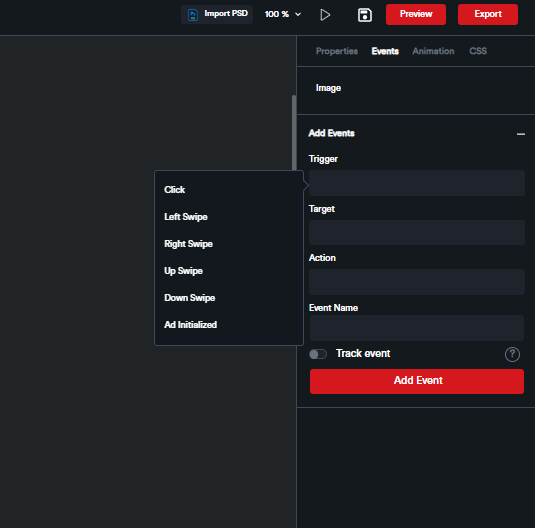
4.2 Select a Trigger from the List
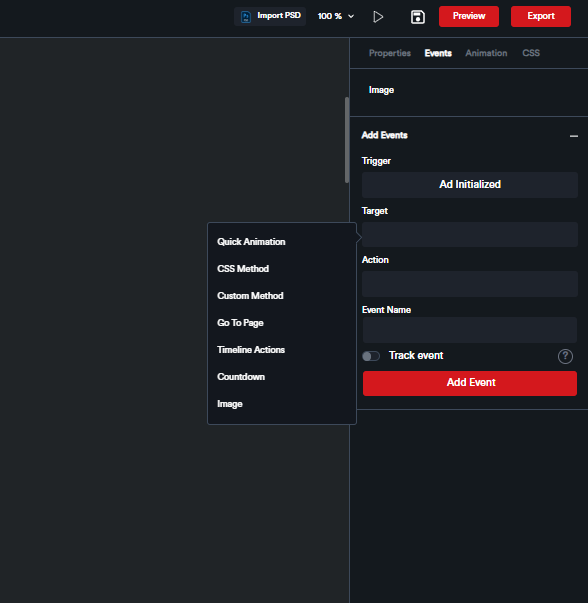
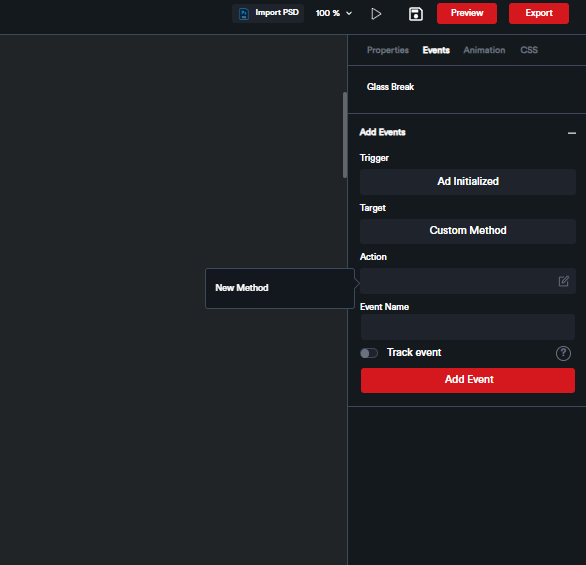
4.4 Create a New Method
You can now write your own custom code.
4.5 Writing Custom Code (Example)
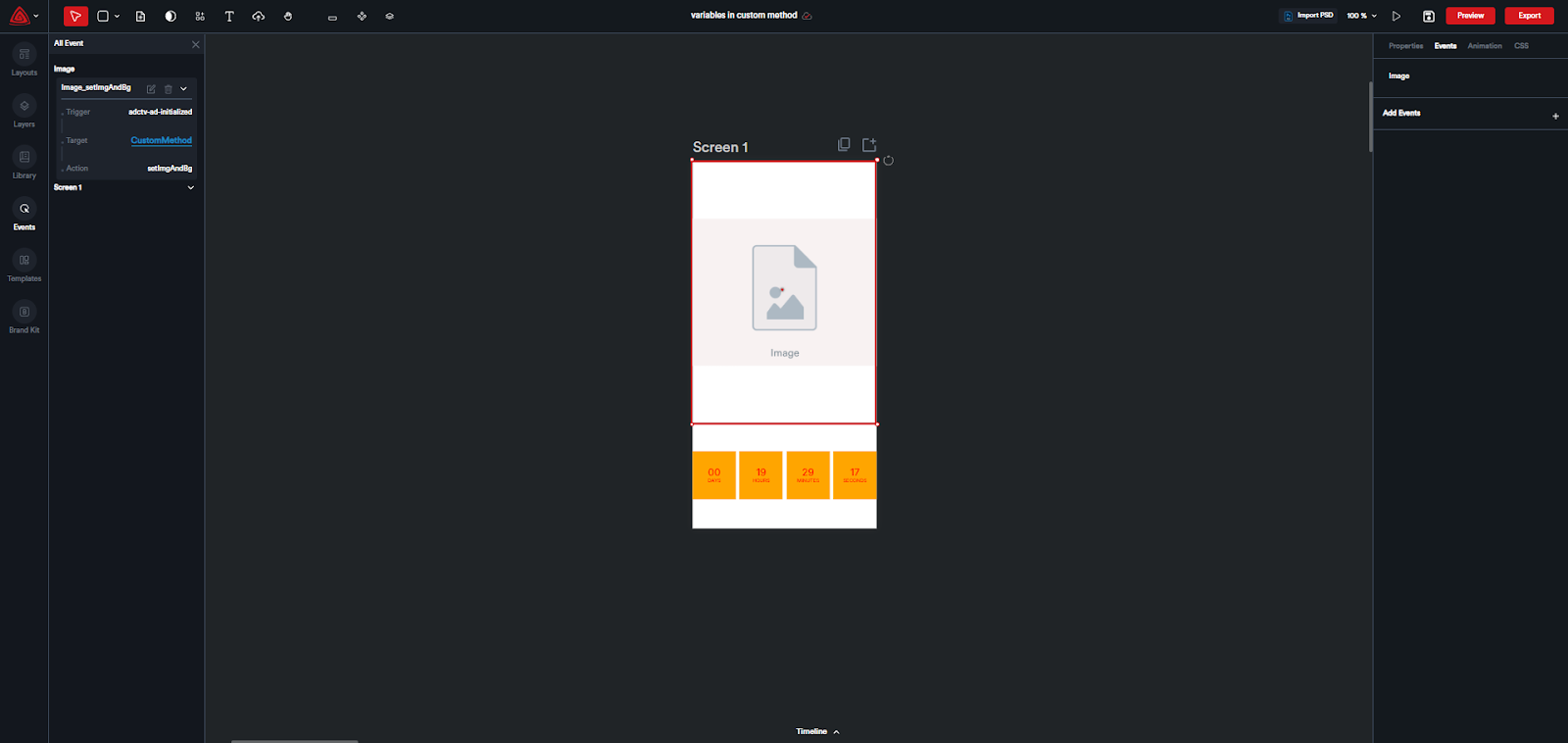
In this example, the creative uses two components:
Countdown Timer
Image Component
The image component has no uploaded asset.
Instead, we inject the image dynamically using a variable from the tag.
We use:
- img → for image URL
- bgcolor → for screen background color
Accessing variables
variables.img
variables.bgcolor
Important:
To apply variables to a specific component, select the element by its ID first.The widget and screen IDs will visible on custom method codeblocks
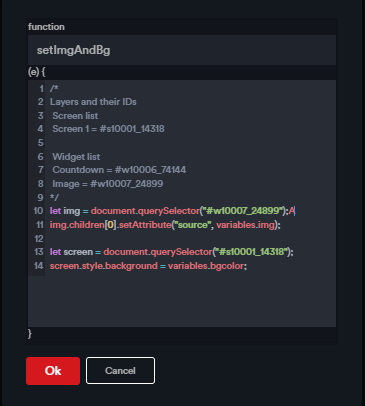
Sample Custom Code
/*
Layers and their IDs
 Screen list
 Screen 1 = #s10001_14318

 Widget list
 Countdown = #w10006_74144
 Image = #w10007_24899
*/
let img = document.querySelector("#w10007_24899");
img.children[0].setAttribute("source", variables.img);

let screen = document.querySelector("#s10001_14318");
screen.style.background = variables.bgcolor;
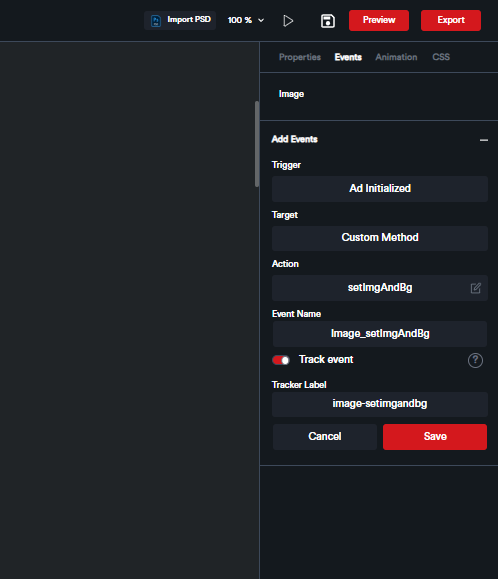
4.6 Save the Custom Event
4.7 Export the Creative
5. Updating Variables in the Tag
Use the exported INS/VAST tag on your domain and append the variables you want to control.
These variables will be available inside your custom code through:
variables.{name}
// or
variables["{name}"]
Example INS Tag with Variables
<ins id="adctv"
     class="adctv-ads"
     data-tenant="1"
     data-cdn="https://ads.adctv.com/"
     data-user="54"
     data-campaign="69284d2b2282b"
     data-placement="69313f977d871"
     data-creative="69313829e374f"
     data-height="600"
     data-width="300"
     data-responsive="false"
     data-adtype="generic_ad"
     data-env="false"
     data-var-img="https://ads.adctv.com/assets/1/3b/6931551b16f3b.png"
     data-var-bgcolor="yellow">
</ins>
<script src="https://ads.adctv.com/scripts/src/v2/tag.ins/tag.ins.js"></script>
Variables used
- data-var-img
- data-var-bgcolor
Preview
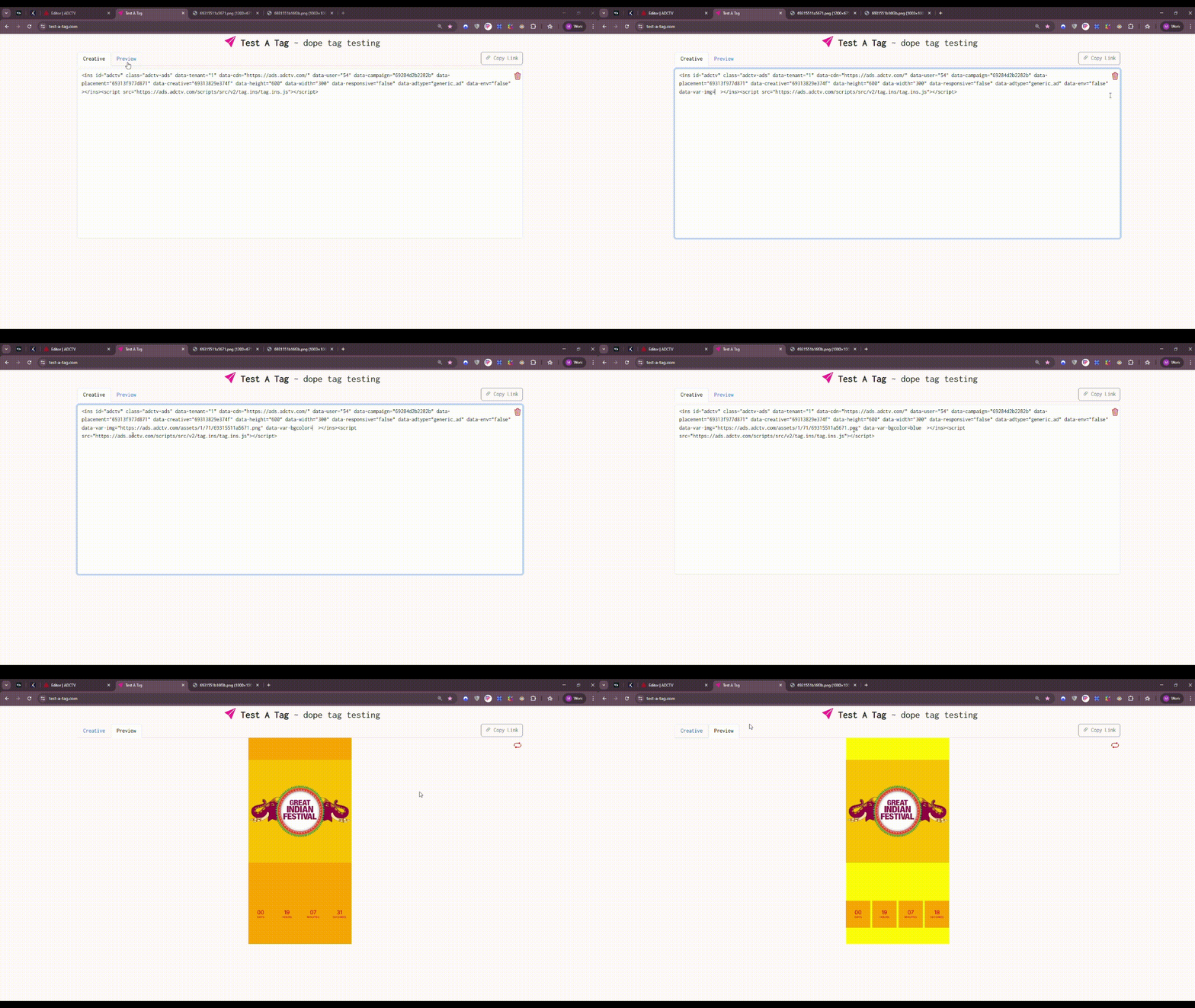
6. Usage
Variables make creatives dynamic and reusable without modifying the creative.
By simply changing the variables inside the tag, you can deliver different versions instantly.
This eliminates the need to:
- Create multiple creatives
- Upload separate assets
- Manage separate placements
- Duplicate analytics
Analytics remain centralized in a single placement.
7. What Users Can Do With This
7.1 Update Widget-Specific Properties
Change component properties using variables:
- Text
- Colors
- Images
- Sizes
- Timings
- Visibility
- URLs
7.2 Create Region-Specific or Partner-Specific Content
Output variations for different:
- Headlines
- Offers
- CTAs
- Images
Perfect for large-scale distribution.
7.3 Enable Real-Time Content Updates
Marketing teams can change content instantly by editing tag variables.
- No rebuild
- No re-upload
- No developer needed
7.4 Reduce Operational Overhead
One creative → unlimited variations
Cuts down asset creation time and maintenance.
7.5 Support Dynamic Personalization
Variables allow personalization based on:
- Domain
- Audience segment
- Publisher
- Geo
- Campaign logic
Everything becomes adjustable from the tag.