Building Ads from Adctv Templates
Adctv offers a collection of built-in templates for both Rich Media Display and Connected TV (CTV) ad formats. If starting from a blank canvas feels complex or time-consuming, you can simply select a pre-designed template that suits your creative needs, customize it with your own assets, and quickly build your ad with minimal effort.
Even when using a template, you have full creative flexibility. You can:
- Move and reposition elements such as logos
- Rearrange components to match your desired layout
- Add or remove elements as needed
- Incorporate animations for enhanced visual impact
Selecting a Template
Within the Template module, browse and select your preferred template.
Screenshot Pending
Templates are organized by Ad Type, and you can use filters to narrow your options by:
- Ad Size
- Ad Category (e.g., responsive, expandable)
- Components Used
Screenshot Pending
Click on any template to view its details in a pop-up. To preview the template, simply click ‘Preview Template’.
Screenshot Pending
Once you've found the right template, click ‘Use This Template’. You’ll be prompted to enter your creative details in the New Creative pop-up. After filling in the necessary information, click ‘Create’ to get started with customizing your ad using the Drag-and-Drop Builder.
When your creative is complete, click ‘Export’ to generate the final ad tag.
Saving a Creative as a Template
You have two options to save a creative as a template:
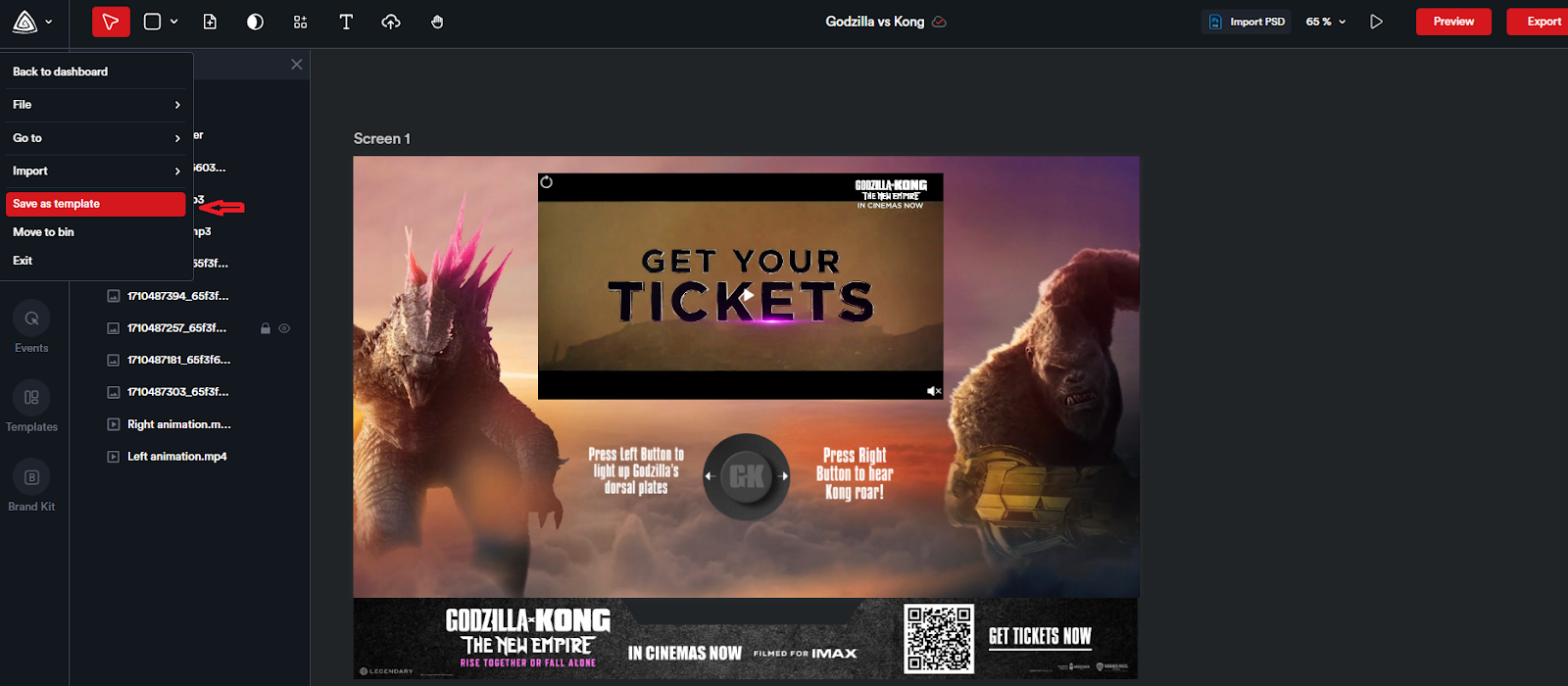
1. From the Editor Page:
While on the editor page of your creative, open the navigation menu and select ‘Save as Template’. A pop-up will appear prompting you to enter a name for your template. Click ‘Create’ to save it. All templates you create will be stored under Templates > My Templates, where you can view or customize them as needed.
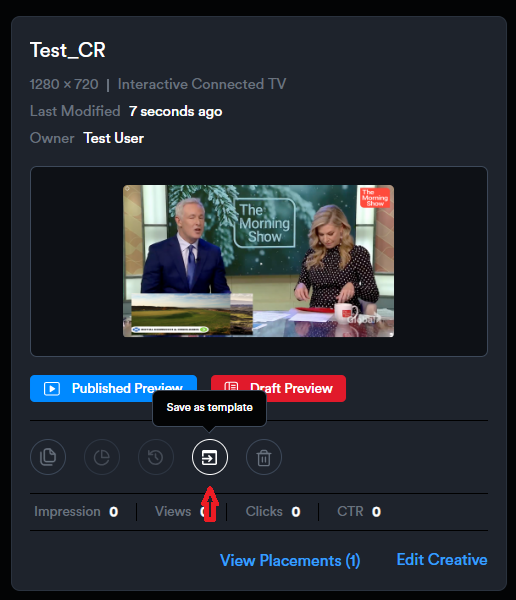
2. From the Creative Card
You can also save a creative as a template without opening the editor. Open your campaign and locate the creative you want to convert. On the creative card, click the ‘Save as Template’ icon. A pop-up will appear, allowing you to name the template. Click ‘Create’ to save it.
Adding a Template to Your Creative
Within the builder, you have the option to add a template to your current creative. On the left-hand side, you’ll find the Templates module.
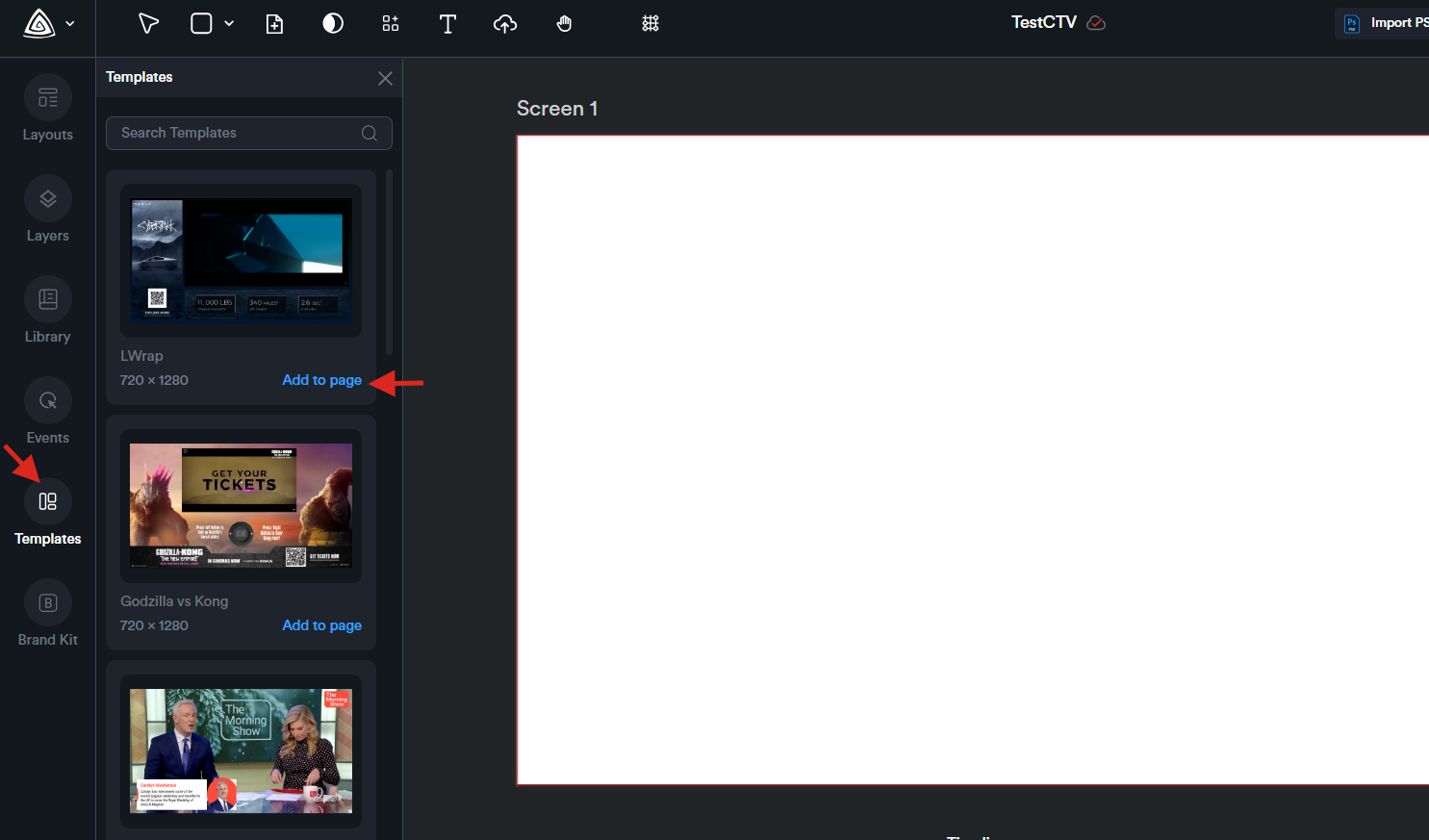
This module displays templates that match your selected canvas size, making it easy to choose one that fits your layout.
Simply browse through the available templates and click ‘Add to Page’ to instantly insert it into your creative for further customization.