
Creative Management
Adding a New Creative to a Campaign
To add a new creative to a campaign, click the "Add Creative" button.
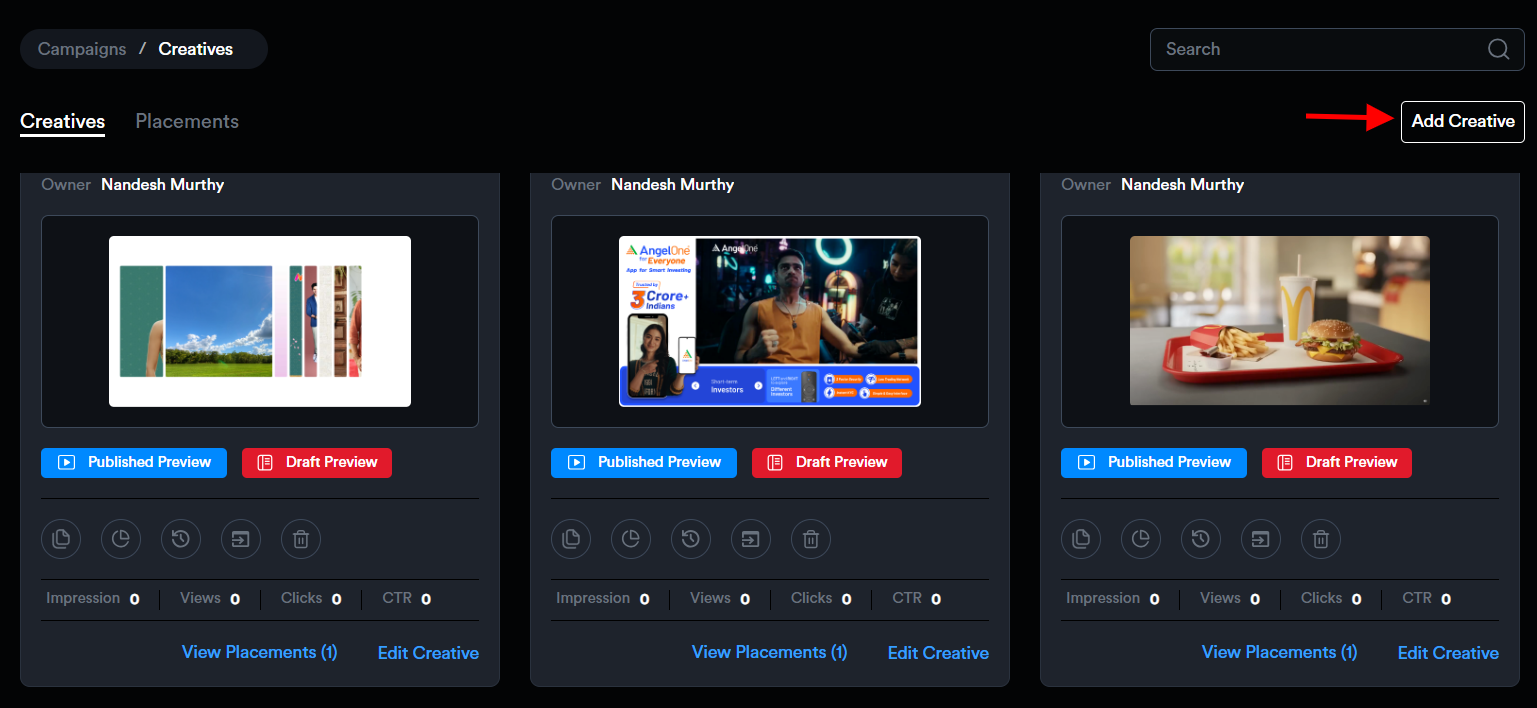
This will open the New Creative modal, where you can enter the required creative details. Campaign information will be auto-filled.
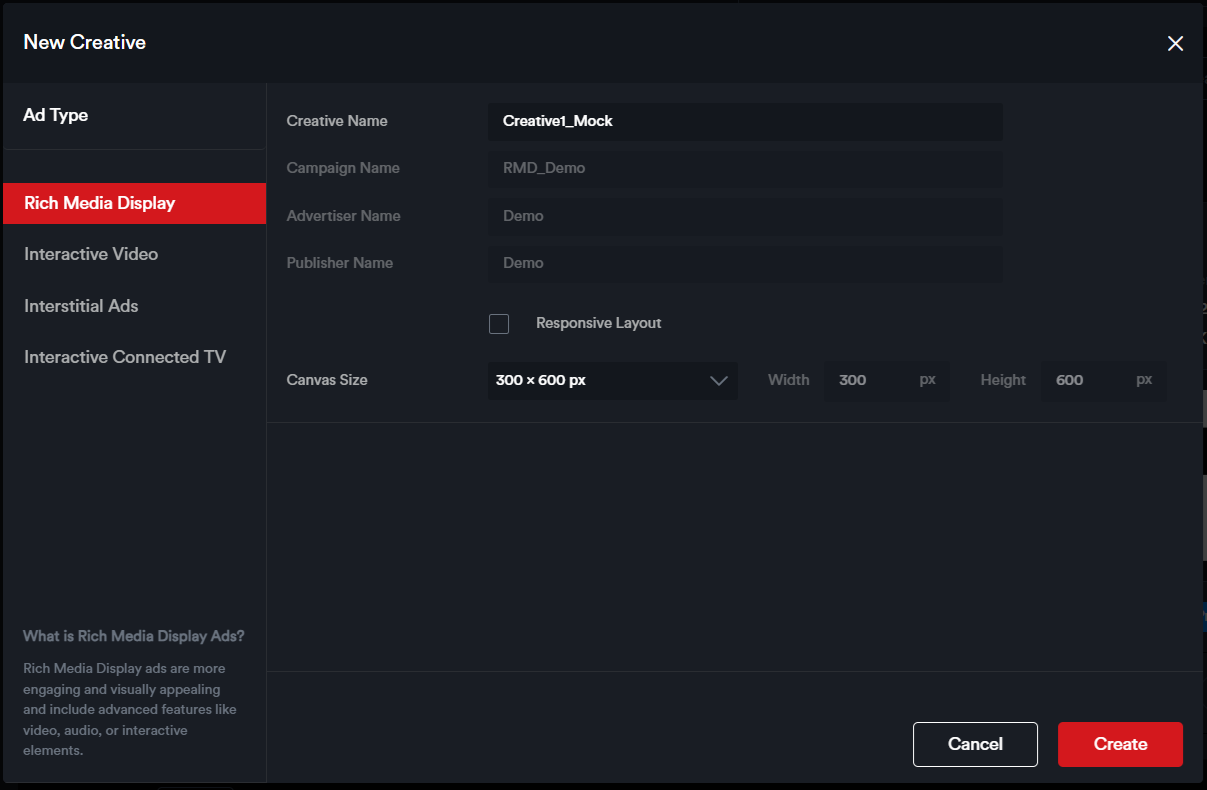
- Select the Ad Type – Choose from the available options: Rich Media Display, Interactive Video, Interstitial, or Interactive Connected TV, depending on the format you wish to build.
- Enter a Creative Name – Provide a name to help identify your creative.
- Enable Responsive Layout (optional) – Check this box if you want the creative to be built with a responsive layout.
- Choose Canvas Size – Select from predefined ad dimensions or enter custom dimensions as needed.
Once all necessary details are filled out, click the "Create" button. You will then be redirected to the Drag and Drop Ad Builder, where you can begin building your ad.
Viewing and Managing Creatives within a Campaign
Once added, creatives are displayed as individual cards within the campaign view.
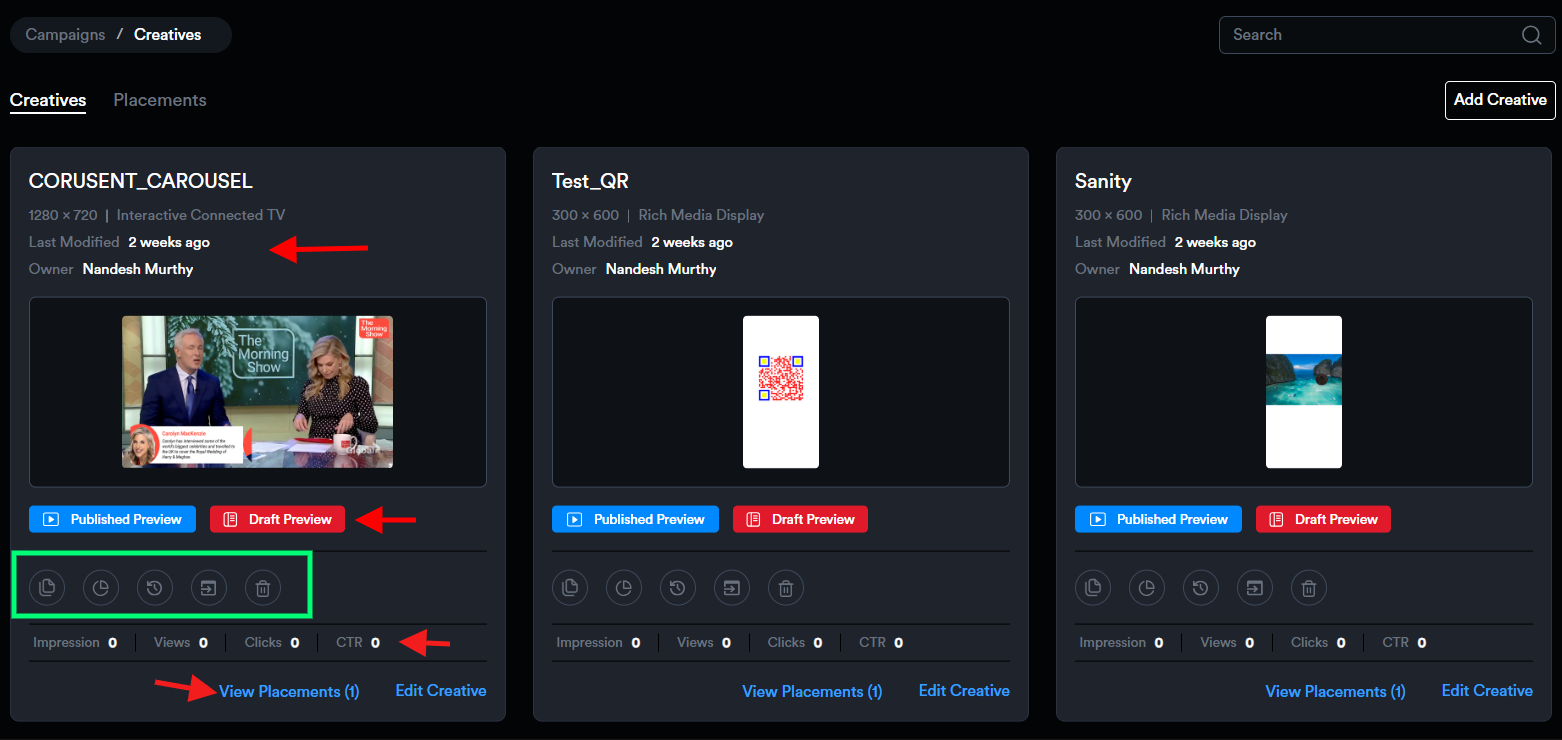
Each creative card provides key details, including:
- Last Modified Date
- Creative Owner
- Performance Metrics: Lifetime impressions, views, clicks, and click-through rate (CTR)
Users have access to the following actions on each creative card:
- Preview Draft and Preview Published versions
- Edit Creative
- Duplicate Creative
- View Analytics
- View Activity
- Save as Template
- Delete Creative
Additionally, each card includes a button to navigate directly to the Placements Listing page associated with that creative.